Want to sell your old iPhone and get a new one? Are you asking yourself, “How Do I Wipe My iPhone Before Selling It?” Find the simple answer to your question below!
When you use your iPhone or iPad regularly, you create and import countless data into the device. Some many apps and features store your data securely. You allow this for convenience.
Now, if you’re trading in your old iPhone or iPad or selling these to third parties for some extra cash, then you’re not alone. However, it’s smart to wipe your iPhone before selling it to prevent your data from falling into the wrong hands. The same is true for iPads.
But how do you erase your Apple device appropriately so that you don’t delete anything from your iCloud and the third party can also not access your stuff? Find out below!
Why do You Need to Wipe iPhone Before Selling or Trade-In?
You must clear iPhone before selling for the following reasons:
- Remove your iCloud account from an Apple device that you no longer own.
- Allow the buyer to set up their iCloud account without any conflict.
- Restrict the buyer from modifying your iCloud account and its data.
- Avoid any legal issues later on. For example, the buyer filing a lawsuit against you alleging location tracking using the Find My app.
- Prevent the old iPhone or iPad from functioning as a trusted device for your iCloud account recovery.
How Do I Wipe My iPhone Before Selling It?
Find below the methods and steps to clear iPhone before selling:
Backup Device Data to iCloud
Before erasing iPhone for trade-in or selling to a third party, ensure you’ve backed up the device to its latest state. So that, you can get most of your existing iPhone or iPad data to the new iPhone/iPad. Follow these steps:
- Go to Settings and tap on your name.
- Select iCloud and then tap iCloud Backup.

- Tap Back Up Now.
Setup Authenticator Apps to the New Mobile Phone or Tablet
If you’re using any two-factor authentication (2FA) apps like Google Authenticator, ensure you set up those apps on your new iPad or iPhone.
Deregister iMessage
For iPhone and SIM-enabled iPad devices, you may want to disable iMessage on the device you’re selling, trading in, or giving away. Here’s how:
- Disable Wi-Fi and enable cellular data.
- Open the Settings app.
- Look for the Messages option on the left-side panel. Tap on it.
- Toggle off the iMessage feature.
Unsubscribe Apple Care
It’s a good time to cancel the Apple Care plan if you’ve paid for it upfront. You may contact the Apple Support team to end the Apple Care plan on the device that you’re selling. You’ll get a pro-rated refund for the remaining days.
Sign Out Your iCloud Account
Now, you need to remove your Apple iCloud account from your device by following these steps:
- Go to Settings and tap your name.
- You should see a Sign Out button on the right side of the Settings page.

- Tap Sign Out.

- Enter the Apple ID Password to confirm.
Factory Reset the iPhone/iPad
Finally, you just need to factory reset to wipe iPhone or iPad before selling or trade-in. Here’s how you can do a factory reset:
- Open Settings and then choose General from the left-side panel.

- Now, tap Erase All Content and Settings on the right-side menu.
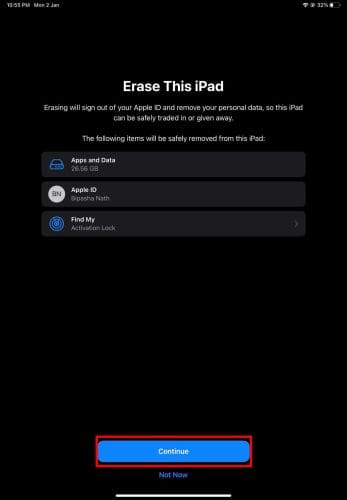
- On the Erase This iPhone/iPad screen, tap Continue.
- Enter the passcode to confirm the factory reset.
How Do I Wipe My iPhone Before Selling It — Alternatives
If you’re unable to do a factory reset from the device, you may try these alternatives:
Erase iPhone/iPad From Find My App
Visit Find My on any smartphone, tablet, or computer using a web browser. Log in using your Apple iCloud account. Now follow these steps on Find My:
- Click All Devices and then select the iPhone or iPad you’re selling.

- Select Erase iPhone/iPad to wipe the device.
Wipe Clean iPhone/iPad Using a PC
- Go to Settings, tap General, and then select Shut Down.
- Once the device shuts down, press and hold the side button and connect the iPhone to a PC containing the Find My app (Mac) or iTunes (Windows).
- Press the side button until you see the Recovery Mode on the smartphone.
- On the computer, you should now see a pop-up showing Update, Restore, and Cancel.
- Tap Restore.
The buttons you must press to put the iPhone into recovery mode change from model to model. For example, on iPhone 7 and 7 Plus, you need to press and hold the volume down button after you shut down the device and then connect to a PC.
Erase iPhone/iPad From the Lock Screen
From iOS 15.2 and iPadOS 15.2 and newer operating systems, you can now erase the device without any PC.

Simply try entering an incorrect passcode multiple times until you see the Erase iPhone option on the lock screen.

Tap Erase iPhone and then authenticate the action using your Apple ID password. Ensure the device has an internet connection and is signed in to your Apple ID.
Conclusion
So far, the article has explained how to wipe iPhone before selling or how to wipe iPhone before trade-in. You can now perform the steps on your iPhone or iPad. Also, leave comments below if you face any issues while performing the steps.
According to Apple, if you’re participating in an in-store trade-in program, then you don’t need to wipe iPhone before trade-in yourself. Just visit the Apple store and a specialist will help you with the complete process.
You might also want to learn to unlock an iPhone without a password or computer.