Skip to content
LogoTechnipages
technipages logo
  • Topics
        • Android
        • Browsers
        • Gaming
        • Hardware
        • Internet
        • iPhone
        • Linux
        • macOS
        • Office
        • Reviews
        • Software
        • Windows
        • Definitions
  • Product Reviews
  • Downloads
  • About

How Do I Check and Export Call History From MS Teams?

Madalina DinitaJanuary 17, 2022 Comments (0)
check-export-call-history-teams

Microsoft Teams is an excellent video meeting and collaboration tool that’s been of immense help in this pandemic-haunted world. Unfortunately, some Teams features are incomplete or fail to provide users with all the options they need. For example, the Call History feature is a bit limited. You can only access 30 days’ worth of direct call data. As a user, you can’t review call records that are older than 30 days.

How to Check Call History in Microsoft Teams

To review your Teams call history, click on the Calls icon on the left side of the app. Then, select History. Your call log should be visible on the right-hand pane.

If you’re an admin, open the Teams Admin Center, and click on Users. Select the account you’re interested in, and then click on Call History.

teams-admin-center-call-history

Keep in mind that the call history feature is available only for Microsoft 365 users that also have a Business Voice or Enterprise Voice license. You can only view call history data, you can’t delete the entries.

How to Export Call History From Teams

Now that we’ve seen how you can quickly check call history data, let’s explore how you can export it. This is where things get a bit complicated.

To review call history data older than one month, contact your admin. They can run Usage reports or use Office 365 eDiscovery to retrieve and export call history data.

If you’re an admin, open the Teams Admin Center, and go to Analytics & reports. Then select Usage reports and run the call reports for the last three months.
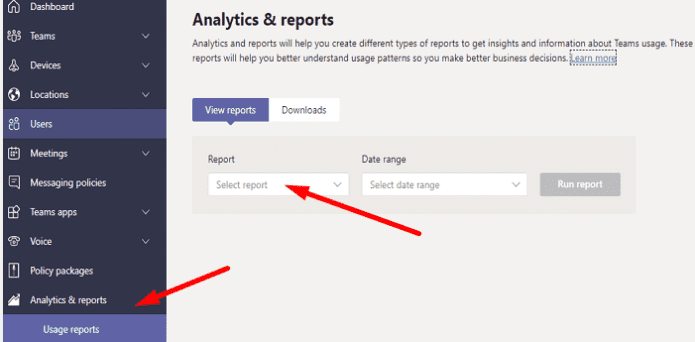
microsoft-teams-admin-center-usage-reports

To use Office 365 eDiscovery, you need to first configure the feature. You can then retrieve and export call history data. You can use this tool to retrieve data from chats and meetings, as well. For more information, see:

  • Set up Microsoft 365 Advanced eDiscovery
  • Export documents from a review set in Advanced eDiscovery

Alternatively, you can check out some of the Teams call history scripts available on GitHub and see if they suit your needs.

Conclusion

By default, Microsoft Teams lets you review 30 days’ worth of call data. If you want to access call history data that’s older than 30 days, contact your IT admin. They can run Usage reports or use Office 365 eDiscovery to export call history data.

How often do you access, review, and export call history data from Microsoft Teams? Let us know in the comments below.

Categories: Windows

Author Madalina Dinita

You Might Also Like

  • Single Click Windows Header

    How to Enable or Disable Single-Clicking Feature in Windows 11

    Mitch BartlettWindows
  • caps lock on windows 10 disable notification

    Windows 10: Disable Caps Lock Notifications

    Madalina DinitaWindows
  • Win 11 Two Finger Scroll Header

    How to Fix Two-Finger Scroll Not Working Issue on Windows 11

    Susan SheffieldWindows
  • How to Keep Task Manager Always on Top on Windows 11

    Judy SanhzWindows

Leave a Reply

Your email address will not be published. Required fields are marked *

This site uses Akismet to reduce spam. Learn how your comment data is processed.

300x600
Turning on Triple Touch Zoom on Android

Turning on Triple Touch Zoom on Android

How to Connect Outlook 2023 to Gmail

How to Connect Outlook 2023 to Gmail

Netflix: Change Password

Netflix: Change Password

Everything You Need to Know About WhatsApp Delete for Me

Step-by-Step Guide: How to Use WhatsApp on Your Computer

Android: Enable or Disable Background Data

Android: Enable or Disable Background Data

300x250
profile pic

The Experts Behind Technipages

My name is Mitch Bartlett. I've been working in technology for over 20 years in a wide range of tech jobs from Tech Support to Software Testing. I started this site as a technical guide for myself and it has grown into what I hope is a useful reference for all.

Learn More

300x250 2
technipages logo white
linkedin icon

Technipages is part of Guiding Tech Media, a leading digital media publisher focused on helping people figure out technology. Visit guidingtechmedia.com to learn more about our mission and team.

© 2026 Guiding Tech Media All Rights Reserved

  • About Us
  • Contact
  • Legal & Privacy

© 2026 Guiding Tech Media All Rights Reserved

Information from your device can be used to personalize your ad experience.
Do not sell my personal information.