
Even if you like to share some pictures with family and friends, there are always certain things you want to keep private. For example, if you don’t want anyone to see the images from Friday night’s pool party, you will definitely want to hide those.
It’s possible to hide files such as documents, videos, and pictures without having to root your phone. All you’re going to need is a third-party app and goodbye files.
Calculator – Photo Vault-Hide Photos & Videos
An app that can help you hide your files regardless of what type of phone you have is called Calculator – Photo Vault-Hide Photos and Videos.
It’s a free app that, besides hiding your files, works as a real calculator. You can try to solve all sorts of problems, and the calculator will always give you the right answer.

Once you give the app the necessary permissions, you’ll be taken to the app’s main page where you’ll see the folders to hide pictures, videos, and documents that will already be set up. If you want to create more folders, tap on the folder icon with the plus sign in the middle.

To add a file to one of these folders. Tap on the plus sign and choose your file. Once the file has been added, you can safely erase the image from your device’s gallery to avoid it being seen by the wrong person.
Even if you erase the image from the Gallery app, it’ll still appear in the Calculator app (tested it out myself).
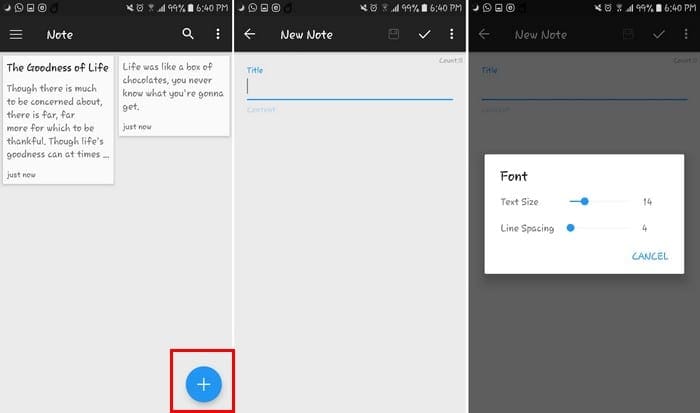
The app also allows you to create secret notes. Tap on the lines and choose the note option. To create your new note, tap on the plus sign, add a tile, and the content.
To save your note, tap on the checkmark at the top. You should now see your new note with the other sample notes.
The app has a recycling bin, just in case you ever accidentally erase anything, you always have the option of recovering it. If there are files you don’t want to delete but want to avoid unauthorized access, you can still lock it.
Tap on the three lines and tap on App Lock. You can lock third-party apps or system apps.
By going to the app’s settings, and selecting the secret camera option, you can take pictures of videos that will go into your secret vault. Make sure to hit the back button to save it to your hidden folder.
There’s a premium version. You can use extra features such as Fake Password. The app will show you content, depending on the password you enter.
If you enter the real password, you’ll see the files you’ve really saved. By entering the fake password, you’ll fake content. With premium, you can also prevent screenshots, and have the app take an intruder selfies.
Conclusion
The good thing about using a third-party app is that you can hide files regardless of the Android version you’re using. It also doesn’t matter which phone you’re using. Which files will you be hiding with this app? Let me know in the comments below.