Skip to content
LogoTechnipages
technipages logo
  • Topics
        • Android
        • Browsers
        • Gaming
        • Hardware
        • Internet
        • iPhone
        • Linux
        • macOS
        • Office
        • Reviews
        • Software
        • Windows
        • Definitions
  • Product Reviews
  • Downloads
  • About

Google Maps: How to Search by Coordinates

Madalina DinitaNovember 9, 2020 Comments (0)
google maps search by coordinates

There are different ways to search for a place on Google Maps: you can simply type the name of the place you want to go to, enter the address, or you can also use geographical coordinates.

Steps to Search by Coordinates on Google Maps

  1. Open Google Maps on your PC
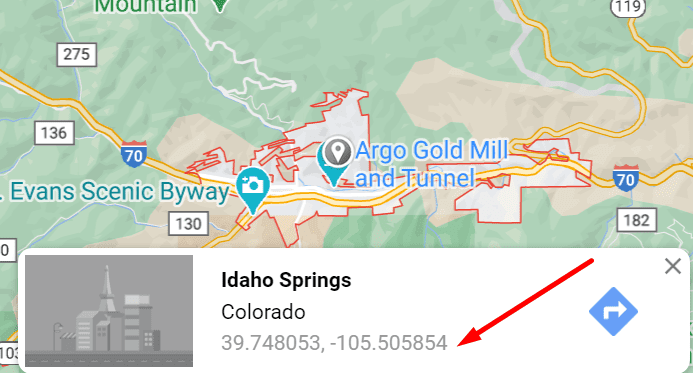
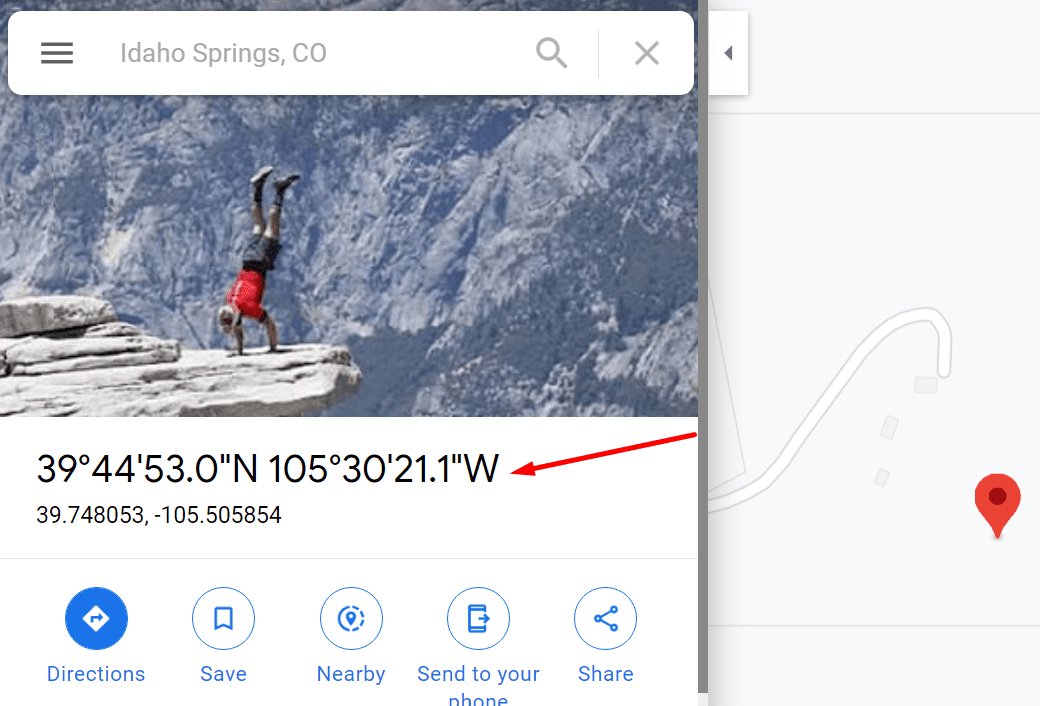
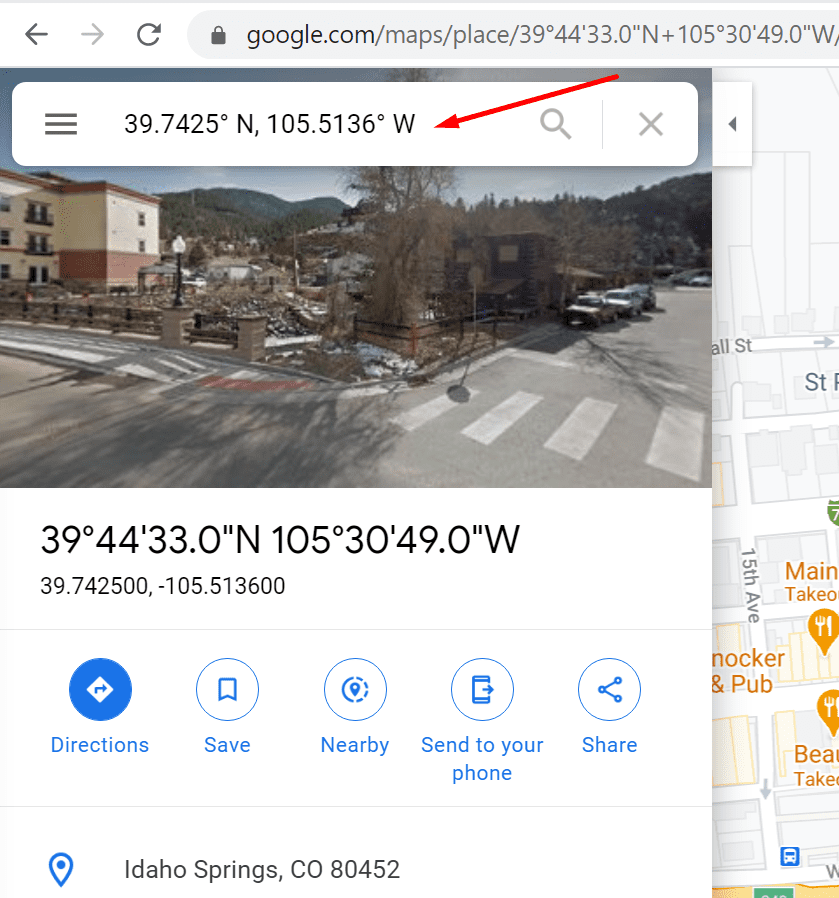
  2. Enter the coordinates in the search box
    • You can use one of the following formats:
      • Degrees, minutes, and seconds (DMS)
      • Degrees and decimal minutes (DMM)
      • Decimal degrees (DD)google maps coordinates search
  3. Once you entered the coordinates, a pin will appear on the map pinpointing the coordinates you just entered.
How to Find the Coordinates of an Address on Google Maps

  1. Open Google Maps in your browser
  2. Enter the location you to find the coordinates for
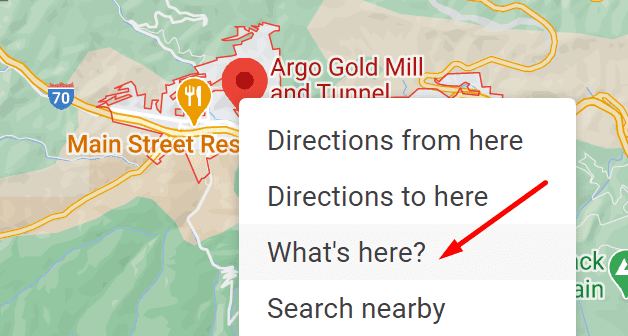
  3. Locate the red location pin and right-click on it
  4. Select What’s Here? in the menuwhat's here google maps
  5. The coordinates for the respective location should be visible in a new window near the bottom of the screendisplay coordinates google maps
  6. Select the respective coordinates
  7. Copy them to your clipboard and you can then paste them into another program.
copy coordinates google maps

Use a browser extension

If this method seems too complicated, you can install the Google Maps GPS Coordinates browser extension.

Simply select the building or place you’re interested in, click on the red map  button, and the extension will display the coordinates using the following systems:

  • DD (decimal degrees)
  • DM (degrees and decimal minutes)
  • DMS (degrees, minutes & seconds)
  • Google Maps’ Plus Code
  • MGRS (Military Grid Reference System)

Tips and Tricks to Format Your Coordinates for Google Maps

You need to use a specific coordinate system in order to search on Google Maps. Here are the three most important things you need to know when using coordinates on Google Maps:

  • Replace the letter ‘d’ with the degree symbol
  • Replace commas with decimals
  • Enter your latitude first and then your longitude coordinates.

⇒ Note: Google Maps supports Plus Codes as well. If you want to define a particular location or locate a place without using an address or other conventional data, you can use Plus Codes.

Plus Codes rely on latitude and longitude coordinates put in a simple grid system that uses 20 alphanumeric characters to define a specific location.
Categories: Software

Author Madalina Dinita

You Might Also Like

  • Netflix Error T1-H1 windows 10

    Troubleshooting Netflix Error T1-H1

    Madalina DinitaSoftware
  • Google Docs Header

    Fix Google Docs Superscript Not Working

    Madalina DinitaSoftware
  • ms teams someone else is editing this section

    Microsoft Teams: Someone Else is Editing This Section

    Madalina DinitaSoftware
  • microsoft teams how long can a meeting last

    Microsoft Teams: How Long Can a Meeting Last?

    Madalina DinitaSoftware

Leave a Reply

Your email address will not be published. Required fields are marked *

This site uses Akismet to reduce spam. Learn how your comment data is processed.

300x600
Turning on Triple Touch Zoom on Android

Turning on Triple Touch Zoom on Android

How to Connect Outlook 2023 to Gmail

How to Connect Outlook 2023 to Gmail

Netflix: Change Password

Netflix: Change Password

Everything You Need to Know About WhatsApp Delete for Me

Step-by-Step Guide: How to Use WhatsApp on Your Computer

Android: Enable or Disable Background Data

Android: Enable or Disable Background Data

300x250
profile pic

The Experts Behind Technipages

My name is Mitch Bartlett. I've been working in technology for over 20 years in a wide range of tech jobs from Tech Support to Software Testing. I started this site as a technical guide for myself and it has grown into what I hope is a useful reference for all.

Learn More

300x250 2
technipages logo white
linkedin icon

Technipages is part of Guiding Tech Media, a leading digital media publisher focused on helping people figure out technology. Visit guidingtechmedia.com to learn more about our mission and team.

© 2026 Guiding Tech Media All Rights Reserved

  • About Us
  • Contact
  • Legal & Privacy

© 2026 Guiding Tech Media All Rights Reserved

Information from your device can be used to personalize your ad experience.
Do not sell my personal information.