Some users may prefer to locate that new restaurant using a street address, while others prefer to use GPS coordinates. Maybe you’re not too sure about the address and prefer to drop a pin location for better accuracy. Let’s see how you can do that.
Google Maps: How to Drop a Pin on Desktop
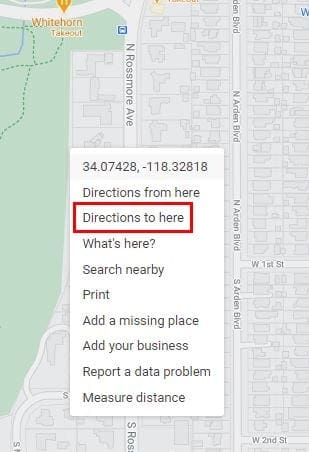
To drop a pin on Google Maps while on your desktop, open it up and zoom into that area you want to pin. When you’ve found it, right-click on the exact spot, and in the window that appears, choose the option that says Directions to here.
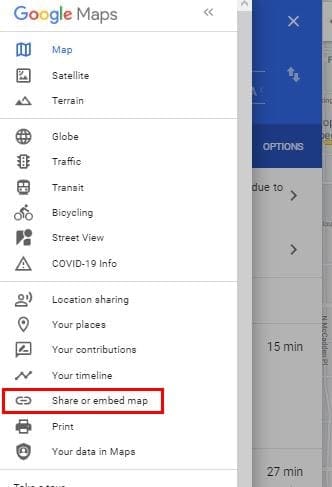
Don’t forget to add a starting address in the blue area, and Google Maps will create those directions for you. If you want to share your directions, click on the three-lined menu at the top left and click on the Share or embed map option.
In the share window, you’ll see options to share your map through Facebook, Twitter or you can copy the link to paste elsewhere. If you need the embed code, click on the Embed a map tab. You’ll see the Copy HTML option for a faster copy.

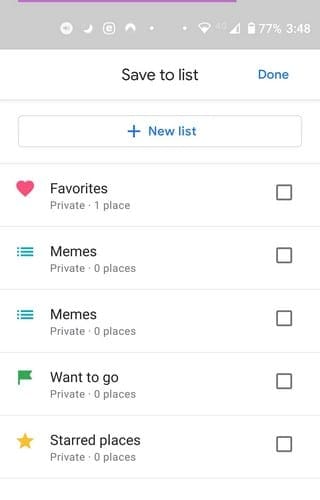
You can have other things with your pin locations to send them to your phone, or you can save it. In the Save option, you can put the pin in favorites, want to go, starred places, memes, or you can create a new list. There’s an option to add a label too.
Google Maps: Drop a Pin on Android
To drop a pin in Google Maps for Android, open the app and zoom in on the location you want to add the pin to. Once you’ve found it, long-press on the area, and the pin should appear.

Share your location and tap on the share option at the bottom right, followed by the Share Place option. How you want to share it is up to you. You also have the option to save your location to favorites, memes, want to go, starred places, or you can create a new list.
Google Maps: How to Drop a Pin – iPadOS 14.1
For iPad users, dropping a pin is just as easy. Open Google Maps and locate the area you want to drop the pin. Long-press on the area, and the pin will appear.

As long as you’re there, you’ll also see options to get directions, save, add a label, share, and even measure the distance.
Final Thoughts
Regardless of what device you’re using, dropping a pin on Google Maps is an easy task. When you get the hang of it, you’ll wonder why you didn’t try it sooner. Other things, such as sharing that pin, will also become a piece of cake.