
By creating folders on Google Drive, you can help keep your files organized. That way, whatever you’re looking for will be a lot easier to find since you’ll know what folder to look in. The good news is that Google Drive lets you create as many folders as you need to help you find your content a lot faster. It even enables you to merge folders as well.
How to Create Folders on Google Drive
There’s more than one way to share a Google Drive folder, but let’s start with how to create one. Once you’re in Google Drive, click on the New button at the top left. You can also create a new folder by clicking on the drop-down menu to the right of where it says My Drive.
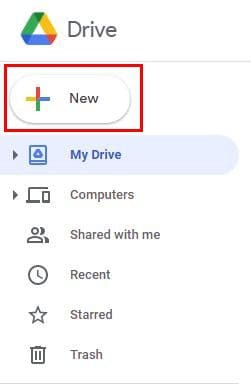
You’ll see various options, but the option to create a folder will be the first on the list. You’ll need to give your folder a name and then click on the blue Create button.

Once you click on the button, you’ll see the folder appear under where it says My Drive.
Create a Google Drive New Folder on Android
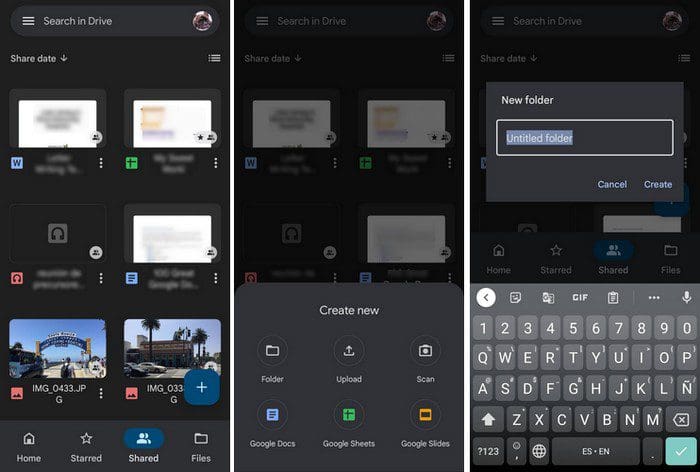
If you’re on your Android device, you can create a new folder by tapping on the add button, the button with the plus symbol on it. From the option, choose the folder option and then give your new folder a name.
How to Manage Your Folders in Google Drive
Once you’ve created the number of folders you need, you can do things such as merge two folders together. For example, you may be planning a party and want to merge the folder that has the guest list with the folder that has another party-related file. You can do this by clicking and dragging one file dragging on top of the other.
By right-clicking on the folder, you can do all sorts of things; for example, you can:

- Share
- Get link
- Show folder location
- Add shortcut to Drive
- Move to
- Add Starred
- Rename
- Change color
- Search within A
- Download
- Remove
Transfer Ownership of a Google Drive Folder
The project you were working on is now under someone else’s supervision. To free yourself of the responsibility of the project, you can transfer the ownership of a folder by right-clicking on the folder and choosing the share option. Add the new owner’s email address and click on the Save button.
Once the person has been added, you’ll see a drop-down menu to the side of the name. Click on it, and from the listed options, choose the Make Owner option. If the file you’re trying to transfer ownership of is a PDF or an image file, don’t be surprised if you can’t. You won’t be able to.
How to See What Files Have Been Share Recently
If you’re not sure if you shared a file, you can check by clicking on the I icon. All the files you’ve shared will be displayed in the Activity tab. Speaking of sharing, you can also make sharing more accessible by having Contact Groups. So, if you ever need to share a file with more than one person, it’ll be a lot easier by having a Contact Group.
You can do this by going to Google Contacts and clicking on Create Label. Then name your label. To add contacts to a specific label, access your Contact list and click on the dots to the right of the contact. At the bottom, you’ll see a list of the available labels you can add your contact to.

By clicking on the Shared with me tab, you can see what files others have shared with you.
Also, by searching with the search tool at the top, it will not only search for the title of the file but also show you files with whatever it is you typed in the search bar.
Conclusion
Google Drive can be beneficial. Once you get the hang of creating and sharing files, it’ll simply get easier and easier from there. Do you think you’ll be sharing a lot of folders? Share your thoughts in the comments below and don’t forget to share the article with others on social media.

I have this product to sell today
Learning to create and share folder