Reminders are a good thing. When you have a lot of things to do, getting a reminder can save you from many problems by getting those important things done in time. That’s what nudges are for in Gmail. You may forget to answer an email and never get around to replying. What nudges does is that it brings back that email to remind you.
So, if that old email gets buried in the inbox, sooner or later, it will be at the top for you to see. But turning this feature off is a good idea if you’re doing an excellent job on what emails you send or receive and don’t need any help from Gmail. The good news is that the process is quick and easy; even if you’re in a hurry, you can make the change.
How to Turn off Nudges in Gmail
Getting a reminder for something you already know you need to do can be annoying. If you would rather not have Gmail remind you of emails you need to get to, you can turn them off by going into Gmails settings. To access settings, click on the cogwheel at the top right and choose All Settings.

Once you’re in Settings, you will see various tabs at the top. You should be on the General tab, but if, for some reason, you’re on another one, click on the first one. Scroll down and look for the Nudges option. Once you find it, you’re going to see two options:
- Suggest emails to reply to – Emails that you might have forgotten to respond to will appear at the top of your inbox.
- Suggest emails to follow up on – Set emails that you might need to
Make sure to uncheck the box for both of these options. You can also choose to only have one enabled if that works better for you. There will be no need to click on the save button since you’ll see a message at the bottom of your screen letting you know that your changes have been saved.
How to Disable Nudges on Gmail for Android
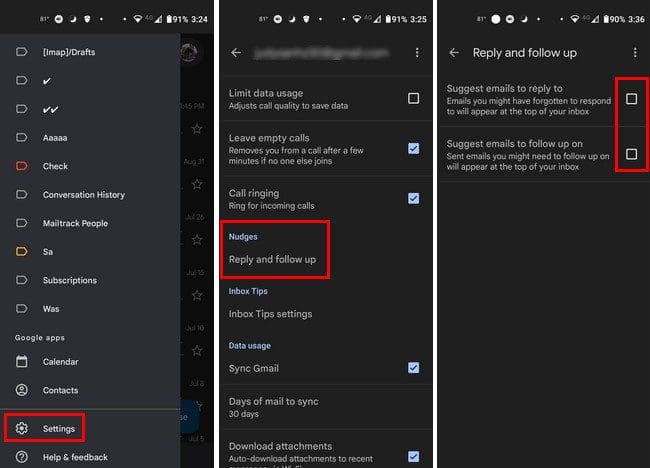
You can also turn off Nudges from your Android device. Once the Gmail app is open, tap on the three-lined menu and swipe down to Settings. Once you’re in Settings, tap on the account where you want to make the changes. Swipe down a little more until you come across the Nudges option. Tap on it and check or uncheck the boxes for both or one of the listed options.
Conclusions
Nudges can be very useful since they can remind you to answer emails you forgot about. But, if you would instead go without it, turning it off is very easy. If you ever change your mind, you can enable them by following the same steps you followed to turn them off. What are your thoughts on nudges? Share your thoughts in the comments below, and don’t forget to share the article with others on social media.