Zoom errors 5000, 5003, and 5004 indicate your computer failed to connect to Zoom’s servers. Maybe one of the programs installed on your device is blocking your connection to Zoom. Or your network settings don’t let you connect to Zoom’s servers.
Solutions to Fix Zoom Errors 5000, 5003 and 5004
⇒ Quick Tip: Don’t forget to check the Zoom Service status. Maybe the error you’re experiencing is caused by a known issue. In this case, there’s no need to pursue any troubleshooting steps. Wait until Zoom has fixed the problem on their end.
Check Your Firewall and Proxy Settings
If you’re connected to a network that uses a firewall or a proxy, the best approach is to contact the admin and ask them to check the network settings. They can find all the information they need on Zoom’s Support Page.
Close Background Programs
The programs and processes running in the background may prevent your computer from connecting to Zoom’s servers. Close all the other active programs, including your VPN.
One way to do that is by launching the Task Manager. Click on the Processes tab, and right-click on the program you want to close. Then select End Task.

Another method to close background programs is to clean boot your computer.
Disable Your Antivirus and Firewall
Temporarily disable your antivirus and firewall. If there’s no error, whitelist Zoom. This is a clear indication that your antivirus or firewall is blocking the service.
Steps to Whitelist Zoom on Windows Defender:
- Go to Settings → Update & Security.
- Then click on Windows Security → select Virus & threat protection.
- Click on Manage settings → scroll down to Exclusions.
- Select Add or remove exclusions.

- Hit the Add an exclusion button.
- Select Zoom, and apply the new exclusion rule.

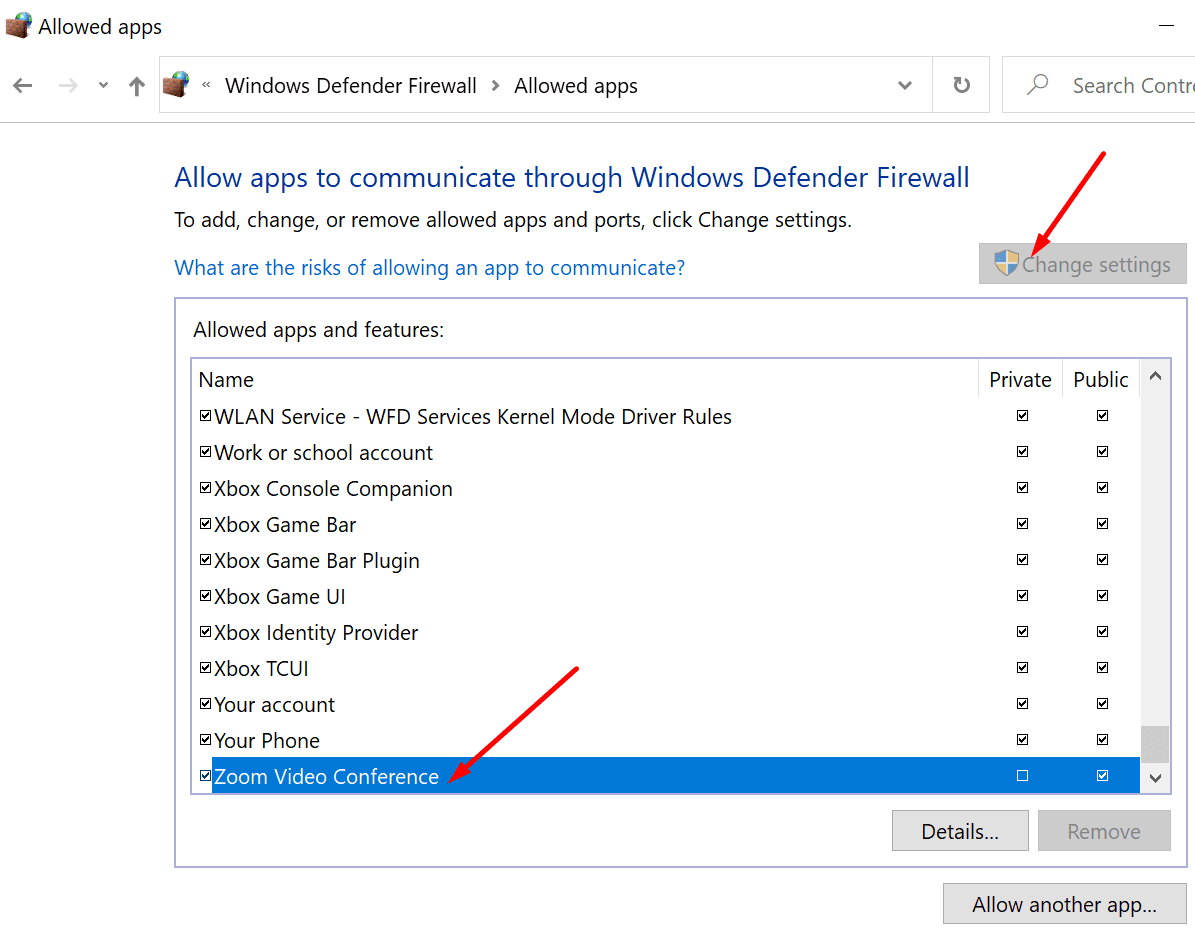
Steps to Whitelist Zoom on Windows Firewall:
- Launch the Control Panel and type ‘firewall‘ in the search bar.
- Select Windows Defender Firewall.
- Click on Allow an app or feature through Windows Defender Firewall.

- Then click on Change Settings.
- Scroll down to Zoom and check the service. Hit OK.


Mark Zoom.us as a Trusted Website
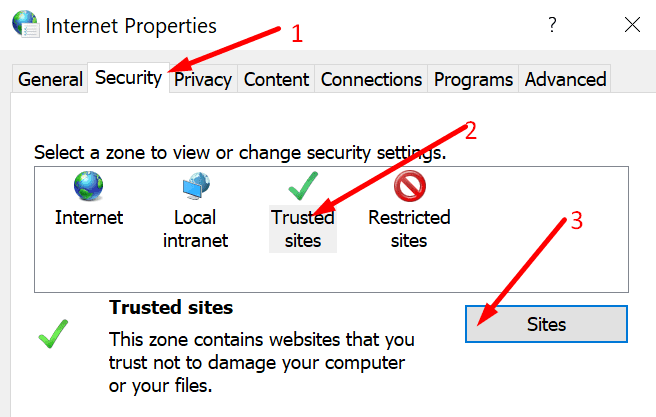
- Type ‘internet options‘ in the Windows Search bar and launch Internet Options.
- Click on the Security tab and then select Trusted sites.

- Select Sites, and go to Add this website to the zone.

- Type zoom.us, hit Add, and save the changes.

Enable Authenticode
- Go back to Internet Options.
- Click on Security, and then Trusted Sites.
- Under Security level for this zone, select the Custom Level button.

- Scroll down to Run components signed with Authenticode. Enable this option if it’s not already enabled.


Did you manage to troubleshoot the problem? Which solution saved the day?