
Many Windows 11 users complained that the items they unpinned from the taskbar often come back after restarting their computers. For example, Edge always pins itself to the taskbar no matter how many times you unpin it. Let’s see how you can quickly fix this issue.
Unpinned Apps Keep Coming Back to the Taskbar
Check Domain Rules
If you’re using a computer managed by an organization, maybe the domain policies prevent you from unpinning certain apps from the taskbar. That could explain why you can’t permanently unpin your apps. Contact your IT admin for more information.
Edit the XML File
Many users confirmed they solved this problem by editing the Layout XML file.
- Navigate to C:\Users\Default\AppData\Local\Microsoft\Windows\Shell\LayoutModification.xml.

- Open the file with Notepad. Then remove the entire <CustomTaskbarLayoutCollection> section. To do this, you need to type <!– before the <CustomTaskbarLayoutCollection> line, and then type –> after that line.
- Save the settings, close the file and then unpin the apps manually. Reboot your computer.

If the issue persists, use CTRL + F and search for all “custom” lines. Type custom in the search box and press Enter. Remove all the customs lines and check the results. For example, other users solved the problem by removing the CustomTaskbarLayoutCollection PinListPlacement=”Replace” line.
Edit the Taskbar: TaskbarPinList Line
- Alternatively, you can also go to %userprofile%\AppData\Local\Microsoft\Windows\Shell and open the LayoutModification.xml file with Notepad.
- Then, locate the <taskbar:TaskbarPinList></taskbar:TaskbarPinList> entry.
- Simply remove the line of the problematic app. For instance, if it’s Edge, remove the line <taskbar:… /> adding Edge.
- Save the file, unpin the app again and restart your computer.
Keep in mind that major Windows 11 updates may override these settings, and you may need to repeat the same steps again.
Tweak Your Taskbar Settings
The OS may also associate certain apps with your user account. Edit your taskbar settings directly from your user profile directory and check the results.
- Navigate to C:\Users\UserName\AppData\Roaming\Microsoft\Internet Explorer\Quick Launch\User Pinned\TaskBar.

- If you’re using a company computer, go to C:\Users\Public\CompanyName\TaskBar.
- Note: If the Taskbar path does not exist, skip this step and go to the next solution.
- Now, simply delete the items you don’t want to appear in the taskbar.
- Restart your machine and check the results.

Create a New User Account
If your user account is corrupted, create a new profile and check if unpinned items keep coming back.
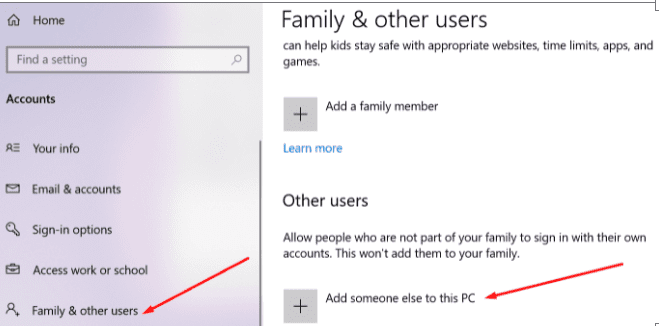
- Navigate to Settings, select Accounts, and then click on Family & other users.
- Select Add someone else to this PC and follow the on-screen instructions to create the account.

- Then press CRTL + Alt + Del, click on Switch user and check if the issue persists on the new profile.
Tweak Your Registry
You can also instruct Windows 11 not to pin anything to the taskbar. Keep in mind that this method also removes the “Pin to taskbar” option from the context menu.
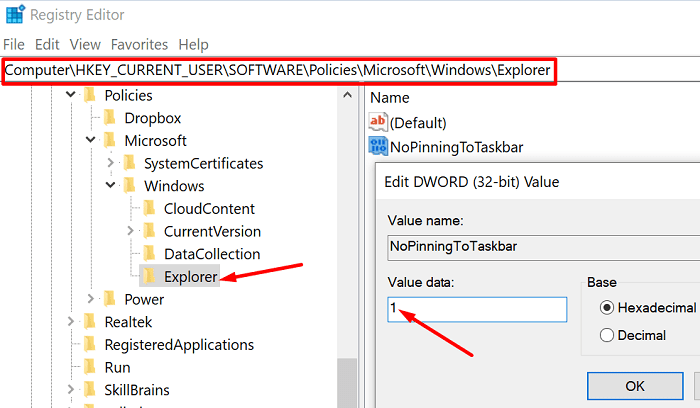
- Type regedit in the Windows Search bar and launch the Registry Editor.
- Navigate to:
HKEY_CURRENT_USER\SOFTWARE\Policies\Microsoft\Windows\Explorer- Note: If the Explorer folder doesn’t exist, create it.
- Right-click on the right pane and select the New DWORD 32 Value.
- Name the new key
NoPinningToTaskbarand set its value to 1.
- Manually unpin the problematic apps and restart your computer.
Use the Local Group Policy Editor
If you’re using Windows 11 Pro or Enterprise, launch the Group Policy Editor and tweak the Taskbar settings.
- Unpin the problematic programs from the taskbar.
- Then navigate to User Configuration, select Administrative Templates, and then click on Start Menu and taskbar.
- Select Do not allow pinning programs to the taskbar and enable this option.

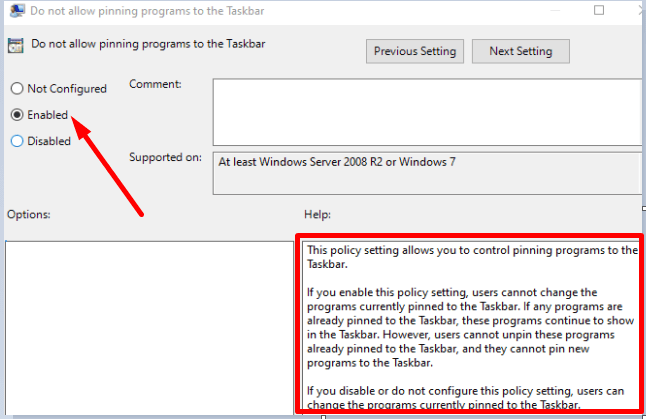
This will prevent users from pinning new programs to the taskbar. Keep in mind that you need to unpin the problematic items from the taskbar before enabling this option. Once this policy setting is enabled, users can no longer change the programs currently pinned to the taskbar.
Conclusion
If unpinned apps and programs keep reappearing on the taskbar, you can edit the Layout XML file and remove the TaskbarPinList line. Alternatively, you can also create a new NoPinningToTaskbar key in the Registry Editor to prevent users from pinning items to the taskbar. Windows 11 Pro and Enterprise users can enable the option that says “Do not allow pinning programs to the taskbar.”
Hit the comments below and let us know which of these methods did the trick for you.



Finally, Edge no longer reappears in the taskbar! Thank you so much!
thank you very much this helped!
Thanks very much, Mitch!
For me – the entry was in my UserProfile:
“Alternatively, you can also go to %userprofile%\AppData\Local\Microsoft\Windows\Shell and open the LayoutModification.xml file with Notepad.
Then, locate the entry.”
Deleting that line fixed it.