

Incoming Skype calls may sometimes fail to go through. When this happens, users get a notification informing them they missed a call. Agreed, this issue is really frustrating because Skype is on, and you’re logged in, yet you can’t receive incoming calls. Let’s explore how you can troubleshoot this problem on Skype for Windows 10.
Can’t Receive Incoming Skype Calls on Windows 10
⇒ Note: If you can’t receive calls from anyone, check the Skype service status. Maybe this is a known issue. If all the services are up and running, continue with the troubleshooting steps below.
Check Your Number
Keep in mind that if you’re not logged in to your Skype account, incoming calls will ring busy. The call may also land in your voicemail if you already enabled this option.
Be sure that you are signed into the correct Skype account and verify your Skype number.
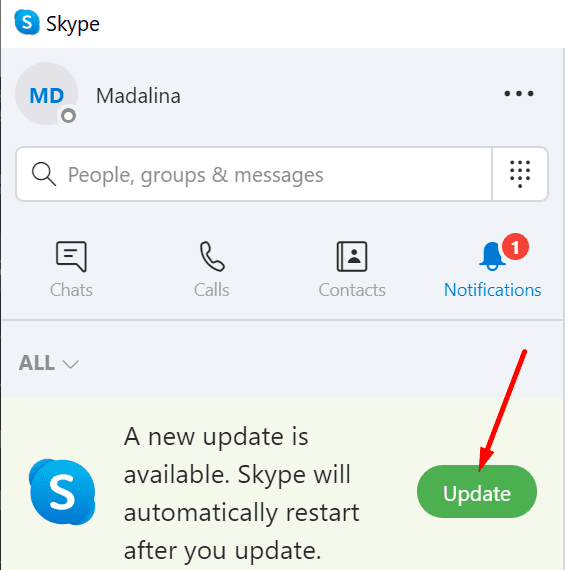
Update Skype
Make sure you’re running the latest version of Skype on your device. Certain app features may not work properly on outdated app versions.
Check Your Credit
In case you forwarded your Skype calls to a phone number, be sure to have enough Skype Credit to cover the cost of the forwarded calls.
Check Your Settings
If you enabled Focus Assist aka Quiet Hours, turn off the option and check if the calls get through now. Go to Settings → System → Focus Assist and disable this feature.
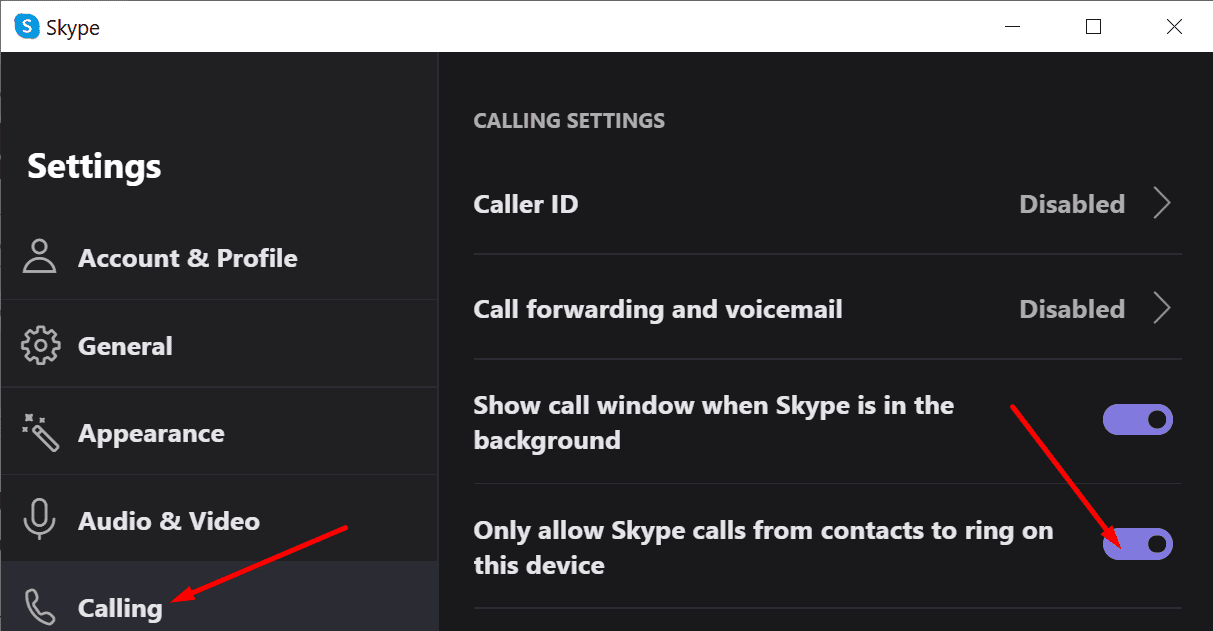
Skype has a built-in privacy option that allows you to block calls from people who are not on your contact list. When you get a call from someone who isn’t on your contact list, the call won’t ring. Instead, Skype will display a missed call notification.
Go to Skype Settings and select Calling. Locate the option that says “Only allow calls from contacts to ring on this device‘. Toggle it off.
Conclusion
To sum up, incoming Skype calls not going through may indicate the service is temporarily unavailable or there’s something wrong with your app settings. Check if your current settings are blocking Skype calls and notifications during certain hours. Or maybe your Skype privacy settings are blocking calls from people who are not on your contact list.
Do let us know if you managed to fix the problem. Drop us a comment below.


I use Windows 7. I cannot receive incoming calls on my Skype number. Settings + Calling + Advanced Calling does not have the “Let everyone call in” option, That appears to have been removed around 2018, which angered some users then, based on the comments.
This is a real serious problem that needs to be fixed.
I get a lot of calls daily but after a while I stop receiving them on my computer and it only rings on my cellphone but I need to be able to answer on my computer. Even if I turn off my cell phone it won’t ring but If I restart my computer, I am able to get more calls but I can’t be restarting my computer every few calls. Any other tip? I’ve checked all my settings.