

Photoshop may sometimes fail to detect your GPU. When you go to Graphics Processor Settings, you’ll see a strange “Unknown GPU” alert. Restarting Photoshop may sometimes help you solve the problem, but that’s not a guaranteed fix. If Photoshop still won’t recognize your GPU, follow the steps below to get rid of this issue.
How Do I Fix “Unknown GPU” in Photoshop?
Update Photoshop, Your Graphics Driver, and OS
Make sure to install the latest Photoshop, GPU, and OS updates. Update these three elements, restart your computer, and check if the issue persists.
To update Photoshop, click on the Help menu, and select Updates. The Adobe Creative Cloud app will launch. Simply click on the Update button.

To install the latest GPU driver updates, launch the Device Manager and expand the list of Display adapters. Right-click on your graphics driver, and select Update driver.

Unfortunately, Windows won’t always give you the latest GPU drivers. Go to your GPU manufacturer’s website and check for updates:
To update Windows to the latest version, go to Settings, and click on Update and Security. Then select Windows Update and hit the Check for updates button.

If you’re also using a dedicated GPU program such as Intel DSA, AMD Radeon Software, MSI Afterburner, or other similar tools, don’t forget to update the tool to the latest version.
Roll Back to a Previous Photoshop Update
If you started experiencing this issue after installing the latest Photoshop updates, go back to a previous release.
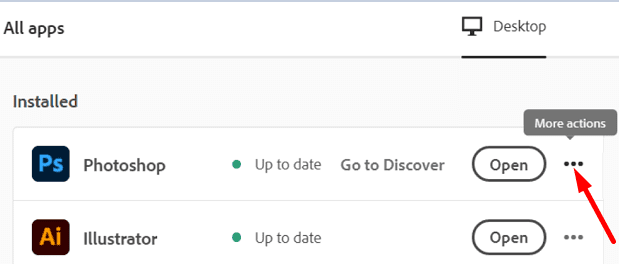
- Launch the Creative Cloud desktop app.
- Scroll down to Photoshop and click on More actions.

- Then select Other Versions from the drop-down list.
- Select the Photoshop version you want to use. Apply the changes.
Enable Legacy Compositing
Additionally, make sure to enable Legacy Compositing. Many users recommended enabling this option as it seems to cause a lot of glitches if disabled. Go to Preferences, select Performance, and check the Legacy Compositing checkbox.

Enable High-Performance Mode for Photoshop
Open your graphics driver’s control panel and check your current settings. Enable high-performance mode for Photoshop.
For example, if your computer is equipped with an NVIDIA GPU, follow the steps below.
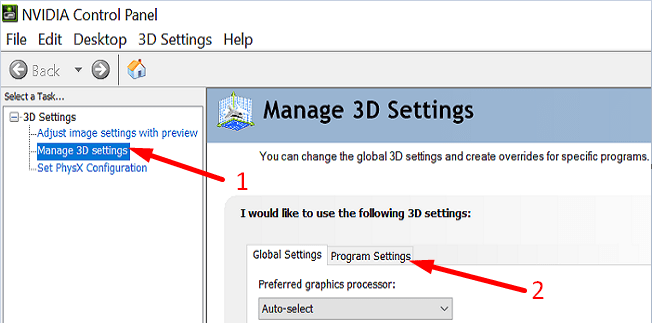
- Launch the NVIDIA Control Panel and select Manage 3D settings.
- Then click on the Program Settings tab.

- Select Adobe Photoshop.
- Use the drop-down menu and select Maximum Performance for Photoshop.
- Then save the new settings, and restart Photoshop. Check if the issue persists.
If you’re using a different graphics processor, go to your GPU manufacturer’s website for specific instructions.
If the issue persists, see Troubleshoot Photoshop graphics processor (GPU) and graphics driver issues. Hopefully, one of the solutions available on Adobe’s support page will do the trick for you.
Conclusion
To sum up, if Photoshop can’t detect your graphics card, install the latest app, GPU, and OS updates. If the issue persists, roll back to a previous Photoshop release. Additionally, enable Legacy Compositing, and high-performance mode for Photoshop. Did these tips help you solve the problem? Let us know in the comments below.


Same problem as above
no it didnt help,
Device name DESKTOP-7M9DLQE
Processor Intel(R) Core(TM) i5-3320M CPU @ 2.60GHz 2.60 GHz
Installed RAM 16.0 GB (15.8 GB usable)
System type 64-bit operating system, x64-based processor
Pen and touch No pen or touch input is available for this display
Edition Windows 11 Pro
Version 21H2
Installed on 12-09-2021
OS build 22000.527
Experience Windows Feature Experience Pack 1000.22000.527.0
I’m still receiving the error.
I tried manually adding photoshop app and photoshop prefs exe to graphic performance preference.
i tried removing sniffer exe file.
please help. I’m in desperate need to fix this.