
Outlook is an excellent productivity tool that you can use both as an email client and a calendar utility. You can use Outlook to manage upcoming events and even create multiple calendars. Unfortunately, the app may sometimes fail to remove calendar events. Either nothing happens when you hit the Delete button or the option is missing completely. Let’s dive right in and explore how you can fix this issue.
What to if You’re Unable to Delete Outlook Calendar Events
Use Outlook on the Web
If you can’t use the desktop app to remove calendar events, check if you can delete the problematic events using the web app. Oftentimes, the web app is not affected by the same issues affecting the desktop app. By the way, you can also use the mobile app to delete your calendar events.
Update and Repair Office
Outlook is part of the Office Suite and any issues affecting Office may also affect the email client. To fix these potential issues, launch Outlook, click on File, and go to Options. Then go to Update options and hit the Update Now button.

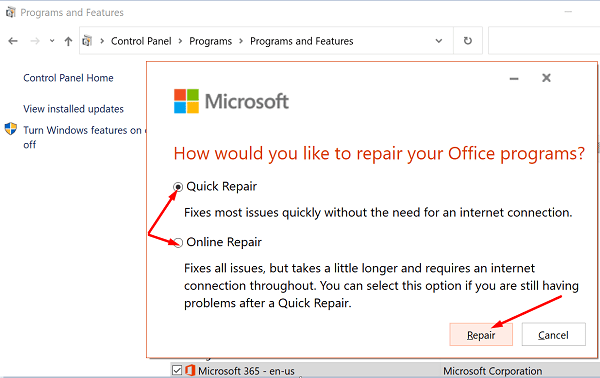
Restart Outlook and repair your Office files. Go to Control Panel, select Programs, and then click on Programs and Features. Hit the Change button and run the Quick Repair and Online Repair tools in that order.
Reset the Calendar App
If repairing your Office files didn’t help, try resetting the Calendar app. Don’t forget to backup important data before hitting the Reset button.
Navigate to Settings, select Apps, and then Apps & features. Select the Mail and Calendar app and go to Advanced options. Hit the Reset button and check the results.

Log Out of iCloud
If you use iCloud to sync the calendar with your phone’s calendar, log out of your iCloud account to refresh the connection.
But before you follow the steps below, back up important Outlook data. In this manner, you’ll be able to restore your data in case anything goes wrong.
- Exit Outlook completely.
- Then sign out of your iCloud account.
- When prompted to back up your calendar and contacts, or save anything, select No.
- Then log back in to iCloud. If prompted, do not sync your files and folders to iCloud.
- iCloud will automatically sync everything back to Outlook anyways.
- Check your calendar events. The problematic events should already be gone. If they’re still there, you should be able to delete them without any problems.
Conclusion
If your Outlook desktop app won’t let you delete your calendar events, use the web app. If the issue persists, update and repair Office and then log out of your iCloud account. Are you still experiencing the same problem? Let us in the comments below.