
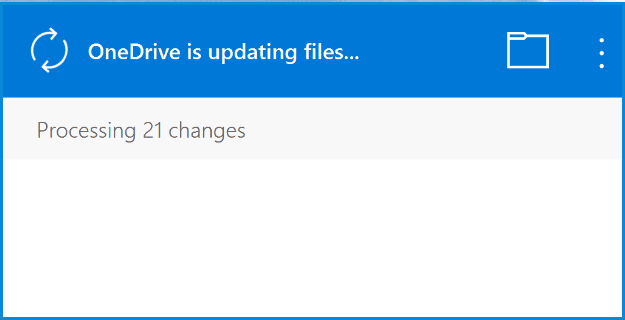
OneDrive won’t stop processing changes on your computer? Well, you’re not the only one experiencing this problem. Many OneDrive users complained the app sometimes gets stuck on the “Processing changes” screen. If you already restarted OneDrive but didn’t solve the problem, pursue the troubleshooting steps below.
How Do I Fix OneDrive Stuck on Processing Changes?
Take Full Control of Your Files
If you don’t have full control of the files OneDrive is trying to sync, the app won’t process all the changes. Go to the root of your OneDrive folder and change the ownership settings, if necessary. A folder with restricted access could be causing this issue.
- Navigate to C:\Users\UserName.
- Right-click on the OneDrive folder.
- Select Properties, and go to the Security tab.
- Ensure you have full control of the OneDrive folder.


Set your Windows user account as the owner of the OneDrive folder to propagate the ownership to all sub-folders. Do that and check if OneDrive can process the changes now.
Exclude Large Files
OneDrive will need a lot of time to process the latest changes if you have online files open. The same is valid if lots of files got stuck in the sync queue or the app is trying to sync large files. Make sure to close all the online files that you opened. If you open an online file and use Files On-Demand, check the “Always keep on this device” option.
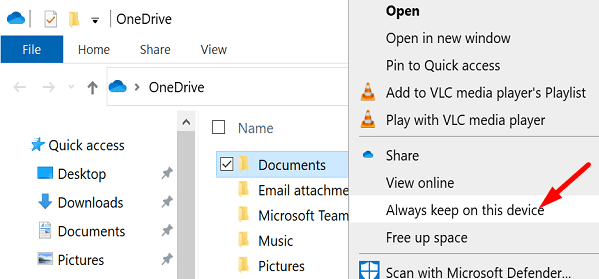
Then click on the OneDrive icon to list the files that the app is trying to sync. Pause and then resume syncing, or exclude large files completely from the sync list. Alternatively, instruct the app not to sync folders with large files, such as videos.
Right-click your OneDrive icon and select Settings. Click on the Account tab, choose folders, and select the folders you want to sync.

Reset OneDrive
Try resetting your OneDrive app and check if you notice any improvements.
- Press the Windows and R keys to open a new Run window.
- Then enter the following path and hit Enter:
%localappdata%\Microsoft\OneDrive\onedrive.exe /reset
- Wait for two or three minutes until OneDrive restarts.
- If the app doesn’t start by itself, open a new Run window and enter
%localappdata%\Microsoft\OneDrive\onedrive.exe - Press Enter and check if the app is still struggling to process the latest changes.

Reinstall OneDrive
If the problem persists, uninstall and reinstall OneDrive.
- Go to Control Panel and select Uninstall a program.
- Click on Microsoft OneDrive and then hit the Uninstall button.

- Restart your computer.
- Download a fresh copy of OneDrive.

Conclusion
If OneDrive gets stuck on “Processing changes,” ensure you have full control of your folders. A folder with restricted access could be causing this glitch. Then, pause syncing, and exclude large files. If the issue persists, reset OneDrive and reinstall the app. Did these solutions help you fix the problem? Comment down below.



Thanks for the article.
I did find that the /reset solution should not be taken lightly!
I ran this suggestion:
%localappdata%\Microsoft\OneDrive\onedrive.exe /reset
Before I ran this, OneDrive was stuck with about 15 files in a list.
After running the /reset command, it appears that this caused OneDrive to re-process all synced files across SharePoint and OneDrive.
It’s currently stating:
“Processing 177,535 changes”
It doesn’t seem to have deleted any files from the OneDrive or SharePoint folders, so I assume that is is simply redoing the comparison across all folders.