
At times, unexplainable things happen in the Windows 11 universe. For example, a blank file with no name may suddenly appear on your desktop. That’s quite strange, don’t you think?
Want to hear something stranger? You can delete this mysterious file as many times as you want, it always comes back like some kind of zombie.
Why is There an Empty File on My Desktop?
Empty files on the desktop are usually remnants of old Microsoft Office installations.
If you try to edit the file properties, you’ll see that is not actually a real file. Right-click on it and you’ll see there’s no Properties option available in the context menu. You only have three options: Cut, Create Shortcut and Delete. You can’t even hide that file. That’s because it’s not a file, it’s a system icon.
How to Permanently Delete Empty Files From Desktop
Method 1
- Open the Registry Editor and navigate to the following path:
- HKEY_LOCAL_MACHINE\SOFTWARE\Microsoft\Windows\ CurrentVersion\Explorer\Desktop\NameSpace\
- Locate all the 138508BC-1E03-49EA-9C8F-EA9E1D05D65D and 0875DCB6-C686-4243-9432-ADCCF0B9F2D7 occurrences.
- Remove all of them.
- Other users fixed this problem by removing the following key: [HKEY_USERS\UserName\Software\Microsoft\Windows\ CurrentVersion\Explorer\CLSID].

Method 2
- Launch the Registry Editor and go to this path:
- HKEY_LOCAL_MACHINE\SOFTWARE\Microsoft\Windows\CurrentVersion\Explorer\MyComputer\NameSpace\

- HKEY_LOCAL_MACHINE\SOFTWARE\Microsoft\Windows\CurrentVersion\Explorer\MyComputer\NameSpace\
- Right-click on NameSpace → Export → save it to your desktop as NameSpace.
- Then right-click NameSpace again and delete the key.
- Select Yes when prompted to permanently delete the key.
- Rest assured, even if you get an error, the files inside the NameSpace key have been removed.
- Return to your desktop. Double-click on the NameSpace file. By doing so, you’ll import the files back to the Registry.

Method 3
- Launch File Explorer and click on View.
- Then click on Options ( far right corner).

- Click the View tab and go to Advanced settings.
- Uncheck Always show icons, never thumbnails if it’s ticked. If the option is not ticked, check the box, hit OK, and then go back and uncheck it.


Method 4
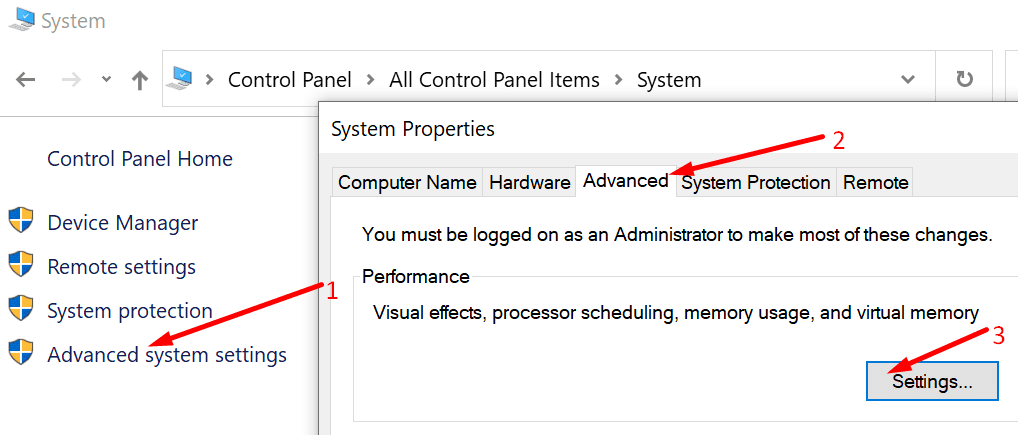
- Open the Control Panel and select View by Icons, not Category.
- Then go to System.

- Go to Advanced System Settings (left pane).
- Click on the Advanced tab, go to the Performance section, and select Settings.

- Locate the option called Show Thumbnails instead of Icons.

- Check if it’s ticked. If it is un-ticked, tick it and hit OK. If it is already ticked, uncheck the box, hit OK. Repeat, tick it, and hit OK.


Let us know if you managed to permanently remove the empty files from your Windows 11 desktop.