

Dropbox may sometimes fail to detect the photos you recently took on your iPhone. When that happens, you may get the following error message: “Dropbox couldn’t find any new photos or videos on iPhone“. Restart your phone and if this quick workaround doesn’t help, pursue the solutions below.
What to Do if Dropbox Couldn’t Find New Photos on iPhone
Reset Camera Uploads
- Connect your iPhone to your Mac. Click on the Dropbox icon and go to Settings.
- Then select Preferences and click on the Import tab.
- Uncheck Enable camera uploads for Photos and Videos. Do that while your iPhone is still connected. Close the window.

- Repeat the same steps three or four times and check the results.
- Additionally, make sure your iPhone is visible under Devices.
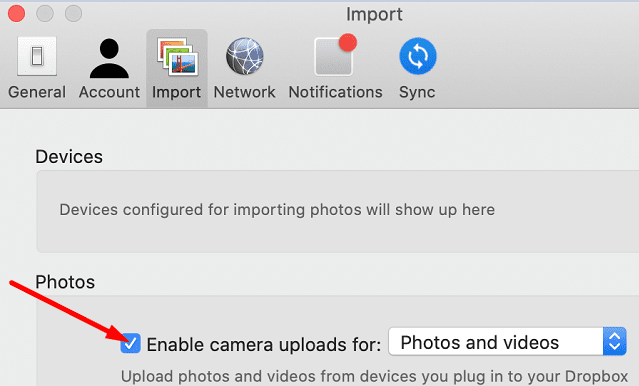
By re-enabling camera uploads, you’ll reset your camera upload settings for all your devices. Next time you connect your iPhone, Dropbox will prompt you to confirm you want to import pictures from the device.
Unlink Dropbox
- Update the Dropbox app on both your iPhone and Mac.
- On your Mac, go to the menu tray (where the Dropbox icon is, next to WiFi).
- Select the gear icon, go to Preferences, and select Account.
- Select Unlink this dropbox. This will log you out of your account.

- Log back in, connect your iPhone, and check if your device can now find the latest photos.

Keep in mind that you may need to disconnect and reconnect Dropbox every time we need to upload new photos. This may not be the most convenient solution, but many users confirmed it worked.
If you’re not running the latest iOS version on your phone, go to Settings, select General, tap Software Update and check for updates. Make sure both your iOS and macOS versions are up-to-date.
Reinstall Dropbox
If the problem persists and Dropbox still fails to detect and sync new photos, uninstall the app from your iPhone and Mac. Restart your devices, install Dropbox again and check if you notice any improvements.
Conclusion
If Dropbox can’t find new photos on your iPhone, make sure you’re running the latest iOS and Dropbox app versions. Additionally, reset your camera upload settings and unlink Dropbox. We hope you managed to fix the problem with the help of this guide. Feel free to share your feedback in the comments below.


Same problem for me. Since upgrading iOS Dropbox no longer finds new photos. I’ve installed Dropbox 250.4 but still have the problem.
I have the same issue, last photos detected are June 1, 2021.
I have performed the same troubleshooting steps.
The latest ios update seems to have stopped camera uploads. My last upload was 5-9-21. I took a bunch of photos this morning. Dropbox does not see them. I uninstalled dropbox and reinstalled. Restarted my phone. The photos do not appear on my dropbox.