

When you connect to a wireless network, your Chromebook may sometimes throw up a strange “Unrecognized Error, Unknown Failure” error. This error message indicates your laptop is unable to connect to Wi-Fi. But it also means ChromeOS hasn’t got the slightest clue about what went wrong. If you already restarted your device, but the error persists, pursue the troubleshooting steps below.
Fix “Unrecognized Error, Unknown Failure” on ChromeOS
Restart Your Router and Extender
Try restarting your network devices and check if this quick solution does the trick for you. Simply unplug your router and extender, and leave the devices unplugged for one minute. Meanwhile, shut your Chromebook down.
Plug your router directly into a wall outlet and wait until the device boots up completely. Then boot up your laptop, and check if you can connect to Wi-Fi.
Take the Extender out of the Equation
Keep in mind that extended networks may sometimes reduce network performance by half. Try connecting to Wi-Fi without using a network extender.
Additionally, if you’re using a mesh network, check if you can connect to a regular network, if available. Chromebooks rely on strict networking security protocols and may sometimes refuse to connect to mesh networks.
Chromebook Wi-Fi Channel Restrictions
It is worth mentioning that Chromebooks manufactured for the US market are restricted to 2.4GHz channels up to channel 11. Go to your router’s configuration page and switch to channels 1, 6, or 11. Additionally, update your router firmware, disable TKIP, WPS, WMM/QoS, and hidden SSID. Do that and check if you notice any improvements.
Change the CTS/RTS Threshold
Go to your router’s config page, and set the CTS/RTS value to 2347. Check if the “Unrecognized Error, Unknown Failure” error persists.
For example, if you’re using an Orbi router, follow the steps below to get the job done.
- Navigate to OrbiLogin, and log in to your account.
- Go to the Advanced Tab, and click on Advanced Setup.
- Then select Advanced Wireless Settings.
- Edit the CTS/RTS value and set it to 2347.

- Hit Apply to save the new settings.
- Connect your Chromebook to Wi-Fi.

Forget Your Networks
If the error persists, forget the complex network on your Chromebook.
- Sign in to your Chromebook.
- Then click on the Time icon.
- Click on Settings.
- Select Network, and then Wi-Fi.
- Click on Known networks.
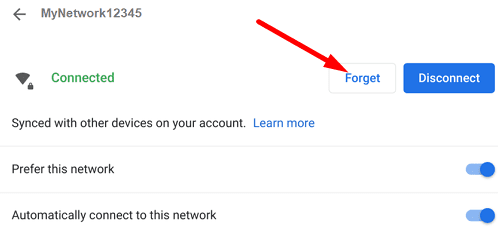
- Locate the complex network, click on More and then select Forget.

- Restart your computer, and try to connect again.
Update ChromeOS and Reset Hardware
Update your laptop to the latest ChromeOS version, and don’t forget to reset your Chromebook hardware as well.
Go to Settings, select About Chrome OS, and hit the Check for updates button to update your device.
To reset your Chromebook hardware, turn off your laptop. Then, press and hold the Refresh and Power keys at the same time. Release the Refresh key when your computer starts booting up.

Contact the Manufacturer
If the issue persists, you may want to contact your Chromebook’s manufacturer for further help. If your laptop is still under warranty, you can have it repaired for free. On the other hand, if you’re using an old Chromebook, you may want to upgrade to a newer model.
Conclusion
To fix “Unrecognized Error, Unknown Failure” errors on ChromeOS, first restart your router and extender. Then, go to your router’s configuration page, and switch to a different wireless channel. Additionally, set the CTS/RTS threshold to 2347. If the issue persists, forget the complex network, and make sure to update ChromeOS and reset your hardware.
Did these solutions help you fix the problem? Which of the methods above did the trick for you? Share your feedback in the comments below. Don’t forget to share this guide on social media as well.



thank you! I was able to fix it easily and stop being frustrated due to your great instructions. I appreciate it. I also learned what to avoid for my Chromebook as I was looking for a Wi-Fi extender :-) thank you so much
Updating my Chromebook to the latest version and then turning off my router and laptop before restarting both of them helped me tremendously. Thank you so much!