

Just because you liked something 2 years ago, that doesn’t mean you’re still going to like it today. So, if you’re tired of seeing things that you couldn’t care less about on your Facebook news feed, there’s something you can do about it.
Since the Facebook News Feed is the first thing you see when you log on, it’s important that you see the content you like. So, here’s how you can make the necessary changes to your News Feed. Now you can see only what you want to see on your News Feed.
How to Change What Appears on Your Facebook News Feed
To change what appears on your Facebook News Feed, click on the dropdown menu at the top right. Click on Settings and Privacy, followed by News Feed Preferences.

In News Feed Preferences, you’ll see different options such as:
- Manage Favorites – Here, you can prioritize specific pages or people. These will get high priority on your News Feed.
- Unfollow – Just like the name suggests, this is where you need to go if you want to unfollow a person or a page.
- Reconnect – Did you change your mind? Here’s where you can follow anyone or a page you left behind.
- Snooze – When you snooze someone or a page, you won’t see their posts on your News Feed for 30 days.
- Reaction Preferences – Here, you can control whether the total amount of reactions is visible on your posts.

Android
For those times when you’re not checking your Facebook feed on your computer. The steps to access the News Feed Preferences tap on the three-lined menu, followed by the cogwheel.
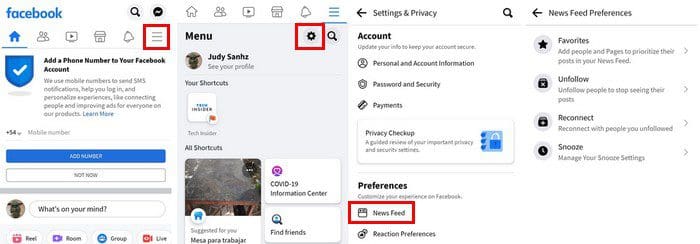
Under Preferences, tap on the News Feed option. You’ll see the same options:
- Favorites
- Unfollow
- Reconnect
- Snooze
When you’re on your News Feed and tap on the three dots, you get access to more options. For example, you’ll see options such as:
- Save post
- Add to favorites
- Hide Post
- Snooze for 30 days
- Unfollow
- Why am I seeing this post
- Report post
- View edit history
- Turn off notifications for this post
- Copy link
Conclusion
There’s so much to see on Facebook. It can take a good amount of time to see everything that interests you. So you don’t waste more time than is necessary. Having your News Feed updated with only the things you’re interested in is necessary. What topics are on your Facebook News feed? Let us know in the comments below, and don’t forget to share the article with others on social media.



the page cute dogs cats and pets products appears every time i log in. I have tried joining the group to block it but am unable to. I have repeatedly reported it as spam and still appears. Getting tired of this and is doing nothing but adding to the reasons to stop using facebook at all