Skip to content
LogoTechnipages
technipages logo
  • Topics
        • Android
        • Browsers
        • Gaming
        • Hardware
        • Internet
        • iPhone
        • Linux
        • macOS
        • Office
        • Reviews
        • Software
        • Windows
        • Definitions
  • Product Reviews
  • Downloads
  • About

Excel: How to Tilt Text in Cells

Judy SanhzAugust 7, 2022 Comments (0)
automatically-adjust-column-width-excel

You’re probably happy with how it looks when you add text to your Excel cells. But you can make your text look different by tilting it in the direction you want. If you ever change your mind, you can always go back and make the necessary changes. It’s also possible to change the font and add some color as well. A useful tip that will come in handy.

How to Change Text in Excel Cells

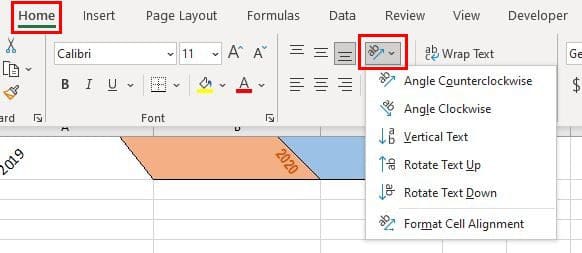
Once the Excel file is open, click on the cell whose text you want to change. If you’re going to apply the tilt to more than one cell, click the corner of the highlighted cell to highlight the rest. Once you’re done highlighting, click on the Home tab, followed by the orientation button that looks like a small a and b together with a tilted arrow.
Tilt text Excel

The option will show you various tilt options you can choose from. You can select the angle counterclockwise, angle clockwise, vertical text, rotate text up, rotate text down, and format cell alignment. If the setting you see is insufficient and you need more options, you can always go to Alignment Settings. You can access these settings by clicking on the small arrow in the bottom right-hand corner.

Excel alignment settings

When you click on the alignment settings, it’ll already be in the Alignment tab. You can manually enter the exact degree or use the spinner arrow in the orientation area. As long as you’re there, you can change the font and even add some color by going to the other tabs.

Alignment Excel

If you add some color and see that it takes up too much space, you can stop the colored cell from invading another by making the cells wider. Place the cursor on the column lines until the cursor turns into arrows pointing in the opposite direction.

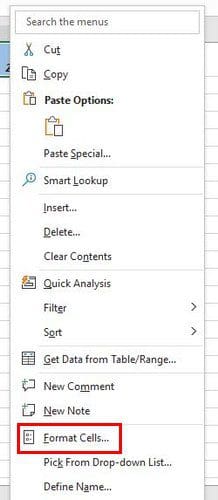
If you want to undo what you did, right-click on the cell and choose the format cells option. In the orientation section, ensure that the number already there is replaced with a zero.
Excel Format Cells

Conclusion

You can add some style to your text in Excel in different ways. Whenever you want to go back to hows things were, now you know what steps to follow. With these steps, you can make your Excel file look different from the rest. How will you be changing the text in your Excel file? Share your thoughts in the comments below, and don’t forget to share the article with others on social media.


Categories: Office

Author Judy Sanhz

You Might Also Like

  • How to Change the Default File Type in Word

    Mel HawthorneOffice
  • Outlook Get Add-ins Button Is Grayed Out Top 5 Solutions in 2023

    Outlook Get Add-ins Button Is Grayed Out: Top 5 Solutions in 2023

    Martin ClarkOffice
  • Outlook Email View Changed The 5 Best Ways to Fix It

    Outlook Email View Changed: The 5 Best Ways to Fix It

    Susan SheffieldOffice
  • How to Use Excel IF-THEN Formula 5 Best Real-World Scenarios

    How to Use Excel IF-THEN Formula: 5 Best Real-World Scenarios

    Susan SheffieldOffice

Leave a Reply

Your email address will not be published. Required fields are marked *

This site uses Akismet to reduce spam. Learn how your comment data is processed.

300x600
Turning on Triple Touch Zoom on Android

Turning on Triple Touch Zoom on Android

How to Connect Outlook 2023 to Gmail

How to Connect Outlook 2023 to Gmail

Netflix: Change Password

Netflix: Change Password

Everything You Need to Know About WhatsApp Delete for Me

Step-by-Step Guide: How to Use WhatsApp on Your Computer

Android: Enable or Disable Background Data

Android: Enable or Disable Background Data

300x250
profile pic

The Experts Behind Technipages

My name is Mitch Bartlett. I've been working in technology for over 20 years in a wide range of tech jobs from Tech Support to Software Testing. I started this site as a technical guide for myself and it has grown into what I hope is a useful reference for all.

Learn More

300x250 2
technipages logo white
linkedin icon

Technipages is part of Guiding Tech Media, a leading digital media publisher focused on helping people figure out technology. Visit guidingtechmedia.com to learn more about our mission and team.

© 2026 Guiding Tech Media All Rights Reserved

  • About Us
  • Contact
  • Legal & Privacy

© 2026 Guiding Tech Media All Rights Reserved

Information from your device can be used to personalize your ad experience.
Do not sell my personal information.