
By adding a widget to your Android home screen, you have faster access to certain information. For example, by adding a weather widget, you can know what the weather will be like without having to open the app.
Some apps you have installed could have a widget waiting for you to add it to your home screen. Keep reading to discover how to check if an app has a widget and how to add it to your device’s home screen.
What is a Widget on Android?
An Android widget is not the same thing as a shortcut for an app. Widgets are like small interactive apps that you can use on your home screen. These mini-apps will show you data that was app was made for, like the weather widgets mentioned earlier.
Not all apps come with their own widget, so if you ever need a widget for a specific task, you can check out Google Play to see if there’s one you can download. The most common type of widgets you’ll see are:
- Weather
- Clocks
- Notes
- Tasks
- Lists
- Productivity Tools
How to Add a Widget to Your Android 10 Home Screen
Let’s say that you installed a clock widget and want to add it to your home screen. Once the app is done installing, you’ll see the app icon appear on your home screen, but no the widget itself.
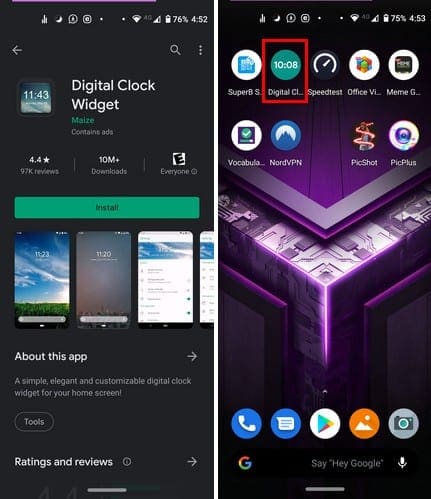
Long-press on a blank area on your home screen and tap on the widgets option.

Scroll through your widget options and long-press on it when you find it. When you long-press on the widget, your home screen is going to appear, so when it does place the widget where there’s enough space for it.
You’ll see white dots around the widget, use these dots to resize it. If you ever need to move the widget, long-press on it and move it to its new location. The same steps apply if your Android device is running on Android Pie.
How to Remove a Widget on Android 10
When it’s time to say goodbye to a widget, long-press on it and slide to the top of your screen towards the Remove option, that’s all there is to it.

How to Add More Space for Widgets
When you have so many apps on your device that you run out of space on your home screen for a widget long-press on the widget and slide it to the right.
Doing this will create additional space for the widget. If nothing happens when you do this, without letting go of the widget, move it to the left and give it one more try, but this time try to move it as far left as you can.
Don-t worry if it takes a few tries, it just takes some practice.
How to Check If an Installed App Has a Widget – Android 9 and 10
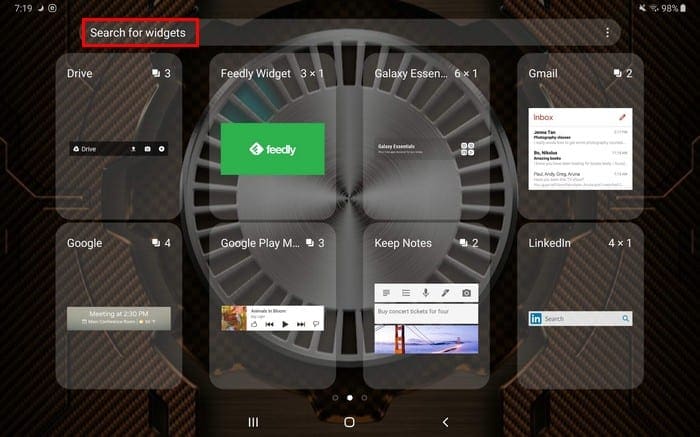
To check if an installed app you have on your device has a widget available for Android 9 (Tablet), long-press on an empty space on your home screen and tap on the Widgets option. You can search for a widget by swiping to the sides or using the search option at the top.

The numbers you see at the top right of each square indicates the number of available widgets for that app. If there is only one widget available, you can tell because the only thing you’ll see is how big the widget is. To see an example, please look at the Feedly widget in the image above.
If the app of interest has a widget, tap on it to see the available widgets, at the top right of each one, you’ll see how big each widget is.

Things will look a little different if you’re using an Android phone with Android 10. You won’t have the search feature, but you’ll have a slider on the side for an easy find.
As you slide down, a letter will be displayed letting you know if you’re near the app you’re looking for. For example, if you’re looking for a Google app, the letter G will be displayed, so you know you’re where you need to be.
Conclusion
Widgets can be handy since they give you faster access to the app you need. The number of widgets you can choose will come down to the number of choices that specific app offers. What widgets are a must on your home screen?




I deleted my widget from my android phone 10 home screen by mistake. How can I get my clock & weather back on my screen?
No, it didn’t. My phone rings Android 10, when I hold down on the home screen I only get options for Home Screen Settings and Wallpaper, no widgets option
When dragged and dropped to the home screen the widgets disappear.
A variety of launchers have been tried and this always happens Unless there is some configuration setting causing this, it appears to be a bug!
Frustrating!