Skip to content
LogoTechnipages
technipages logo
  • Topics
        • Android
        • Browsers
        • Gaming
        • Hardware
        • Internet
        • iPhone
        • Linux
        • macOS
        • Office
        • Reviews
        • Software
        • Windows
        • Definitions
  • Product Reviews
  • Downloads
  • About

Dropbox: How to Enable Automatic Camera Uploads

Mel HawthorneFebruary 19, 2021 Comments (0)

Dropbox’s cloud solution is ideal for saving photos; whether you have an extensive selfie collection or take photos of every dog you meet, Dropbox has your back. Of course, to actually use your cloud storage, you need to upload your pictures to Dropbox.

Now you could choose to upload your pictures to Dropbox manually, but honestly, who has the time? Dropbox has a pretty reliable auto-upload feature. It lets you automatically sync your entire camera roll when you connect a mobile device to your computer.

All you need to do is set this up once on your device. When any mobile device is connected, your camera roll will be automatically synced and backed up. In other words: peace of mind, without having to worry that your precious snapshots might get lost if something happens to your phone, for example. Here’s how to set up automatic camera uploads.

How to Enable Automatic Camera Uploads

To get to the camera upload setting, you need to go through the account settings.  You first need to click on the cogwheel icon at the bottom of the column on the left to get there.
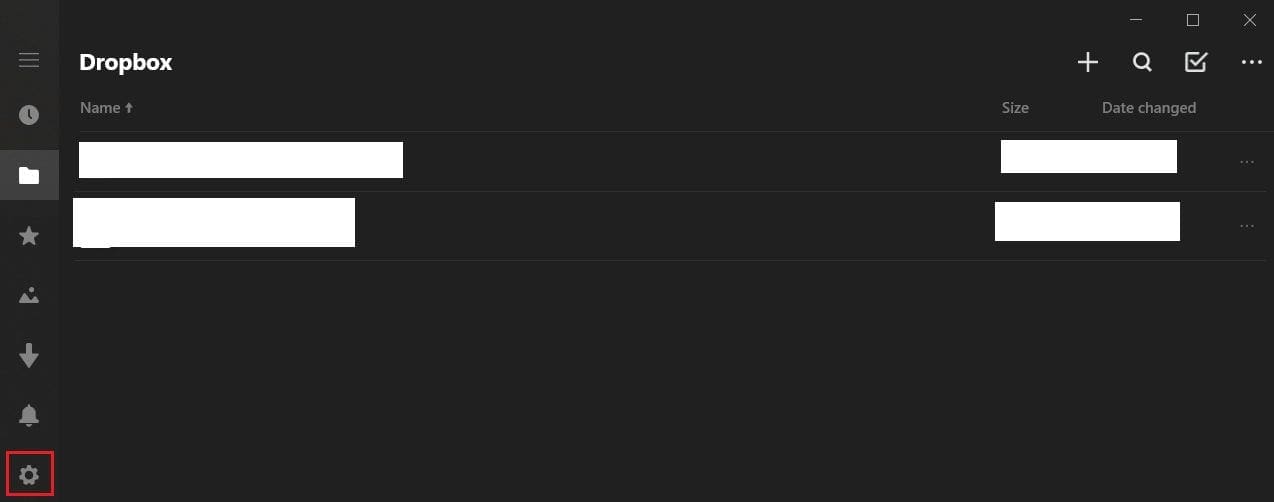
Click on the cogwheel icon to open your settings.

In the settings, click on “account” to open the account settings.

Click on “account” to open the account settings.

In the account settings, click on “Camera upload settings” to get to the right page.
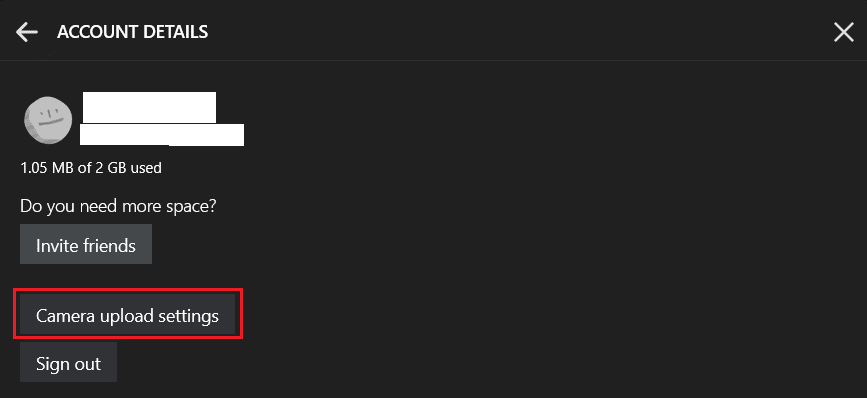
Click on “Camera upload settings” to get to the page to enable automatic camera uploads.

In the Camera Upload settings, click the slider labeled “camera upload” to the “On” position to enable automatic uploads. By default, these uploads only happen over unmetered wifi connections. If you want automatic uploads to happen over a metered connection or over a mobile data connection, you need to enable the “use any connection type” slider.
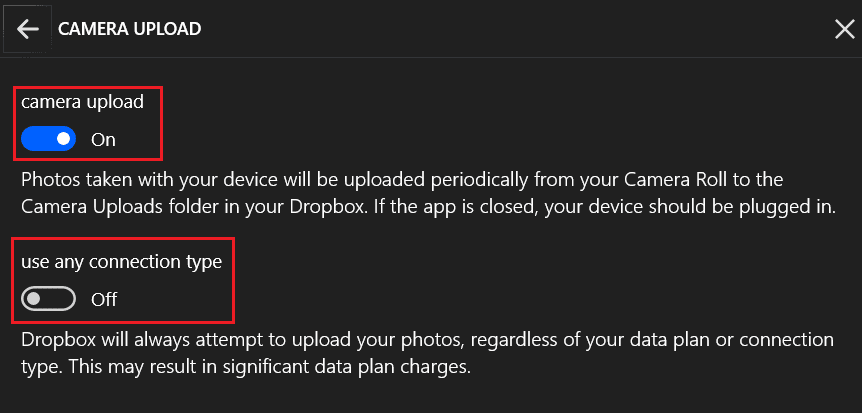
Enable the “camera upload” slider and optionally the “use any connection slider.”

Automatic uploads take the pain out of ensuring that your photo collection is backed up. By following the steps in this guide, you can enable automatic uploads whenever a mobile camera is plugged in.

Categories: Internet | Software

Author Mel Hawthorne

You Might Also Like

  • 7 Chrome Extensions to Make Gmail More Productive

    Judy SanhzInternet
  • Slack: How To Export a Workspace Member List

    Mel HawthorneInternet
  • Bitwarden: How to Manually Synchronize Your Vault

    Mel HawthorneInternet
  • Bitwarden: How to Unlock the Browser Extension with a PIN or Biometrics

    Mel HawthorneInternet

Leave a Reply

Your email address will not be published. Required fields are marked *

This site uses Akismet to reduce spam. Learn how your comment data is processed.

300x600
Turning on Triple Touch Zoom on Android

Turning on Triple Touch Zoom on Android

How to Connect Outlook 2023 to Gmail

How to Connect Outlook 2023 to Gmail

Netflix: Change Password

Netflix: Change Password

Everything You Need to Know About WhatsApp Delete for Me

Step-by-Step Guide: How to Use WhatsApp on Your Computer

Android: Enable or Disable Background Data

Android: Enable or Disable Background Data

300x250
profile pic

The Experts Behind Technipages

My name is Mitch Bartlett. I've been working in technology for over 20 years in a wide range of tech jobs from Tech Support to Software Testing. I started this site as a technical guide for myself and it has grown into what I hope is a useful reference for all.

Learn More

300x250 2
technipages logo white
linkedin icon

Technipages is part of Guiding Tech Media, a leading digital media publisher focused on helping people figure out technology. Visit guidingtechmedia.com to learn more about our mission and team.

© 2026 Guiding Tech Media All Rights Reserved

  • About Us
  • Contact
  • Legal & Privacy

© 2026 Guiding Tech Media All Rights Reserved

Information from your device can be used to personalize your ad experience.
Do not sell my personal information.