The faster you can copy files on your Microsoft Windows 10 computer, the better. You may already be happy with the speed of your computer copies files, but wouldn’t you want to try a method that can improve the current copying speed?
The good news is that there are a few methods you can try and speed up the copying process. Some are easier than others, but they all have the same goal in mind; to help you copy files faster.
Basic File Copying Keyboard Methods
Some primary keyboard shortcuts to copy include:
- Ctrl + X – These keys will cut a file and moves it to the clipboard for future pasting.
- Ctrl + C – Copies any file without cutting it.
- Type Ctrl + V – Shortcut to paste the text you’ve copied.
- Ctrl + Shift + N – To create a new folder. You’re going to need to paste your text somewhere.
- Alt + Left/Right – Helps you move back and forth among the folders.
Copy Windows Files Faster by Changing USB Ports
Sometimes by doing things such as changing USB ports can help improve the speed the files are copied. This should be one of the first things you try when the copying speed is slower than usual.

Outdated drivers can also slow things down when copying files. To update your computer’s drivers, you’ll need to visit the computer manufacturer website. You should be able to find the drivers in the support section, if not, you can always contact customer support for more information.
Get More File Copying Power With Robocopy
Robocopy is a feature that Windows has built-in, so there is no need to download any third-party software. This feature will speed up the file copying process, but you will need to use the Command Prompt.
If you’re not familiar with the Windows Command Prompt, you may want to try other methods.
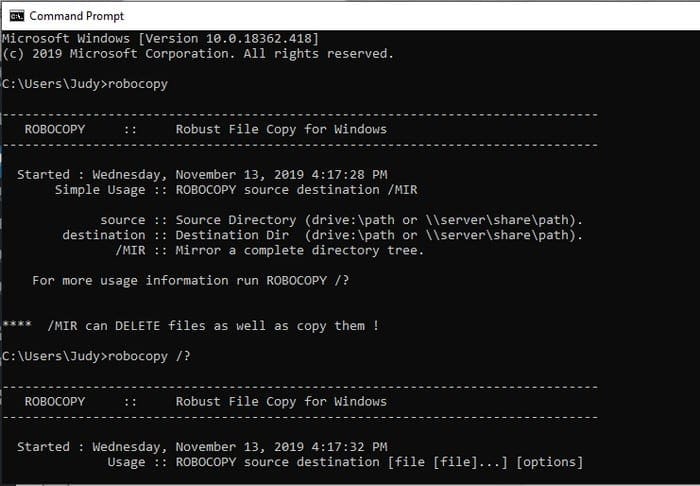
To open the Command Prompt, you can select the search option and type cmd. When the Command Prompt option appears, you can click on the option that says Open, or you can directly click on the option.
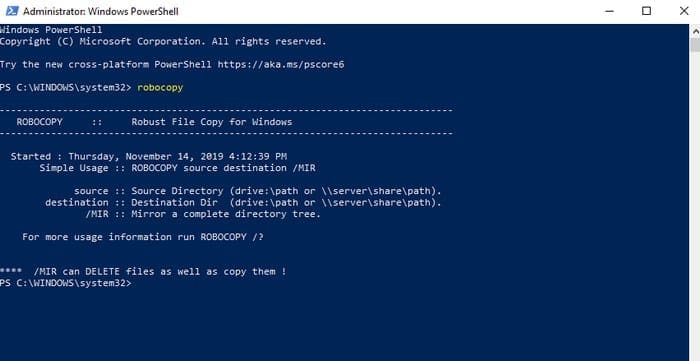
You can also use PowerShell by right-clicking the Windows start menu and selecting “Windows PowerShell”.

When the Command Prompt is open type robocopy /? After pressing Enter, you should see copying options. With these shortcuts, copying files on your computer will be a lot faster.
You also have the option of using Windows Powershell but as an administrator.
An example of how you could use Robocopy to copy files from one place to another would be the following. Let’s say that you want to copy files from your user profile to a folder you’ve named Backup.
The basic formula to use Robocopy is to type Robocopy origin–destination and then the command. To properly copy those files you would need to enter the following command: Robocopy C:\Users\Judy F:\TheBackup / E.
Change to an SSD
If you’re not sure if you have an SSD or an HDD, you can tell by how old your computer is. Desktop PCs will have a high chance of having an HDD (hard disk drive) that is slower than modern SSD (solid-state drive).
SSDs will deliver better performance (faster copying speeds) and will last longer. SSDs will also help you save energy and will help keep your computer cooler.
Free File Copy Software
There are also various software utilities you can try out and for free. For example, there’s TeraCopy. TeraCopy is a free Windows software that is designed to skip any problematic files and will always try to work on the fastest channel.
Conclusion
The faster you get things done, the more time you have for other things. By knowing how to copy files more quickly on your Windows, you can also help others to do the same. Which method are you going to try out first? Let me know in the comments below.