Skip to content
LogoTechnipages
technipages logo
  • Topics
        • Android
        • Browsers
        • Gaming
        • Hardware
        • Internet
        • iPhone
        • Linux
        • macOS
        • Office
        • Reviews
        • Software
        • Windows
        • Definitions
  • Product Reviews
  • Downloads
  • About

How to Configure Notification Settings in YouTube for Android

Mel HawthorneAugust 10, 2020 Comments (0)

Notifications are a common and important part of mobile phones. Notifications help to keep you up to date with many different things, some of these can be useful. In a lot of situations though, these notifications can be useless and lead to an overload of notifications if there are too many.

For example, with YouTube you may want to be notified when one or two channels, that you particularly like, upload videos. If you enable upload notifications for all channels you follow, you could end up with dozens of extra useless notifications every day.

Managing what notifications an app is allowed to send is a key part of keeping your mobile notifications useful and relevant.

How to configure YouTube’s notification settings

The in-app settings for YouTube contain all of the settings you need to configure the notifications that YouTube can send you. To access them, tap your profile picture icon in the top-right corner of the app.

Tap your profile picture icon in the top-right corner to access the in-app settings.

Next, tap “Settings”, to open the settings themselves.

Tap “Settings” to manage the app settings.

To manage the notification settings, you need to tap “Notifications”, the eighth option from the top.

Tap notifications, to manage your notification options.

In the notification options, you can manage each of your notification settings, including if you’re notified of recommended videos, other people commenting on your videos, your videos are shared on other channels, and more.

You can scroll through and manage all the notification settings.

In the “Channel settings” on this page, you can manage your upload notifications settings for each channel that you are subscribed to.
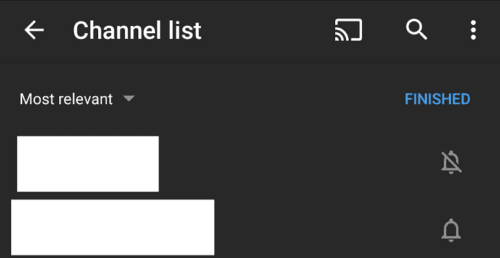
Manage your channel upload notification preferences through the “Channel settings”.

Categories: Android

Author Mel Hawthorne

You Might Also Like

  • Android: How to Personalize the Google Widget

    Judy SanhzAndroid
  • How to Make Your Android Device Sound Louder

    Judy SanhzAndroid
  • Google Play header

    Quick Tip: How to View Your Google Play Purchase History

    Judy SanhzAndroid
  • How to Remove Audio from an Android Video

    Judy SanhzAndroid

Leave a Reply

Your email address will not be published. Required fields are marked *

This site uses Akismet to reduce spam. Learn how your comment data is processed.

300x600
Turning on Triple Touch Zoom on Android

Turning on Triple Touch Zoom on Android

How to Connect Outlook 2023 to Gmail

How to Connect Outlook 2023 to Gmail

Netflix: Change Password

Netflix: Change Password

Everything You Need to Know About WhatsApp Delete for Me

Step-by-Step Guide: How to Use WhatsApp on Your Computer

Android: Enable or Disable Background Data

Android: Enable or Disable Background Data

300x250
profile pic

The Experts Behind Technipages

My name is Mitch Bartlett. I've been working in technology for over 20 years in a wide range of tech jobs from Tech Support to Software Testing. I started this site as a technical guide for myself and it has grown into what I hope is a useful reference for all.

Learn More

300x250 2
technipages logo white
linkedin icon

Technipages is part of Guiding Tech Media, a leading digital media publisher focused on helping people figure out technology. Visit guidingtechmedia.com to learn more about our mission and team.

© 2026 Guiding Tech Media All Rights Reserved

  • About Us
  • Contact
  • Legal & Privacy

© 2026 Guiding Tech Media All Rights Reserved

Information from your device can be used to personalize your ad experience.
Do not sell my personal information.