Sooner or later, you’ll need to open a PDF while using Chrome. The browser will open the file on another tab when you open it. This can be useful if you only want to view the PDF, but if you want to do more such as edit the file in any way, you’ll want to open it in a program such as Adobe Reader. The process may seem a little complicated, but you can get through the process by following these steps. By making Adobe your default app, you won’t have to worry about it opening in the wrong place.
How to Open a PDF on Adobe Reader
When you open a PDF on Chrome, the browser will show the PDF in another tab. But, to open the PDFs in Adobe Reader, you’ll need to download it first. Go to the Microsoft Store and download the program. Once installed, you’ll need to change how Chrome handles PDFs. Click on the three dots at the top right of the browser and go to Settings. Click on Privacy and Security on the left and choose the Site Settings option.

Scroll down to additional content settings for other options and choose the PDF documents option. Choose the options to download the PDFs and not open them in Chrome.

Now that you’ve set things up so the PDF doesn’t open in another tab, you need to tell Chrome how you want the file opened. Once you’ve downloaded the PDF, Chrome will indicate at the bottom that the process is finished. Click on the arrow and choose the Open option. You’ll see a list of options, and Adobe Reader will be one of them if you don’t forget to install it.
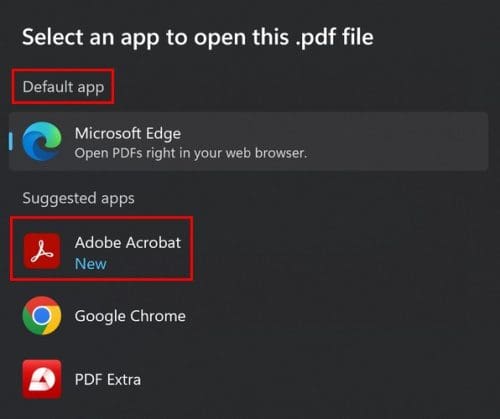
Choose Abobe, and at the bottom of the list where it says how often you want to open it, choose always. After that, the PDF will open with Adobe. If, for some reason, the PDF is still opening in the browser, you can go into your computer’s Settings and make Adobe the default app for your PDF files. You can do this by pressing the Windows and I keys. Or, if you prefer, you can click on the Windows Start icon and click on the Settings app. Once you’re in Settings, go to Apps, followed by Default apps.

On the next page, you’ll see different file types. Click on the PDF one and choose Adobe from the list. Once you’ve selected Adobe, click on the blue set as default button. As long as you’re there, you can also set Adobe as the default app for other types of files too.

How to Set Adobe Reader As Default App from the App
Another option to make Adobe Reader the Default app is through the settings. Once the app is open, click on Edit at the top left. Click on Preferences at the bottom, followed by the General option. Use the sidebar on the right, go to the bottom of the page, and click Select as Default PDF Handler, followed by the Yes button. Click on the Continue button, followed by the Ok button.

That’s all there is to it when setting Adobe Reader as your default app. It’s a great app with various editing options, so it’s a helpful app to have as your default.
Further Reading
If you’re still in reading mode, you can read articles such as how to open a PDF in Microsoft Edge and how to import data from a PDF file in Excel. Then there is the article that shows you how to turn a PDF into an Excel sheet. Remember that you can always use the search bar to look for specific articles.
Conclusion
It can be unpleasant to have a browser open PDF files on another tab when you want to open it in Adobe Reader. As you can see, it can be done by using the app or by going into your computer’s settings and making the app your default app. So, even if you’re in a hurry, it’s something you can do. Adobe has various tools that will make more than one user want to set it as their PDF default app. What do you like about the app? Share your thoughts in the comments below, and don’t forget to share the article with others on social media.