The Wave app is very helpful since you can get to where you want to go without getting lost. You’ll never miss a turn since it lets you know when to turn with enough time. You’ll hear the voice you set up for a while if you’re on a long road trip. If you’ve had enough of the current Waze voice, the good news is that you can quickly change to another one from the integrated option or even add your voice. You can change the Waze voice as often as you like. Keep reading to see what steps to follow in changing voice settings for the Waze app.
Steps to Changing Voice Settings for Waze App
You’ll need to go into the app’s settings to give the Waze app a new voice sound once you have the app open, tap on the three-lined menu at the top left. When the menu appears, tap Settings, followed by Voice and Sound. Under the Sounds section, you’ll see the Waze voice selected as the default voice. Tap on it to see the complete list of Waze voices.
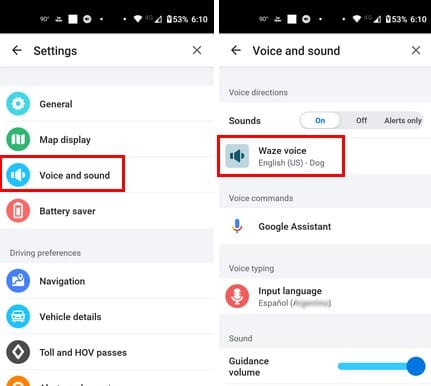
You’ll see a long list of options in different languages. You can choose from options that go from 90’s Pop Start to Master Chief. You can go back at any time to try the others. With so many fun options to choose from, you’ll likely switch often. You’ll find exciting options such as Roger Federer, Dad Jokes, Blockbuster Mode, and 80’s Aerobic Instructor. You’ll also see an option to add a voice at the top if you want to hear your voice giving your directions to your destinations this your option.
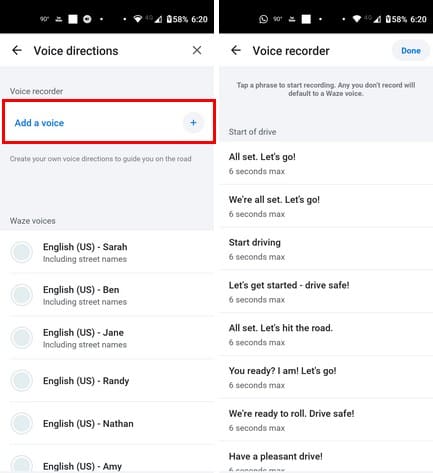
If you select this option, you’ll see a safety warning you must tap OK to remove. Recording your voice for driving instructions is something that can be time-consuming since there are a lot of directions to cover. Each indication can’t be more than six seconds, and you’ll need to record directions for:
- All set. Let’s go!
- We’re all set. Let’s go!
- Start driving
- Let’s get started – drive safe!
- In 200 meters
- Keep left
- Take the first exit
- Make a U-turn
- And then
- Heavy traffic reported, and more!
If there are specific directions you want to record first, maybe the ones you find more important, you can easily find them since they will be divided into sections such as:
- Start of drive
- Distances
- Instructions
- Reports
- Other
At the bottom, you can go back to the default voice if you change your mind. You’ll also see the option to clear all your recordings if you’re unhappy with them. That’s all there is to it when you need to change the voice on your Waze app. If you like your voice’s sound, you know you have that option. If you forget to record an indication, Waze will use the default voice.
Further Reading
Speaking of voice commands, if you need to enable Oculus Quest 2 voice commands, here are the steps to follow. Since it’s also possible to have fun with this technology, here are six free and fun voice-changing Android apps to let the stress out. If you want to speed up those audio messages that are too long for WhatsApp users, here is how you can do that.
Conclusion
Waze is a great app, and the fact that it gives you a long list of voice options to add makes it even better. You can choose from various options in different languages. If you ever prefer another option, you can return and change it again. What voice option did you choose? Share your thoughts in the comments below, and remember to share the article with others on social media.