Your Fitbit Versa 4 is going to be a device you’re going to look at frequently. It makes sense that you’ll want to change the clock face on a Fitbit Versa 4 so you like what you see every time you check your watch. The good news is that the process is easy, but the changes must be made from your phone rather than your Fitbit. The only problem you might have is choosing which design will go on your Fitbit. Some designs are free, while you’ll need to pay for the others. Keep reading to see how you can change your Fitbit’s clock face.
How to Change the Clock Face on a Fitbit Versa 4
Changing the clock face on your Fitbit Versa 4 is quick and easy. But to choose the new clock face, you’ll need to open the Fitbit app on your phone. Once the app is open, tap on the profile icon at the top left and Choose your Versa 4 from the list of options.

On the next page, click the Gallery option to choose your new clock face. In the top row, you’ll see the My Clock row. That’s where you can see your favorite clock faces. To add a clock face to that row, tap the plus icon and choose a clock face.
Click on the Clocks tab to choose from free and paid lock faces. To see which ones are free, you’ll need to select a category and then tap on the Free or Paid tab. You can see the clock’s popularity since each will have a rating. This is a real time saver since you won’t waste time looking at the least popular ones.

When you find a clock face you like, select it and choose the Install button. You’ll need to give the OK to some permissions. Toggle on the Select All option, followed by the Proceed button. Wait a few seconds for the clock face to install, and you should see it on your Fitbit.
How to Manage Your Fitbit Versa 4 Clock Face
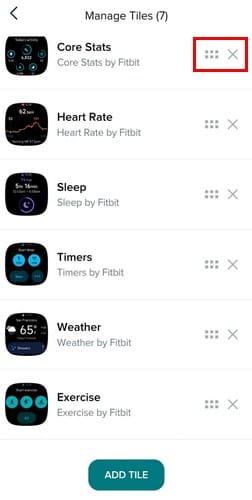
When you get to the list of clock faces of your Fitbit, you’ll also see an option to manage them. You can tap on the X to remove the clock face if you want it to go. Press the six dots and move your favorite clock faces to the top and your least favorite to the bottom.
Conclusion
As you can see, you have a large variety of clock faces to choose from. It’s not like before when you could change the clock face directly from the Fitbit watch since you now need to open the app from your phone to make the change. But all those options make up for it. You can change the clock face as many times as you want and even save your favorite for an easy find. You can also put the clock faces you like at the top of the list so you don’t waste too much time looking for them. Did you spend a lot of time looking for a clock face design? Share your thoughts in the comments below, and don’t forget to share the article with others on social media.