

Some for, just the idea of their mobile data failing may be a real headache. You depend on your phone for a lot of things, and without cellular data, your options are limited. Even if you have the best mobile service provider, you’ll experience this problem sooner it later.
There can be various causes for your mobile data not to work all of a sudden. Keep reading to not only know what can cause this problem but most importantly, how you can fix when your mobile data stops working.
You Could Have Reached Your Limit
I know this may sound silly, but it has been known to happen. You may think that you haven’t done so much that it could have resulted in you using up all your mobile data, but it’s a possibility.
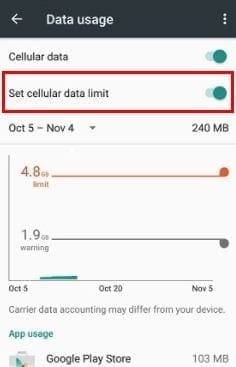
This obviously doesn’t apply to you if you have an unlimited plan, but not everyone can have one. To check if you’ve reached your limit go to your phone’s “Settings” > “Data usage” > and you should be able to see your limit there.
Don’t forget that you can also try the obvious stuff such as turning your phone off and on. If you’re going to try that universal method, turn on Airplane Mode for about thirty seconds and then turn it off. If all remains the same turn Airplane mode back and turn off your phone.
Once it completely turns off wait for about a minute or so and turn it back on. Turn off Airplane Mode and 30 seconds and see if your cellular data is working again. Another quick method that has been known to work is switching between network generations.
Reboot the Access Point Names (APNs)
APNs are very important since they are the ones that give you important settings such as your IP Address. To reset the APNs go to Settings > Mobile Data/Wireless Controls/Wireless Networks.
Select Mobile Networks and then go to Access point names. The list of APNS that you’ll see will usually only have one network. Tap on the three vertical lines and select reset to default.
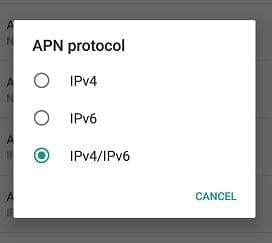
There are some phones that give you the option of choosing to set the APN protocol to iPv4/IPv6. If you’re given this option use it since it better then putting it at one or two.
Manually Set Up the APN
If the standard reset didn’t cut it, you can always try setting up the APN manually. To do this go to “Settings” > “Mobile Data“/”Wireless Controls“/”Wireless & Networks” > “Mobile Networks” > “Access point names“.
Select the plus sign icon or the three vertical dots if you have that instead. Choose New APN and type in the APN data for the network you’re using. Don’t forget to save the info you entered.
Drastic Times Call for Drastic Measures
I know that many might consider this a bit drastic but if nothing else works, what have you got to lose? Tech experts are always saying to have a backup of your data so if you have your then this option shouldn’t be too harsh.

The steps to perform a factory reset will depend on the device you have, but here’s a general guideline. Go to Settings > Backup and reset > Factory data reset.
Conclusion
Hopefully, this is a problem you won’t have to face very often but if you do, now you know what to do to fix it. Keep in mind it could also be your mobile carrier that could be having problems so you might want to look into that too.
Did I miss any tips you use to fix cellular data not working on your Android device? Leave your solution in the comments below.


By chance the data will on over night it consumes 700mb
Still not working for motorola G6
No. Unfortunately none of the suggestions worked for my motorola G5S Plus..
This was a little helpfull