Skip to content
LogoTechnipages
technipages logo
  • Topics
        • Android
        • Browsers
        • Gaming
        • Hardware
        • Internet
        • iPhone
        • Linux
        • macOS
        • Office
        • Reviews
        • Software
        • Windows
        • Definitions
  • Product Reviews
  • Downloads
  • About

Zoom: How to Limit the Framerate When You’re Sharing Your Screen

Mel HawthorneJanuary 6, 2021 Comments (1)

You may occasionally need to share your screen during a Zoom meeting. Screen sharing is often done to facilitate a presentation or demonstration, although it can also be used for tech support. For a smooth and quality experience, there are two important factors: framerate and internet connection speed.

Framerate refers to how many video frames are shown per second, where higher numbers provide a smoother experience. Most computer monitors run at 60 frames per second or FPS, while 24 FPS is the rough minimum framerate for motion to appear smooth to most people, although this varies between people and the scene being displayed.

Internet connection speed is also important as it determines how many video frames you can reliably upload per second and the image quality of those frames. A faster internet connection allows for more frames to be transmitted per second at a higher quality.

These two factors are especially important when the content you’re trying to share has a lot of movement in it, such as a video. For the static slides of most presentations, however, the framerate becomes less important as the image being displayed so rarely changes.

If you want to optimise your Zoom screen sharing configuration for presentations, you may want to limit the framerate that you share your screen at. Depending on your situation this can increase image quality by transmitting fewer higher quality video frames or can reduce the load on your internet connection as you’re trying to upload less data.

Tip: If you have a fast enough internet connection there’s no need to enable a framerate limit, as your video feed will already be high quality.

How to limit your screen sharing framerate

To limit the framerate your share your screen at, you need to go into Zoom’s settings. To access the settings, click on your user icon in the top-right corner, then click on “Settings”.

To access Zoom’s settings, click on your user icon, then on “Settings” in the dropdown menu.

Once in the settings, switch to the “Share Screen” tab, then click on the “Advanced” button at the bottom.
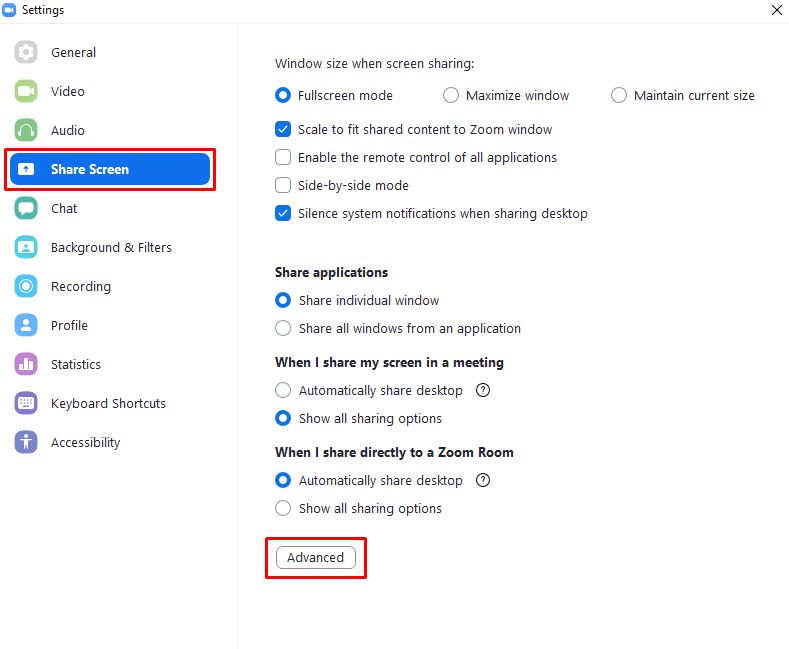
 

Click on “Advanced” at the bottom of the “Share Screen” tab.

When you’re in the advanced settings, tick the first checkbox, labelled “Limit your screen share to [x] frames-per-second”, where [x] is a dropdown box containing a number. Once you’ve enabled the setting, you can then click on the dropdown box in the setting name to configure the framerate limit. The framerates you can limit your screen share to are: fifteen, ten, eight, six, four, two, and one FPS.

Click on “Advanced” at the bottom of the “Share Screen” tab.

Categories: Internet

Author Mel Hawthorne

You Might Also Like

  • Zoom: Enable/Disable Start at Bootup

    Mel HawthorneInternet
  • 5 Sites to Loop a Video Online for Free

    Judy SanhzInternet
  • Zoom: How to Hide Message Previews in Notifications

    Mel HawthorneInternet
  • Google Duo: How To Create a Group Chat

    Mel HawthorneInternet

Comments

  1. justin says:
    February 8, 2021 at 10:05 pm

    thx

Leave a Reply

Your email address will not be published. Required fields are marked *

This site uses Akismet to reduce spam. Learn how your comment data is processed.

300x600
Turning on Triple Touch Zoom on Android

Turning on Triple Touch Zoom on Android

How to Connect Outlook 2023 to Gmail

How to Connect Outlook 2023 to Gmail

Netflix: Change Password

Netflix: Change Password

Everything You Need to Know About WhatsApp Delete for Me

Step-by-Step Guide: How to Use WhatsApp on Your Computer

Android: Enable or Disable Background Data

Android: Enable or Disable Background Data

300x250
profile pic

The Experts Behind Technipages

My name is Mitch Bartlett. I've been working in technology for over 20 years in a wide range of tech jobs from Tech Support to Software Testing. I started this site as a technical guide for myself and it has grown into what I hope is a useful reference for all.

Learn More

300x250 2
technipages logo white
linkedin icon

Technipages is part of Guiding Tech Media, a leading digital media publisher focused on helping people figure out technology. Visit guidingtechmedia.com to learn more about our mission and team.

© 2026 Guiding Tech Media All Rights Reserved

  • About Us
  • Contact
  • Legal & Privacy

© 2026 Guiding Tech Media All Rights Reserved

Information from your device can be used to personalize your ad experience.
Do not sell my personal information.