
Skip to content
LogoTechnipages
technipages logo
  • Topics
        • Android
        • Browsers
        • Gaming
        • Hardware
        • Internet
        • iPhone
        • Linux
        • macOS
        • Office
        • Reviews
        • Software
        • Windows
        • Definitions
  • Product Reviews
  • Downloads
  • About

Windows 10: Enable/Disable Sample Submission for Windows Defender

Mel HawthorneApril 29, 2020 Comments (1)
Windows Security Header

Everyone should have some sort of antivirus software on their computer. What not everyone knows, is that Windows 10 actually has a pretty good antivirus product built-in. Windows Defender is free and pre-installed on all versions of Windows 10 and receives regular updates through the Windows Update service.

One of the features that Windows Defender includes is automatic sample submission. Sample submission is where an antivirus program submits a copy of a suspicious file to the developer for further analysis. The idea behind this is that automatically sharing potential threats with the antivirus developer can help identify and then protect you and other users from the threat. Unfortunately, it’s possible for legitimate files with private details to be identified as suspicious incorrectly and then be uploaded for analysis. This is rare but it can happen.

If you want to disable automatic sample submission, you first need to open the Windows Security app. To do so, press the Windows key, then type “Windows Security” and hit enter. Next, you need to click on “Virus & threat protection” in the left column. Then, to open the settings, click “Manage settings” under “Virus & threat protection settings”.
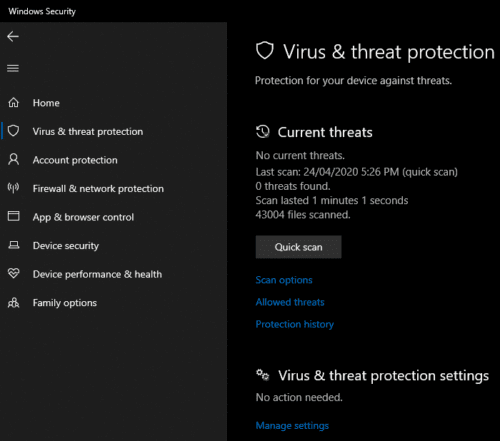
Click “Manage settings” under “Virus & threat protection settings”.

To disable automatic sample submission, click on the slider labelled “Automatic sample submission”. Turning off this setting may cause a User Account Control (UAC) prompt to appear, as this change requires administrative rights. Once the setting has been disabled, a warning will appear saying that disabling automatic sample submission can leave your computer vulnerable. While you are safer with this setting enabled, feel free to dismiss the warning and turn it off if you prefer.

Enable and disable automatic sample submission by toggling the automatic sample submission slider.

To re-enable automatic sample submission, just click the slider again. Re-enabling this setting will not generate a UAC prompt.

Tip: Even if you turn this off, other users still submit their samples, and all in all, the service continuously improves and identifies threats anyway!

Categories: Windows

Author Mel Hawthorne

You Might Also Like

  • Windows 10: Block Apps From Using Microphone

    Mel HawthorneWindows
  • Microsoft-Protection-Definition-Update-Failed

    Fix: Protection Definition Update Failed

    Madalina DinitaWindows
  • Windows-11-Not-Displaying-Weather-Widget

    Windows 11: Different Options to Clear the Caches

    Judy SanhzWindows
  • Fix-Windows-11-Remember-My-Apps-Greyed-Out

    Windows 11: How to Remove the Taskbar Search Button

    Judy SanhzWindows

Comments

  1. Cmaso says:
    August 1, 2021 at 8:49 am

    Why I can’t see “manage settings” under “Virus & threat protection settings”.

Leave a Reply

Your email address will not be published. Required fields are marked *

This site uses Akismet to reduce spam. Learn how your comment data is processed.

300x600
Turning on Triple Touch Zoom on Android

Turning on Triple Touch Zoom on Android

How to Connect Outlook 2023 to Gmail

How to Connect Outlook 2023 to Gmail

Netflix: Change Password

Netflix: Change Password

Everything You Need to Know About WhatsApp Delete for Me

Step-by-Step Guide: How to Use WhatsApp on Your Computer

Android: Enable or Disable Background Data

Android: Enable or Disable Background Data

300x250
profile pic

The Experts Behind Technipages

My name is Mitch Bartlett. I've been working in technology for over 20 years in a wide range of tech jobs from Tech Support to Software Testing. I started this site as a technical guide for myself and it has grown into what I hope is a useful reference for all.

Learn More

300x250 2
technipages logo white
linkedin icon

Technipages is part of Guiding Tech Media, a leading digital media publisher focused on helping people figure out technology. Visit guidingtechmedia.com to learn more about our mission and team.

© 2026 Guiding Tech Media All Rights Reserved

  • About Us
  • Contact
  • Legal & Privacy

© 2026 Guiding Tech Media All Rights Reserved

Information from your device can be used to personalize your ad experience.
Do not sell my personal information.