

When you think of something that’s going to self-destruct, you can’t help think of Tom Cruise and his Mission Impossible team. But, this time, the star is WhatsApp. It has finally added the feature where your messages will erase on their own, but you might not be too happy about how long that’s going to take.
The time most people expect self-destructing messages to go away usually ranges within a few minutes like in Telegram. The app lets you choose between one second, 15 seconds, 30 seconds, One minute, One hour, One day, or one week. But, in the WhatsApp self-destructing messages, you might not find the option you’re looking for.
How to Make WhatsApp Messages Erase Automatically
To enable the feature, open WhatsApp and go to the chat where you want to self-destruct messages to work. Once you have the chat of that contact, open tap on their name at the top of the chat.
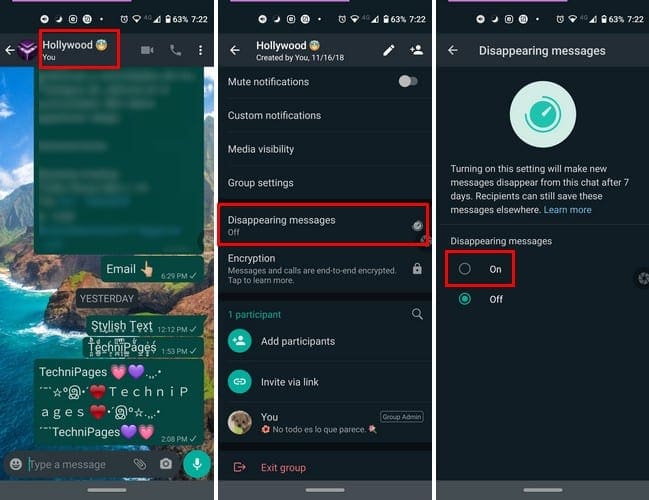
A few options down, you’re going to see the Disappearing messages option. Tap on the option, and you’ll see the options to turn it off or on. Tap On and go back to the chat’s main page. You’ll notice something different now with that chat; that it’s going to have a clock on it.
That means that you’ve enabled the disappearing messages for that specific chat. Not to worry about previous messages you’ve sent or received. Those messages will stay there permanently. This feature can also be used in groups, but only group administrators can turn it on or off.
If for some reason, the other person doesn’t check their WhatsApp messages in seven days, the message will disappear. But, the message will still be visible in the notifications bar. Any disappearing messages that are forwarded when the feature is off won’t be erased.
Tips to Stay Safe When Using Disappearing WhatsApp Messages
If you’re going to be using disappearing messages to send sensitive or semi-sensitive information, make sure to only send it to people you trust since you never know if they might take a screenshot of the chat. Also, save any data from disappearing messages to think is important as soon as possible. If you leave it for later, you could forget and lose the information.

Even if media is erased from the chat, it’ll still be found in your device’s storage if auto-download is on. If you’ve turned auto-download off to save storage space, make sure that you download the file before the seven-day time limit.
Conclusion
Seven days for a self-destruction message is a bit too long, but hopefully, WhatsApp will add more options soon. At least the feature is available and will only get better with time. Will the self-destructing messages be a feature you’ll regularly use?



How can one turn off the self distract messages of a particular chat