

If you’re wondering what’s new in Windows 11, you’ve come to the right place. In this guide, we’ll list the key features of the OS and show you how to enable them. If you haven’t upgraded to Windows 11 yet, maybe this guide will convince you to hit the Update button. Of course, if you don’t like the new OS, you can roll back to Windows 10.
What Are the Key Features of Windows 11?
A Revamped UI
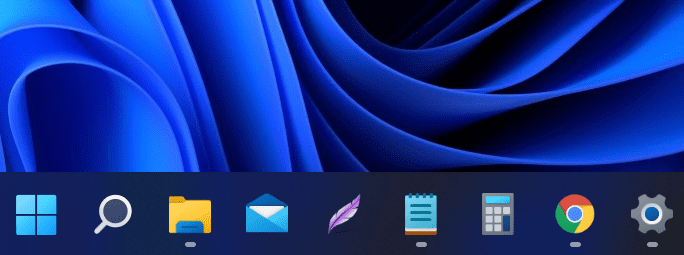
The first thing you’ll notice after upgrading to Windows 11 is the new UI. The Start menu is different and opens by default in the center of the screen. It makes it easier to find what you need. The UI has a fresh and clean look and focuses on productivity.
I’d also add that the new taskbar looks strikingly similar to the Dock on macOS. You even have that dot icon that indicates which apps are running in the background.
New Multitasking Options
Windows 11 makes it easier to work with multiple windows and snap apps side by side. You can optimize your screen so that you can always see and find what you need. Go to Settings, select System, and then Multitasking. You can then customize your Snap Layouts, Snap Groups, and Snap Desktops.

Virtual Desktops
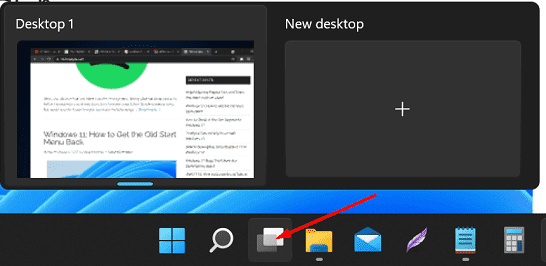
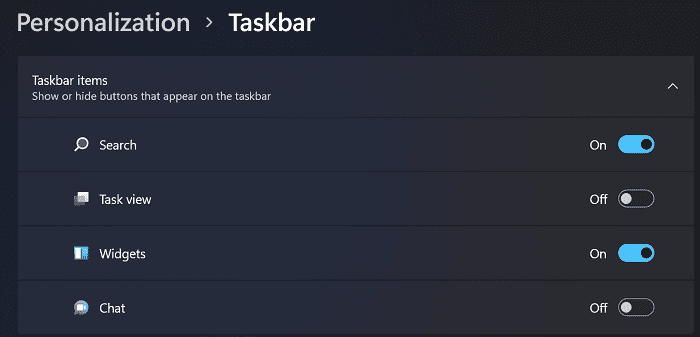
You can also create a virtual desktop. Go to Settings → Personalization → Taskbar items → enable Task view. You can use the second desktop to open various apps and web pages that focus on a particular subject to find all of them in one place.
A Better Memory Management System
Windows 11 has a better memory management system compared to Windows 10. That’s why it feels so fast and responsive. The new memory system prioritizes foreground apps over background apps. Simply put, when it comes to using system resources, background apps give way to foreground apps.
By the way, to save system resources, Edge now uses sleeping tabs.

Windows 11 Integrates Teams Chat into the Taskbar
Microsoft has integrated Chat from Teams into the taskbar. You can use this tool to connect to your contacts no matter what platform they’re using. Rest assured, they don’t need to download the Teams app on their devices.

It seems that Microsoft wants to take a bigger slice of the instant messaging app market. Well, if you’re like me and you don’t need the Chat app, go to Settings → Personalization → Taskbar. Then go to Taskbar items and toggle off the Chat option.
Enhanced Gaming Options
If you’re a gamer, you’ll simply love the new Windows 11 OS. DirectX 12 Ultimate enables immersive graphics at high FPS while HDR renders vivid and captivating colors. Direct Storage helps reduce game load times. The OS supports all the gaming accessories and peripherals out there.
Widgets Are Back
Do you miss the widgets from Windows 7? Windows 11 brought them back. You can use this feature to pin information cards to your desktop, such as news, weather, or notifications. Navigate to Settings → Personalization → Taskbar → Taskbar Items → Widgets.
Run Android Apps on Windows 11
Windows 11 marks the beginning of a new era. You can now run Android apps on your Windows computer. You can use the Microsoft Store to discover Android apps you’re interested in and then download them via the Amazon AppStore. However, the Windows-Android fusion is still a work in progress, and not all Android apps are available for download.
Conclusion
Windows 11 has a clean and minimalist-inspired UI. The OS is also more responsive, thanks to the new memory management system. Microsoft also added a series of multitasking features such as Snap Desktops and Virtual Desktops. By the way, if you’re a fan of the Windows 7 era, widgets are back.
What do you think of the new OS? Which of the new features are you going to start with? Let us know in the comments below.


I found this very useful, being not a big tech type, although enough to upgrade to Windows 11. I will certainly be using the snap feature a lot, now I know about it., and will look into virtual desktops too.
I already liked the feel of 11 once I had got used to it and found the right buttons. It’s good to see the enhanced memory management, and it does seem faster.