Skip to content
LogoTechnipages
technipages logo
  • Topics
        • Android
        • Browsers
        • Gaming
        • Hardware
        • Internet
        • iPhone
        • Linux
        • macOS
        • Office
        • Reviews
        • Software
        • Windows
        • Definitions
  • Product Reviews
  • Downloads
  • About

Trello: How to Filter by Label

Madalina DinitaOctober 29, 2020 Comments (0)

When you’re in charge of multiple tasks or you’re managing a team and you need to keep track of the tasks assigned to your team members, you may feel a bit overwhelmed at times.

Luckily, Trello has a nifty feature that allows users to filter cards and boards using specific labels, keywords, and due dates.

How to Filter Trello Boards on iOS and Android

If you tap the magnifying glass, you can filter the board you’re on. If you want to expand your search to all your boards, go to the homepage and then tap the magnifying glass.

It is worth mentioning that this feature is only available on the Android version of the app.

How to Filter Trello Board on PC

Press the F key on your keyboard to open the filtering menu. You can filter your cards by labels, team members, due dates, or terms. To filter by labels, simply select the label you’re interested in.
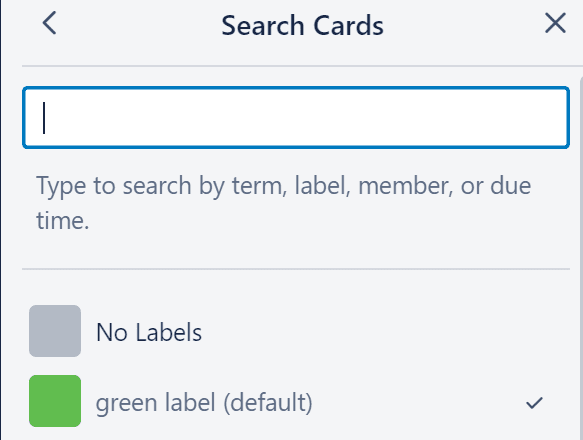
trello filtering options

Select the filter you want to apply and Trello will bring forth the cards and boards containing the respective filter.

What’s the difference between filtering and searching?

If you want to quickly find the information, card, or board you’re interested in, you can either use the filtering option or the search option.

Here are the main differences between the two on Trello:

  • Filtering shows you the cards on their original boards while searching displays the results in a new window.
  • You can use both of these options to find cards assigned to specific members.
  • If you need to search for particular terms, it’s best to use searching because it’s more specific than filtering.
  • You can use filtering on boards you’re not yet a member of.
  • Filtering supports a limited number of options, whereas searching is more versatile and lets you use special operators to broaden your search.
Categories: Software

Author Madalina Dinita

You Might Also Like

  • Turn on Downloading for Spotify Songs

    MonaSoftware
  • How to Disable Word Wrap in Sublime Text 3

    Mel HawthorneSoftware
  • 15 Best ChatGPT Alternatives for 2023 for Relevant Answers

    15 Best ChatGPT Alternatives for 2023 for Relevant Answers

    Martin ClarkSoftware
  • iMovie Windows Header

    9 Best iMovie Equivalents for Windows 11

    Martin ClarkSoftware

Leave a Reply

Your email address will not be published. Required fields are marked *

This site uses Akismet to reduce spam. Learn how your comment data is processed.

300x600
Turning on Triple Touch Zoom on Android

Turning on Triple Touch Zoom on Android

How to Connect Outlook 2023 to Gmail

How to Connect Outlook 2023 to Gmail

Netflix: Change Password

Netflix: Change Password

Everything You Need to Know About WhatsApp Delete for Me

Step-by-Step Guide: How to Use WhatsApp on Your Computer

Android: Enable or Disable Background Data

Android: Enable or Disable Background Data

300x250
profile pic

The Experts Behind Technipages

My name is Mitch Bartlett. I've been working in technology for over 20 years in a wide range of tech jobs from Tech Support to Software Testing. I started this site as a technical guide for myself and it has grown into what I hope is a useful reference for all.

Learn More

300x250 2
technipages logo white
linkedin icon

Technipages is part of Guiding Tech Media, a leading digital media publisher focused on helping people figure out technology. Visit guidingtechmedia.com to learn more about our mission and team.

© 2026 Guiding Tech Media All Rights Reserved

  • About Us
  • Contact
  • Legal & Privacy

© 2026 Guiding Tech Media All Rights Reserved

Information from your device can be used to personalize your ad experience.
Do not sell my personal information.