Skip to content
LogoTechnipages
technipages logo
  • Topics
        • Android
        • Browsers
        • Gaming
        • Hardware
        • Internet
        • iPhone
        • Linux
        • macOS
        • Office
        • Reviews
        • Software
        • Windows
        • Definitions
  • Product Reviews
  • Downloads
  • About

Slack: How To Disable Public File Sharing

Mel HawthorneFebruary 12, 2021 Comments (0)

Slack is a channel-based communications app that allows members of workspaces to communicate. Each workspace is technically invite-only, however, if it is public, the workspace might be configured differently. It can be set up to pre-accept any invites/requests to join for popular email providers. Realistically though, most workspaces require an invite to join.

For example, if a workspace is dedicated to the development of a software tool, then you may have to be a part of the mailing list, etc, to be invited to the workspace. For corporate workspace, you typically have to be an employee or contractor to have access. That said, some companies may have shared channels with other companies they regularly work with.

Typically, within these private workspaces, it is assumed, or contractually required, that content remains private. This expectation of privacy also extends to documents, images, and other files shared in the workspace.

Changing Up The File Sharing

By default, Slack allows you to not only share files from one channel in a workspace to another but to also generate a publicly accessible link to the file. Obviously in private workspaces, this is a big risk, for companies especially, this could be an easy way for a disgruntled Employee to leak data.

Thankfully for workspaces that consider this a legitimate risk, Slack allows you to prevent anyone from generating publicly accessible sharing links. To restrict the ability to create public sharing links, you need to go into the workspace permissions settings. To get there, you first need to click on the workspace name in the top-right corner. Next, in the dropdown menu, select “Settings & administration”, then “Workspace settings” to open the workspace settings in a new tab.

To get to the workspace settings, click on the workspace name in the sidebar, then select “Settings & administration” and “Workspace settings”.

Switch to the “Permissions” tab at the top of the page, then click on the “Expand” button for the “Public file sharing” permissions.
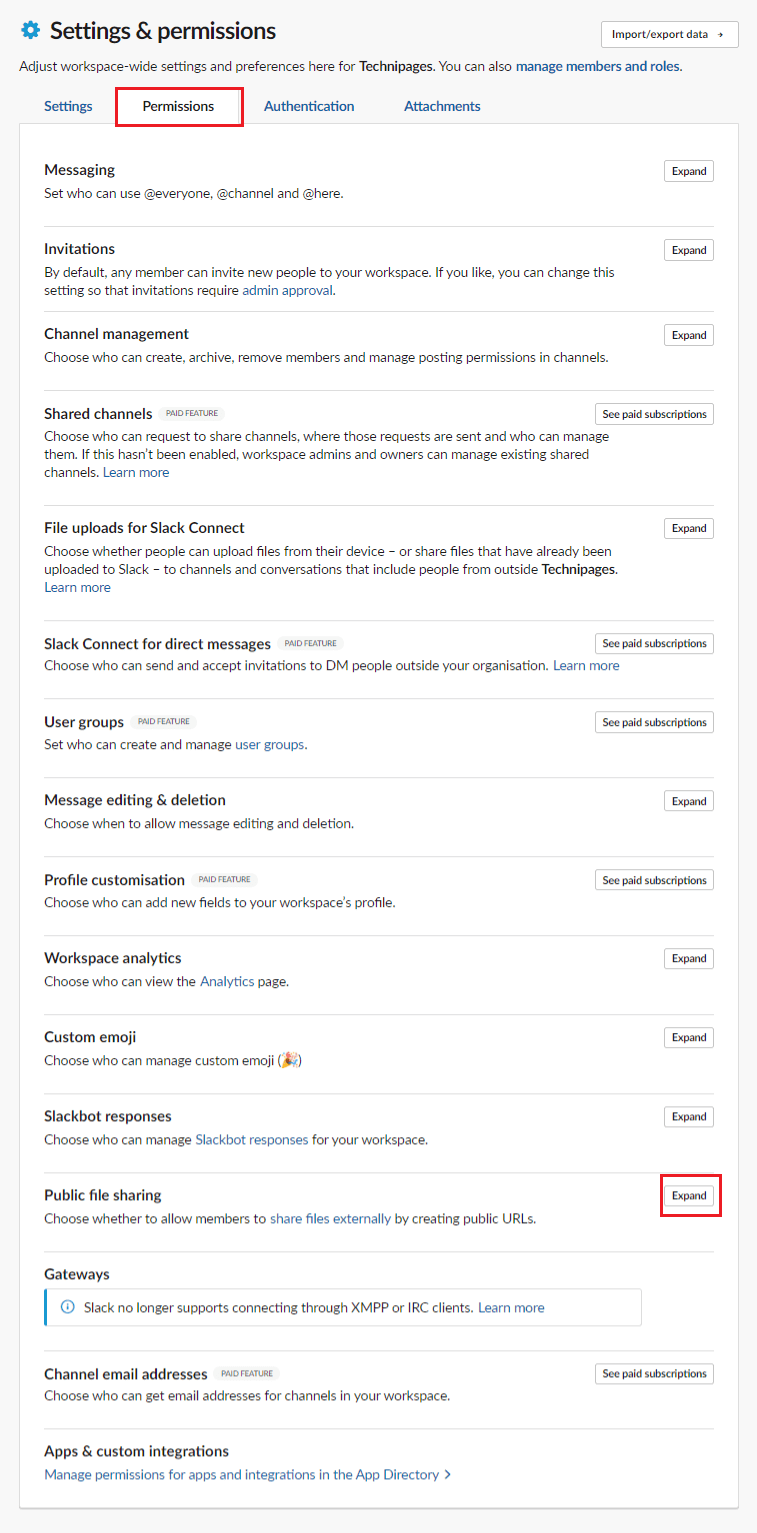
Click “Expand” next to “Public file sharing” in the “Permissions” tab.

Once in the Public file sharing permissions, untick the checkbox labelled “Enable public file URL creation”. Then, click “Save” to apply the change.
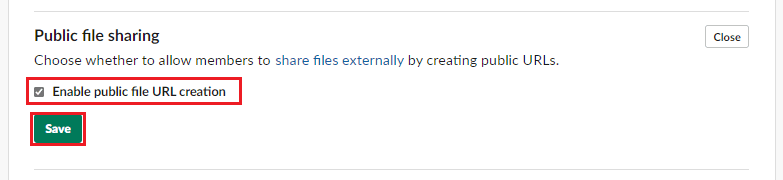
Untick the checkbox labelled “Enable public file URL creation”, then click “Save”.

By default, Slack allows users to generate publicly accessible URLs for files uploaded to the workspace. By following the steps in this guide, you can disable the ability entirely, ensuring files can’t be shared publicly. Do you find this feature useful? Let us know!

Categories: Internet | Software

Author Mel Hawthorne

You Might Also Like

  • Google Duo: How To Prevent Other People From Seeing Your Video Before They Pick up Your Call

    Mel HawthorneInternet
  • Slack: How To Configure Who Can Use “@Everyone”, “@Channel”, and “@Here”

    Mel HawthorneInternet
  • Dropbox: How to Change Your Language

    Mel HawthorneInternet
  • Bitwarden: How to Check If Your Username Is Part of a Data Breach

    Mel HawthorneInternet

Leave a Reply

Your email address will not be published. Required fields are marked *

This site uses Akismet to reduce spam. Learn how your comment data is processed.

300x600
Turning on Triple Touch Zoom on Android

Turning on Triple Touch Zoom on Android

How to Connect Outlook 2023 to Gmail

How to Connect Outlook 2023 to Gmail

Netflix: Change Password

Netflix: Change Password

Everything You Need to Know About WhatsApp Delete for Me

Step-by-Step Guide: How to Use WhatsApp on Your Computer

Android: Enable or Disable Background Data

Android: Enable or Disable Background Data

300x250
profile pic

The Experts Behind Technipages

My name is Mitch Bartlett. I've been working in technology for over 20 years in a wide range of tech jobs from Tech Support to Software Testing. I started this site as a technical guide for myself and it has grown into what I hope is a useful reference for all.

Learn More

300x250 2
technipages logo white
linkedin icon

Technipages is part of Guiding Tech Media, a leading digital media publisher focused on helping people figure out technology. Visit guidingtechmedia.com to learn more about our mission and team.

© 2026 Guiding Tech Media All Rights Reserved

  • About Us
  • Contact
  • Legal & Privacy

© 2026 Guiding Tech Media All Rights Reserved

Information from your device can be used to personalize your ad experience.
Do not sell my personal information.