Skip to content
LogoTechnipages
technipages logo
  • Topics
        • Android
        • Browsers
        • Gaming
        • Hardware
        • Internet
        • iPhone
        • Linux
        • macOS
        • Office
        • Reviews
        • Software
        • Windows
        • Definitions
  • Product Reviews
  • Downloads
  • About

Slack: How To Change When Channels Are Marked as Read

Mel HawthorneJanuary 21, 2021 Comments (1)

One of the ways that chat room type apps, such as Slack do their best to make sure that you see every message sent is by keeping a track of when you’re active in a channel and what messages have been sent since then. If there’s been a new message posted to a channel since you last looked at it, Slack marks the channel as having an unread message. When you next open a channel with an unread message, Slack starts you at the place you left off, allowing you to smoothly catch up with all of the messages posted since you last looked.

By default, Slack automatically marks the entire channel as read as soon as you open it. This can help if you want to quickly mark a bunch of channels as “read”, but it also means that if you have to look away into a different channel before you catch up in the current one, you lose your place.

Tip: If you want to quickly mark all messages as “read” without reading them, press Shift + Esc to mark all messages as read.

If you want to change how marking messages as read works, you need to go into your preferences. To do so, click on your profile picture in the top-right corner, then click on “Preferences”.
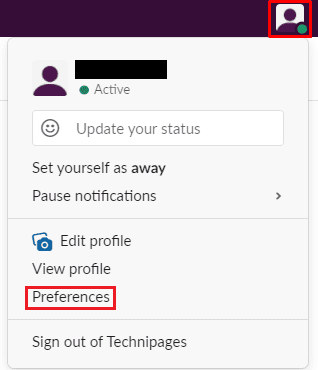
Click on your profile picture in the top-right corner, then click on “Preferences”.

Once in your preferences, switch to the “Mark as read” tab. At the top of the tab, you can choose between “Start me where I left off, and mark the channel read”, “Start me at the newest message, and mark the channel read”, and “Start me at the newest message, but leave unseen messages unread”. You can also disable the “mark all as read” confirmation popup by unticking the checkbox labelled “Prompt to confirm”.

Select what you want to happen when you join a channel, and if you want confirmation popups when you try to mark all messages as read.

Catching up with your messages can be a pain if you have a lot of them but it really helps to have Slack mark them as read when you’ve actually read them. By following this guide, you can change your “marked as read” preferences to feel more intuitive.

Categories: Hardware

Author Mel Hawthorne

You Might Also Like

  • ZenFone 6 User Reviews After Launch

    MonaHardware
  • How to Use Oculus Quest 2 Air Link

    Mel HawthorneHardware
  • What Is Undervolting?

    Mel HawthorneHardware
  • What Is a Data Center?

    Mel HawthorneHardware

Comments

  1. H Severino says:
    April 19, 2021 at 8:54 am

    I need to do this on some channels, automatically. I am subscribed to over 100 channels at work, I need to know when ~10 channels have new messages.

Leave a Reply

Your email address will not be published. Required fields are marked *

This site uses Akismet to reduce spam. Learn how your comment data is processed.

300x600
Turning on Triple Touch Zoom on Android

Turning on Triple Touch Zoom on Android

How to Connect Outlook 2023 to Gmail

How to Connect Outlook 2023 to Gmail

Netflix: Change Password

Netflix: Change Password

Everything You Need to Know About WhatsApp Delete for Me

Step-by-Step Guide: How to Use WhatsApp on Your Computer

Android: Enable or Disable Background Data

Android: Enable or Disable Background Data

300x250
profile pic

The Experts Behind Technipages

My name is Mitch Bartlett. I've been working in technology for over 20 years in a wide range of tech jobs from Tech Support to Software Testing. I started this site as a technical guide for myself and it has grown into what I hope is a useful reference for all.

Learn More

300x250 2
technipages logo white
linkedin icon

Technipages is part of Guiding Tech Media, a leading digital media publisher focused on helping people figure out technology. Visit guidingtechmedia.com to learn more about our mission and team.

© 2026 Guiding Tech Media All Rights Reserved

  • About Us
  • Contact
  • Legal & Privacy

© 2026 Guiding Tech Media All Rights Reserved

Information from your device can be used to personalize your ad experience.
Do not sell my personal information.