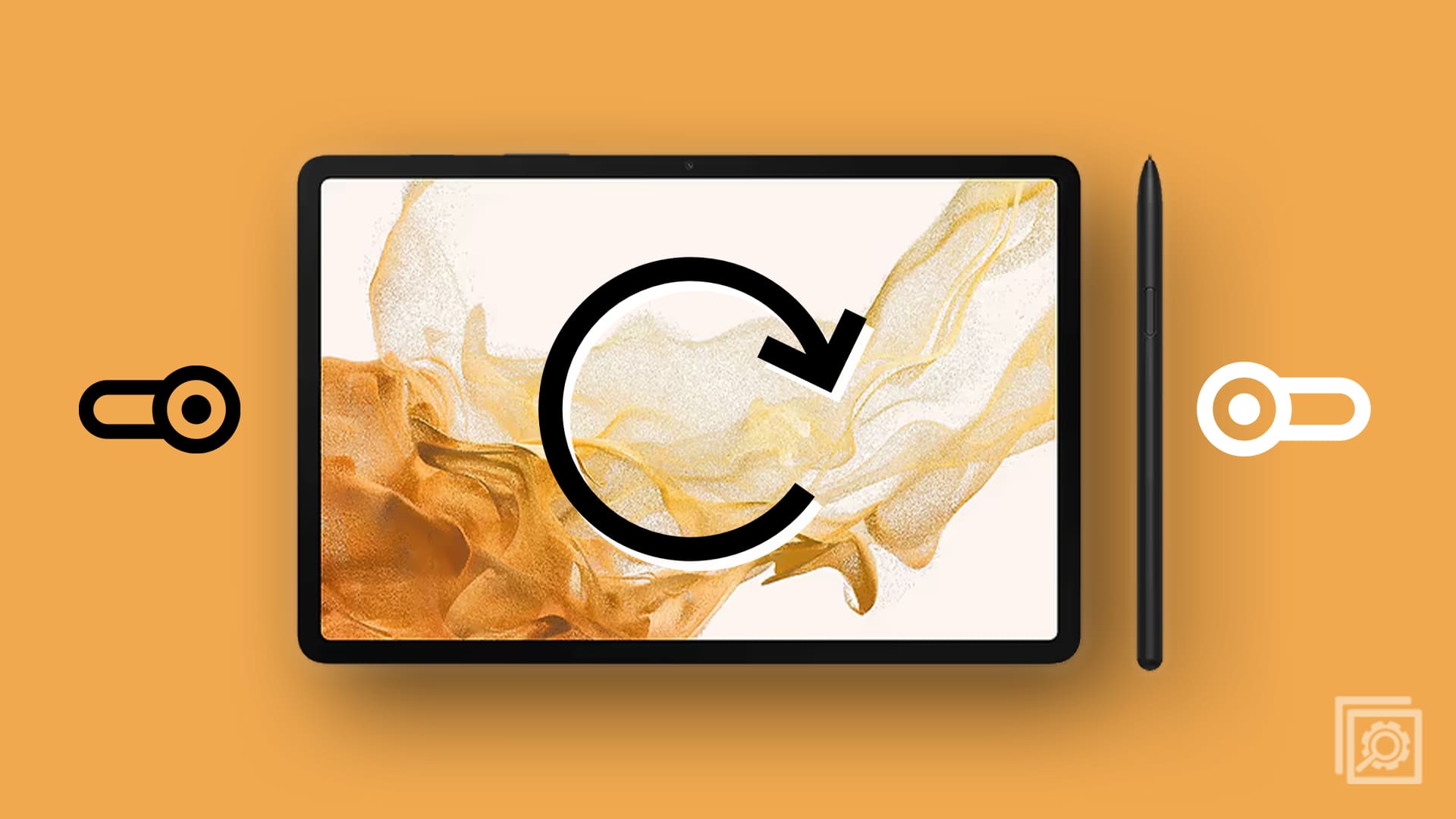
With a tablet that’s as big as the Galaxy Tab S8 Ultra, you might find yourself wanting to rotate the screen from time to time. However, there will be times when the auto-rotate functionality just “gets in the way”, rotating apps when you don’t want them to. This can happen because of the gyroscope sensor built into the Galaxy Tab S8 line of tablets, which has a tendency of occasionally being too sensitive. Today, we’re taking a look at how you can enable or disable the auto-rotate functionality on your Galaxy Tab S8.
Galaxy Tab S8: Enable/Disable Auto Rotate Screen
By default, auto-rotate is turned on, meaning that whenever you move your Galaxy Tab S8 between landscape and portrait modes, the screen will automatically adjust. Thankfully, there are two different ways that you can go about turning this feature off, and the first doesn’t require you to go into the Settings app.
- Unlock your Galaxy Tab S8.
- Swipe down on the Home Screen to reveal the Notification Shade.
- Swipe down again to reveal the full Quick Settings panel.
- Tap the icon labeled Portrait.
- Swipe up from the bottom to dismiss the Quick Settings panel.
It’s extremely convenient to be able to just swipe down on the home screen (twice) and access the Quick Settings toggle for auto-rotate. By doing so, you can quickly and easily turn the feature on or off, which can come in handy if you’re switching between different apps or the webpage you are viewing is better when in landscape mode as opposed to portrait.
Galaxy Tab S8: Enable/Disable Auto Rotate Home Screen
This next option applies to all of three of the tablets in the Galaxy Tab S8 lineup, as Samsung makes it possible for your home screen to automatically rotate. If you’re coming from a non-Galaxy phone, it can be a bit jarring to see your home screen in landscape mode. Plus, there’s the possibility that any of your home screen widgets could be affected and won’t look nearly as good. Here’s how you can enable or disable the ability to have your home screen automatically rotate.
- Open the Settings app on your Galaxy Tab S8.
- Scroll down and tap Home screen.
- Scroll down until you reach Rotate to landscape mode.
- Tap the toggle to turn the feature on or off.
With this feature enabled, you can turn your tablet into landscape mode and your home screen will follow suit. This may be better suited for those who are using their tablet on a desk, watching a video, and want to be able to go to the home screen and not have to change the orientation when navigating the UI.
Conclusion
Auto-rotate is one of those features that we often take for granted, and Samsung takes things a step further with the ability to have your home screen rotate instead of just apps. It’s something that not even the iPhone 14 Pro Max is capable of with its massive 6.7-inch display, which feels like a feature that Apple is purposely leaving off the tablet with its various smartphones. Let us know if you have any questions when it comes to enabling or disabling auto-rotate on your Galaxy Tab S8!