You might want to reset your Windows 11 computer because it’s too slow, or you’re experiencing some other issues you haven’t been able to fix. There could be malware or software problems that so far have no fix, and you want to start from scratch. Starting over sounds like too much, but sometimes it’s what you need to improve your computer’s performance. Keep reading to see what steps to follow to reset your Windows 11 computer and what you should do before and after you reset your computer.
What to Do Before You Factory Reset Your Windows 11 Computer
When you factory reset your Windows 11 computer, you send it back to the state when you first took it out of the box. You’ll lose personal files, programs, and settings by resetting your computer. So, back up anything you want to continue using after the reset. This includes passwords, browser bookmarks, etc.
Your Windows 11 computer has a Windows backup feature that’ll allow you to recover important files. You can set this feature up by going to:
- Settings (Windows + I keys)
- Accounts
- Windows backup
You might see a message saying that your passwords won’t be saved if your device is not confirmed. Click on the Verify option, and when a small window appears, click on the email address associated with your account. A security code will be sent t that email to enter on your computer. Once you enter the code, the syncing process will start.
In the Windows Backup section, you can have Windows remember your apps and your preferences, and you can also set things up for that only specific files are backed up to OneDrive (your personal vault). To decide what files are backed up, click Manage sync settings and toggle what you want to backup. You can choose from documents, pictures, and desktop.
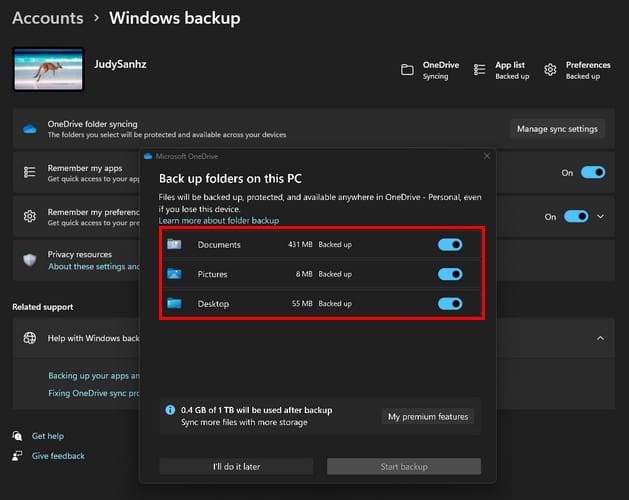
With the Remember my apps options, you only need to toggle on a button. With the Remember my preferences option, you’ll need to check what you want to include. You can choose from options such as:
- Accessibility
- Passwords
- Language preferences
- Other Windows settings
How to Quickly Reset Your Windows 11 Computer
To factory reset your Windows 11 computer, you’ll need to go to Settings by pressing the Windows + I keys. Once in Settings, go to System, followed by Recovery. Under the Recovery options section, click on the Reset PC option. When you click on the Reset button, Windows will show you two options of what you can do.

For example, you’ll see one option for you to keep your files but erase everything else, like installed apps and settings. The second option will erase everything on your computer, including your files.
The second option sounds alright if you have a backup of everything elsewhere. By doing this, you can only re-install necessary personal files and not load them with too many files; that will only slow it down. You’ll also see an option called Help Me Choose at the bottom left. When you click on this option, you’ll be taken to a Microsoft page where you’ll see a list of issues and what Microsoft recommends you do on the right.
You’ll also need to choose how you want to reinstall Windows 11. You can select from Cloud Download or Local Reinstall. Don’t worry if you forget your choice since you’ll encounter Additional settings. In this window, you’ll see what you chose before, so if you know you made a mistake, this is your chance to cancel. You’ll also see an option to review the apps that will be removed.

Once you’ve reviewed your options, click on the reset option. Ensure to read everything Windows shows you carefully and mark your choices since there is no going back once you click the reset button.
What to Do After Your Factory Reset Your Windows 11 Computer
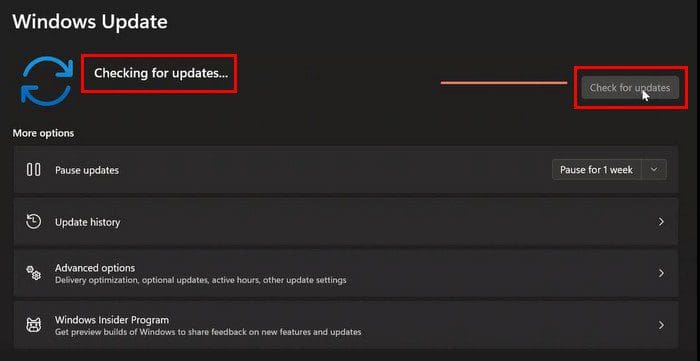
Once the process is done and you have a fresh start with your Windows 11 computer, checking for system updates is a good idea. You can do this by pressing the Windows + I keys to go to Settings, followed by the Windows Update option at the bottom left. Click on the Check for updates button at the top right. Windows will download the updates, but it won’t install them. That’s something you’ll need to give the OK to do.
It’s also a good idea to check for missing drivers. You can do this by opening the Device Manager, typing its name in the search bar, and opening the best result. Ensure that no branch’s called Other Devices since that means that there are missing drivers that you’ll need to reinstall.
Suppose you need help with how to reinstall the missing drivers. In that case, you can try a third-party software such as Ashampoo Driver Update that will do everything for you. The software will show you a long list of drivers that have been updated. But you can always run a scan for it to check if your computer is running on the latest drivers.
Further Reading
As long as we’re on resetting devices, here are the steps to reset the root password on Steam Deck. But if you’re only resetting Steam Deck, here are the steps too. Sometimes the Windows app also needs a reset, which you need here to reset an app on Windows 11. The audio settings on your computer can also require a reset; here is how to reset the audio settings for Windows 11. Remember to use the search bar at the top for more reading material.
Conclusion
Sometimes no matter what you do, try and fix the issue you’re having with your Windows 11 computer; nothing seems to work. That’s when resetting your laptop seems like the only solution. But by starting over, you can only install important files and remove everything else, slowing it down. Resetting your computer is as easy as going to your computer’s settings and making a few clicks here and there. Windows even has a feature where you can back up your important files so you can install them after the reset. Which reset option did you choose? Share your thoughts in the comments below, and don’t forget to share the article with others on social media.