Skip to content
LogoTechnipages
technipages logo
  • Topics
        • Android
        • Browsers
        • Gaming
        • Hardware
        • Internet
        • iPhone
        • Linux
        • macOS
        • Office
        • Reviews
        • Software
        • Windows
        • Definitions
  • Product Reviews
  • Downloads
  • About

How to Use a QR Code Scanner on Android

Mel HawthorneJuly 12, 2021 Comments (1)
fix-media-storage-draining-battery-android

Your Android-phone is a fantastic tool – it can do so much more than just text and call. But, even throughout the history of smartphones, things have evolved considerably – even your camera isn’t just a camera anymore. You can also use it to scan things!

QR codes – the black and white patterns used to store or transmit information – can easily be scanned with your phone.

An example QR code


Scanning a QR Code

To scan a QR code with your Android, all you need to do is use your standard camera app. Open it and point it at the code in question – you don’t need to take a picture. After a moment, a pop-up will appear and show you the information in the QR code. Tap that pop-up, and you’ll, for example, be taken to the web page in question.
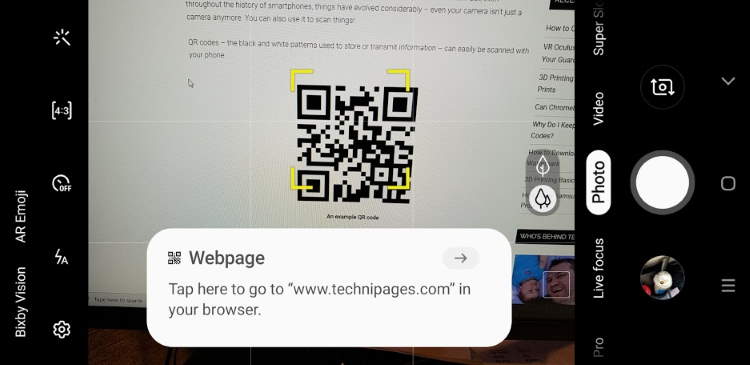
Camera App Scanning QR Code
You can easily scan QR Codes by simply opening the Camera app, and pointing it at the code.

Alternatively, a QR code may also contain written info like a version number or phone number – if so, your Android phone will copy it to your clipboard or paste it into a note, depending on your model of phone.

Tip: It’s also possible to scan barcodes using your Android phone, but not without the use of additional apps. It’s also worth noting that, as barcode info often depends on the retailer/creator of an item, you will NOT be able to use your Android to find out pricing information in a shop via a barcode the way a shopkeeper can with their scanner.
Categories: Android

Author Mel Hawthorne

You Might Also Like

  • What Are App Actions and How to Use Them

    Judy SanhzAndroid
  • Upcoming Flagship Phones – a First Look at the Ulefone Power Armor 14 Pro

    Mel HawthorneAndroid
  • Google Pixel 6A Announced at I/O 2022, Coming in July for Just $450

    Andrew MyrickAndroid
  • Fix-Whatsapp-View-Once-Not-Working

    WhatsApp: How to Send a Message without Typing

    Judy SanhzAndroid

Comments

  1. Laurie says:
    January 27, 2022 at 1:36 pm

    But where is the clip tray and how do I retrieve the scanned qr?

Leave a Reply

Your email address will not be published. Required fields are marked *

This site uses Akismet to reduce spam. Learn how your comment data is processed.

300x600
Turning on Triple Touch Zoom on Android

Turning on Triple Touch Zoom on Android

How to Connect Outlook 2023 to Gmail

How to Connect Outlook 2023 to Gmail

Netflix: Change Password

Netflix: Change Password

Everything You Need to Know About WhatsApp Delete for Me

Step-by-Step Guide: How to Use WhatsApp on Your Computer

Android: Enable or Disable Background Data

Android: Enable or Disable Background Data

300x250
profile pic

The Experts Behind Technipages

My name is Mitch Bartlett. I've been working in technology for over 20 years in a wide range of tech jobs from Tech Support to Software Testing. I started this site as a technical guide for myself and it has grown into what I hope is a useful reference for all.

Learn More

300x250 2
technipages logo white
linkedin icon

Technipages is part of Guiding Tech Media, a leading digital media publisher focused on helping people figure out technology. Visit guidingtechmedia.com to learn more about our mission and team.

© 2026 Guiding Tech Media All Rights Reserved

  • About Us
  • Contact
  • Legal & Privacy

© 2026 Guiding Tech Media All Rights Reserved

Information from your device can be used to personalize your ad experience.
Do not sell my personal information.