Skip to content
LogoTechnipages
technipages logo
  • Topics
        • Android
        • Browsers
        • Gaming
        • Hardware
        • Internet
        • iPhone
        • Linux
        • macOS
        • Office
        • Reviews
        • Software
        • Windows
        • Definitions
  • Product Reviews
  • Downloads
  • About

Prevent Android From Connecting to WiFi Automatically

Judy SanhzJuly 10, 2020 Comments (5)

Having your Android device switch from your mobile data, your home’s WiFi can be very convenient. You stop using your mobile data as soon as your home network is within, so you only use it when it’s absolutely necessary.

But, as convenient as connecting to a nearby WiFi may be, it can also be dangerous. Without you knowing, your phone could detect a nearby free WiFi network (that is not safe) and connect automatically. So, if you don’t mind switching over manually, here how you can stop your Android device from doing it on its own.

How to Prevent Your Android Device from Switching from Mobile Data to WiFi

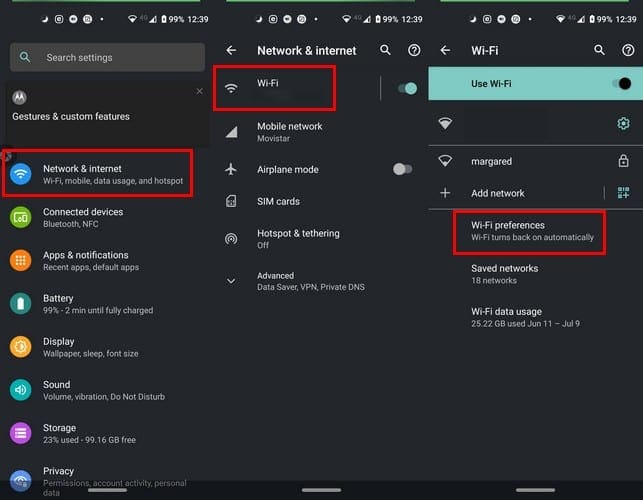
To disable the auto-connect feature, open your device’s settings and go to Network & Internet. Tap on WiFi> WiFi Preferences, and toggle off the Connect to open network option.
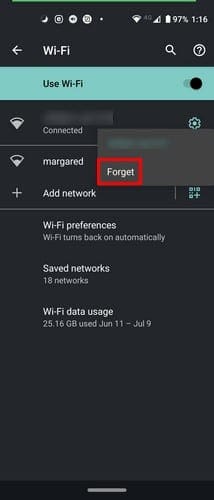
You can also try forgetting the network, so if you’re ever near that network again, your Android device will ask you if you would like to connect instead of connecting automatically.

How to Forget a WiFi Network in Android

To forget a WiFi network go to Settings > Network & Internet > WiFi > Long-press on the WiFi network you want to forget > Tap Forget.
Conclusion

Manually connecting to a WiFi network may seem annoying, but it’s another excellent way to keep your device safe. If you can’t find the Connect to open networks option on your device, you can always forget the network.

Categories: Android

Author Judy Sanhz

You Might Also Like

  • Android: Send Picture in Email or Text Message

    Mitch BartlettAndroid
  • Galaxy Tab S8: Enable/Disable Auto Rotate Screen

    Samsung Galaxy Tab S8: Enable Disable Auto Rotate Screen

    Mitch BartlettAndroid
  • microsoft teams not working on samsung tablet

    Fix Microsoft Teams Not Working on Samsung Tablet

    Madalina DinitaAndroid
  • How to Block the Volume Level on Any Android Device

    Judy SanhzAndroid

Comments

  1. Jane says:
    February 2, 2023 at 3:46 pm

    You might have to turn it off in the “mobile network” section as well as the “wifi” section.

  2. Gwen Schmitz says:
    September 4, 2022 at 2:48 pm

    No, I ask about moto e6, and you gave me instructions for a pixel. My wifi automatically turns on when I am streaming. I need help for that the instructions you gave me, are not on my phone. I have my phone as far as I can from the tv.

  3. Sandor says:
    August 22, 2022 at 3:23 pm

    As Yubel said, we cannot find a way to prevent the phone to connect to open (unknown) networks. It is a big security risk, Please help. All Samsung devices all on Android.

  4. Julian says:
    March 12, 2022 at 1:31 am

    Android 10 on my Pixel and Android 11 on my Pixel 4 both don’t have the option to toggle the connect to open network option.

  5. Yubel says:
    April 28, 2021 at 8:51 pm

    I’ve disabled Auto-Reconnect, ive told my phone to forget the wifi, and yet it still turns itself back on and connects to the forgotten wifi, even worse it’ll even connect to open wifi ive never even connected to before, please help! I’m at a loss about what to do here!

Leave a Reply

Your email address will not be published. Required fields are marked *

This site uses Akismet to reduce spam. Learn how your comment data is processed.

300x600
Turning on Triple Touch Zoom on Android

Turning on Triple Touch Zoom on Android

How to Connect Outlook 2023 to Gmail

How to Connect Outlook 2023 to Gmail

Netflix: Change Password

Netflix: Change Password

Everything You Need to Know About WhatsApp Delete for Me

Step-by-Step Guide: How to Use WhatsApp on Your Computer

Android: Enable or Disable Background Data

Android: Enable or Disable Background Data

300x250
profile pic

The Experts Behind Technipages

My name is Mitch Bartlett. I've been working in technology for over 20 years in a wide range of tech jobs from Tech Support to Software Testing. I started this site as a technical guide for myself and it has grown into what I hope is a useful reference for all.

Learn More

300x250 2
technipages logo white
linkedin icon

Technipages is part of Guiding Tech Media, a leading digital media publisher focused on helping people figure out technology. Visit guidingtechmedia.com to learn more about our mission and team.

© 2026 Guiding Tech Media All Rights Reserved

  • About Us
  • Contact
  • Legal & Privacy

© 2026 Guiding Tech Media All Rights Reserved

Information from your device can be used to personalize your ad experience.
Do not sell my personal information.