

Out of Office messages are a great way to let your colleagues and collaborators know you’re not at work. Anyone who contacts you while you’re out of the office will get that message. The best part is that you can schedule ‘Out of Office‘ messages to be sent out to your contacts on a specific date.
Let’s see what Microsoft Teams offers in terms of ‘Out of Office‘ settings.
How to Set ‘Out of Office’ Messages on Microsoft Teams
If you took some time off work, MS Teams can display an ‘Out of Office‘ message every time someone’s trying to send you a message or @ mentions you in a channel.
Method 1 – Change Status Message
- Launch Teams and click on your profile picture.
- Then click on Set Status message.

- Type your ‘Out of Office‘ message. There’s a 280 character limit to your message.
- By the way, you can also @mention the person whom people can contact while you’re offline.
- Check the option Show when people message me.

- Click on Clear status message after.
- Set how long you want the message to be visible to everyone.
- Apply the changes and you’re done.


Method 2 – Use Outlook
If you used your Outlook email address to create your Microsoft Teams account, you can set an ‘Out of Office’ message in Outlook. The email service will then sync your message to Teams.
- Launch Outlook and click on File.
- Then select Automatic Replies.
- Click on Send automatic replies and type your message.

- Click on Only send during this time range.

- Set the time range you want Outlook to automatically send the ‘Out of Office‘ message.
- Save the changes.
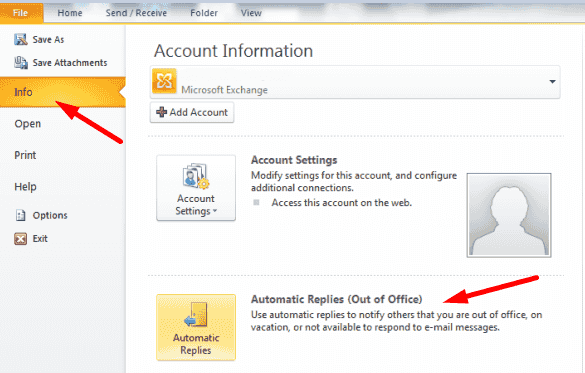

Alternatively, you can also use the desktop client’ settings to set up your message.
- Go to Settings and select Automatic replies.

- Customize your ‘Out of Office’ message settings.

- Save the changes.

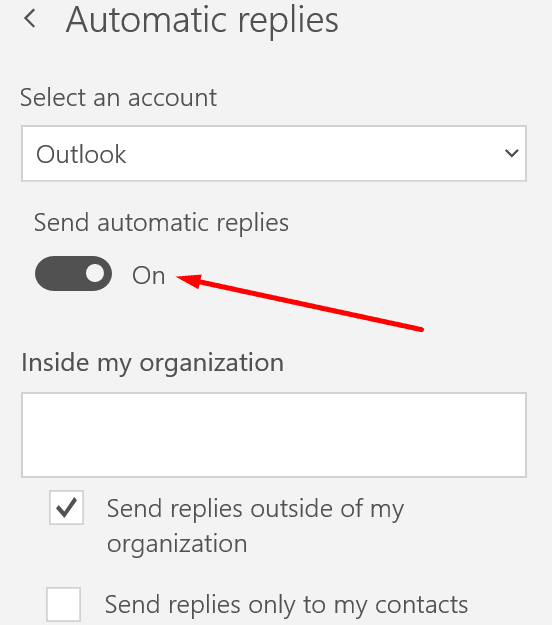
For more information, see How to Set Out of Office Reply in Outlook.
⇒ Important Notes
The ‘Out of Office’ message you set up on Outlook won’t transfer immediately to Microsoft Teams. The setting is immediately visible in Outlook. However, it may sometimes take a few hours before your Teams status gets updated. Usually, Teams scans your calendar and status changes roughly every hour or so.
So, keep in mind there’s a delay between the moment you set automatic replies in Outlook and the moment Teams updates your status. If you want your ‘Out of Office’ message to be visible immediately, click on your Teams profile picture and select ‘Set Status message‘.




Wouldn’t it be better to have the option of your outlook ooo message (particularly if scheduled) being automatically “copied over”?