Skip to content
LogoTechnipages
technipages logo
  • Topics
        • Android
        • Browsers
        • Gaming
        • Hardware
        • Internet
        • iPhone
        • Linux
        • macOS
        • Office
        • Reviews
        • Software
        • Windows
        • Definitions
  • Product Reviews
  • Downloads
  • About

How to Use Split-Screen on Chromebook

Madalina DinitaSeptember 30, 2021 Comments (0)
chromebook-how-to-split-screen

If you need to view two windows simultaneously on your Chrome OS device, you can use the split-screen option. Instead of switching back and forth between different apps or browser tabs, you can simply divide the screen into two windows. If you’ve never used this option before, follow the steps below.

How to Enable Split-Screen Mode on Chromebook

Method 1 – Use Drag and Drop

  1. Open your first app and then click the Restore Down button to reduce the window size.restore-down-app-window-button
  2. Then simply drag the app window to the side of your screen.
  3. Open your second app and reduce its window size as well.
  4. Then drag it to the other side of the screen.

To disable split-screen mode, simply click on the Maximize button.

Method 2 – Use Keyboard Shortcuts

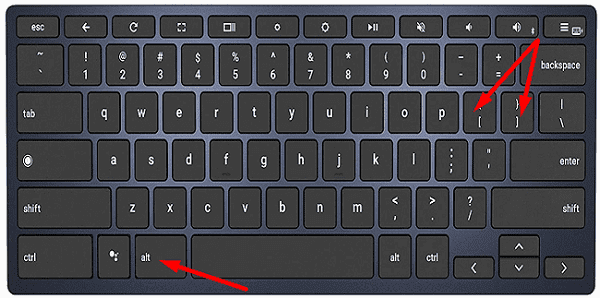
Alternatively, you can also use keyboard shortcuts to enable split-screen mode. Press the Alt and [ keys to move your app window to the left side of the screen. Use Alt and ] to move the app to the right side of the screen.
chromebook-alt-brackets-keys

Method 3 – Use the Dualless Extension

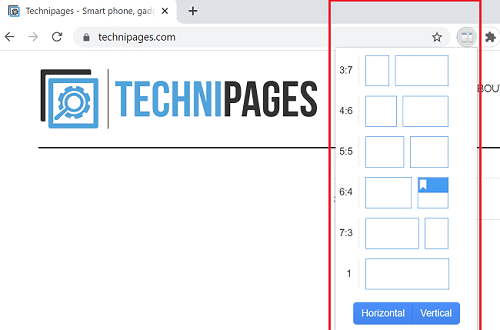
There’s an exciting browser extension called Dualless that you can use to split your browser into two distinct areas. You can arrange your tabs horizontally or vertically. You can then manually adjust the ratio of both windows depending on your needs.
dualless-split-screen-chrome-browser


Of course, if you don’t want to add a new extension to your list of existing browser extensions, you can simply launch two separate Chrome windows. Or you can right-click on your browser tab and select Move tab to a new window.

chrome-move-tab-to-another-window

You can then use the horizontal arrow to adjust the size of your browser windows and arrange them side by side.

Conclusion

To use split-screen on Chromebook, you need to reduce the app window size and then drag your apps to the side of your screen. You can also use the Alt and [ or Alt and ] keyboard shortcuts to enable split-screen mode. If you want to view two Chrome windows at the same time, you can simply launch two separate browser windows or use the Dualless extension.

Do you often use the split-screen option on your Chromebook? Let us know in the comments below, and don’t forget to share this guide on social media.

Categories: Hardware

Author Madalina Dinita

You Might Also Like

  • memory slots

    What Is Conventional Memory?

    Mel HawthorneHardware
  • memory slots

    What Is Shadow Memory?

    Mel HawthorneHardware
  • What Is the Data Link Layer?

    Mel HawthorneHardware
  • How to Unlock iPhone Without Password or Computer

    How to Unlock iPhone Without Password or Computer

    Martin ClarkHardware

Leave a Reply

Your email address will not be published. Required fields are marked *

This site uses Akismet to reduce spam. Learn how your comment data is processed.

300x600
Turning on Triple Touch Zoom on Android

Turning on Triple Touch Zoom on Android

How to Connect Outlook 2023 to Gmail

How to Connect Outlook 2023 to Gmail

Netflix: Change Password

Netflix: Change Password

Everything You Need to Know About WhatsApp Delete for Me

Step-by-Step Guide: How to Use WhatsApp on Your Computer

Android: Enable or Disable Background Data

Android: Enable or Disable Background Data

300x250
profile pic

The Experts Behind Technipages

My name is Mitch Bartlett. I've been working in technology for over 20 years in a wide range of tech jobs from Tech Support to Software Testing. I started this site as a technical guide for myself and it has grown into what I hope is a useful reference for all.

Learn More

300x250 2
technipages logo white
linkedin icon

Technipages is part of Guiding Tech Media, a leading digital media publisher focused on helping people figure out technology. Visit guidingtechmedia.com to learn more about our mission and team.

© 2026 Guiding Tech Media All Rights Reserved

  • About Us
  • Contact
  • Legal & Privacy

© 2026 Guiding Tech Media All Rights Reserved

Information from your device can be used to personalize your ad experience.
Do not sell my personal information.