Skip to content
LogoTechnipages
technipages logo
  • Topics
        • Android
        • Browsers
        • Gaming
        • Hardware
        • Internet
        • iPhone
        • Linux
        • macOS
        • Office
        • Reviews
        • Software
        • Windows
        • Definitions
  • Product Reviews
  • Downloads
  • About

How to Use Screen Lock in Netflix

Mel HawthorneSeptember 28, 2020 Comments (0)

When watching a show or movie on Netflix on a mobile device, it can be easy to accidentally tap the screen and press one of the controls. This can cause you to skip an important part of a scene or even skip an episode. To protect you from accidentally pressing a control button, Netflix has implemented a screen-lock feature.

Screen lock is relatively simple, you need to tap the unlock icon twice to be able to access the rest of the Netflix controls. This should make it a lot harder to accidentally press a button. Screen lock is available on both Android and iOS but is not supported on other platforms.

Tip: One thing that screen lock can’t do is prevent system gestures, so you can still close the app, etc. Screen lock is designed to prevent you from accidentally using the Netflix controls.

To use screen lock, open a video on Netflix, then tap on the lock icon. On Android, the lock icon is second from the left under the progress bar. On iOS, the lock icon is on the far left instead, although it is still located under the progress bar.
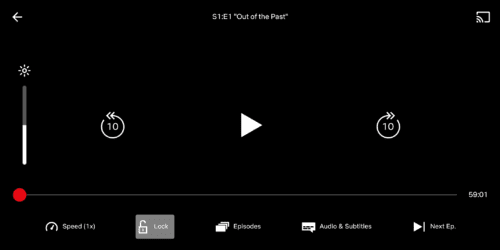
While watching a video on Netflix, tap the lock icon, which can be found under the progress bar, either second from the left or on the far left depending on if you’re using Android or iOS respectively.

When this feature is enabled, any taps on the screen will show a small lock icon rather than the normal controls.
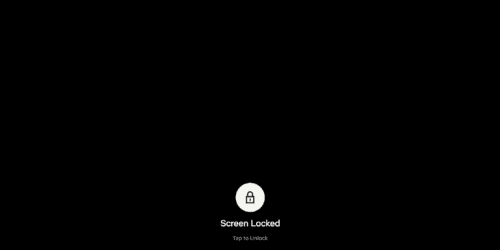
Tapping the screen will reveal a lock icon rather than the normal controls.


Tap the lock icon once, to change it to an unlock icon, then tap the unlock icon to access the normal Netflix controls.
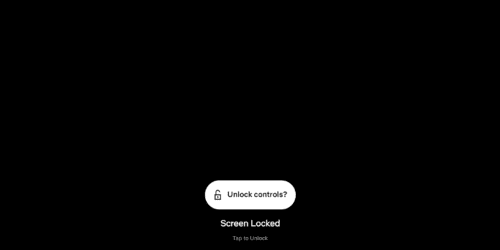
Tap the lock icon to change it to an unlock icon, then tap it again to unlock Netflix’s controls.

The process for enabling and disabling screen lock is identical on both iOS and Android.

Categories: Internet

Author Mel Hawthorne

You Might Also Like

  • Slack: How To Change the Display Language

    Mel HawthorneInternet
  • Slack: How To Disable Workspace Wide Notifications of a New User Joining

    Mel HawthorneInternet
  • Slack: How To View a List of Admins and Owners of a Slack Workspace

    Mel HawthorneInternet
  • Dropbox: How to Disable the Weekly Shared Folder Activity Email

    Mel HawthorneInternet

Leave a Reply

Your email address will not be published. Required fields are marked *

This site uses Akismet to reduce spam. Learn how your comment data is processed.

300x600
Turning on Triple Touch Zoom on Android

Turning on Triple Touch Zoom on Android

How to Connect Outlook 2023 to Gmail

How to Connect Outlook 2023 to Gmail

Netflix: Change Password

Netflix: Change Password

Everything You Need to Know About WhatsApp Delete for Me

Step-by-Step Guide: How to Use WhatsApp on Your Computer

Android: Enable or Disable Background Data

Android: Enable or Disable Background Data

300x250
profile pic

The Experts Behind Technipages

My name is Mitch Bartlett. I've been working in technology for over 20 years in a wide range of tech jobs from Tech Support to Software Testing. I started this site as a technical guide for myself and it has grown into what I hope is a useful reference for all.

Learn More

300x250 2
technipages logo white
linkedin icon

Technipages is part of Guiding Tech Media, a leading digital media publisher focused on helping people figure out technology. Visit guidingtechmedia.com to learn more about our mission and team.

© 2026 Guiding Tech Media All Rights Reserved

  • About Us
  • Contact
  • Legal & Privacy

© 2026 Guiding Tech Media All Rights Reserved

Information from your device can be used to personalize your ad experience.
Do not sell my personal information.