

When using an ad blocker, you may occasionally run across websites where important content is obviously missing, or some site functionality is broken. This is generally caused by overzealous filters blocking an important script or image. Thankfully, you can manually override any rule in uBlock Origin.
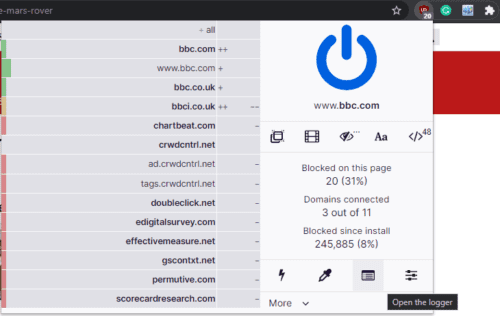
To unblock any element, you need to open the uBlock Origin network logger, you can do this by clicking the uBlock Origin icon in the extensions bar, then clicking on the “Open the logger” icon that is second from the right at the bottom of the popup window.
Tip: There are two types of filters, network filters, and cosmetic filter. A network filter blocks the request for a resource, preventing it from ever being downloaded. A cosmetic filter hides an element that has loaded on a page.
Disabling a network filter
A network filter appears highlighted in red in the network logger. Locate the filter that you want to override then click on the second, third, or fifth column to open the rule details view.
Next, you need to switch to the URL rule tab. Here you can see the URL of the blocked resource. If you want to just unblock the exact resource, you can unblock it with the top entry. If you’d prefer to unblock a directory, potentially unblocking multiple items with one rule, you can unblock one of the lower list entries.
Whichever level of the resource you want to unblock you should use the left column to mark it as grey or green. The grey filter option means “No-operation” while green means allow, both settings will unblock the blocked element.

Once you’ve applied your override, click the small refresh icon in the top-right corner of the URL rule tab to reload the target page with the filter override in place. If the override doesn’t fix the issue, you should revert the change and try again. If the override does work, click the lock icon on the top-left of the URL rule tab to save the override.
Disabling a cosmetic filter
Cosmetic filters appear highlighted in yellow in the network filter. Once you’ve identified a filter you want to disable, click on the second, third, or fifth columns of the respective row to open the filter details.
Leave the filter details information open, and switch back to the window and tab of the webpage you’re trying to fix. Right-click on the uBlock Origin icon in the extensions bar, then select “Options” from the right-click menu.

In the uBlock Origin’s options, switch to the “My filters” tab. To override a cosmetic filter, you need to enter to following details from the details view you opened before: “<Context>#@#<Filter>”. This filter breaks down to mean: On the website <Context>, apply a cosmetic filter exception, to <Filter>.

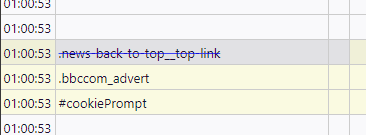
Once you’ve entered the cosmetic filter exception, click “Apply changes” in the top left of the “My filters” tab, then refresh the affected page. If the cosmetic filter exception was applied correctly the relevant element should now be visible, and the entry in the network logger should appear with a strikethrough effect.




“john says
May 13, 2021 at 6:22 pm
Just delete the element that you want to unblock from the “my filter” list. Then click “Apply changes”.”
THANKS!
why does the future suck so much?
remember the very first iteration of adblock and how wonderfully intuitive it was
now unblocking individual content is just as pointlessly unintuitive as blocking it
but even worse is it seems every adblocking service including ublock is in cahoots with companies that have anti-adblock walls
There is no way this should be this unintuitive and difficult. Like the above poster, I want to temporarily disable cbs.com for 1 hour.
Give simpler instructions.
I only want to unblock one site for a few minutes.
Give me step-by-step directions.
Just delete the element that you want to unblock from the “my filter” list. Then click “Apply changes”.
There are two ways to use the Green function again.
A.
1. Options
2. I am an advanced user (required reading)
3. gear icon (⚙️)
4. filterAuthorMode = true
B.
1, While the uBO’s popup is open, double-tap the Ctrl key.
2. Double-hit it again to disable it.
this is not accurate. there is no green option anymore…