Skip to content
LogoTechnipages
technipages logo
  • Topics
        • Android
        • Browsers
        • Gaming
        • Hardware
        • Internet
        • iPhone
        • Linux
        • macOS
        • Office
        • Reviews
        • Software
        • Windows
        • Definitions
  • Product Reviews
  • Downloads
  • About

How to Schedule Telegram Messages for Later

Judy SanhzJune 24, 2020 Comments (0)

Scheduling a Telegram message for later can be very helpful. You may want to remind someone of something, but know it would be best to send the message later.

By programming it for later, you don’t run the risk of forgetting to send the message. The option to send Telegram messages later is not in plain sight, but it’s easy to do.

How to Send a Telegram message Later

Open Telegram to the chat or group chat you want to schedule the message for. Type your message, but instead of tapping on the send icon, hold it for a few seconds.

A new window will appear with two options: Schedule message and Send without sound. Tap on the first option and not only can you schedule the time for the message to be sent, but also the date.
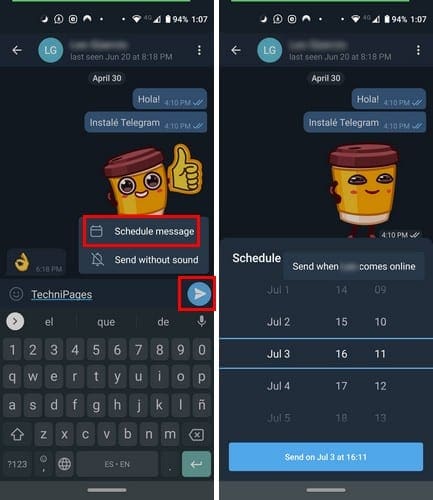
To avoid any mistakes, the time and date you choose will appear in the blue send button at the bottom. As long as you’re here, if you ever want to send a message without bothering anyone with the sound, you know where the option is.

Muting the sound can be useful when you want to send a message late at night without waking anyone up. After you schedule your message, you’ll see a page with all the messages that are scheduled for delivery.

If you ever change your mind and want to:

  • Send now
  • Copy
  • Edit
  • Reschedule
  • Delete all of your messages.

Those will be the option you can choose from when you tap on the message. This option is available for both group and individual chats.

Conclusion

Most users might not know about this option since it’s not clearly visible. But, once you know it’s there you may feel the need to share the news with others that may also not know. Do you think there should be a visible option for scheduling messages or should it remain the way it is?

Categories: Software

Author Judy Sanhz

You Might Also Like

  • Windows Settings Header

    ORCA MSI Editor Standalone Download

    Mitch BartlettSoftware
  • microsoft teams export list of team members

    Microsoft Teams: Export the List of Team Members

    Madalina DinitaSoftware
  • Slack: How to Review Pending Invitations to Your Workspace

    Mel HawthorneSoftware
  • fix microsoft teams voicemail not working

    Fix Microsoft Teams Voicemail Not Working

    Madalina DinitaSoftware

Leave a Reply

Your email address will not be published. Required fields are marked *

This site uses Akismet to reduce spam. Learn how your comment data is processed.

300x600
Turning on Triple Touch Zoom on Android

Turning on Triple Touch Zoom on Android

How to Connect Outlook 2023 to Gmail

How to Connect Outlook 2023 to Gmail

Netflix: Change Password

Netflix: Change Password

Everything You Need to Know About WhatsApp Delete for Me

Step-by-Step Guide: How to Use WhatsApp on Your Computer

Android: Enable or Disable Background Data

Android: Enable or Disable Background Data

300x250
profile pic

The Experts Behind Technipages

My name is Mitch Bartlett. I've been working in technology for over 20 years in a wide range of tech jobs from Tech Support to Software Testing. I started this site as a technical guide for myself and it has grown into what I hope is a useful reference for all.

Learn More

300x250 2
technipages logo white
linkedin icon

Technipages is part of Guiding Tech Media, a leading digital media publisher focused on helping people figure out technology. Visit guidingtechmedia.com to learn more about our mission and team.

© 2026 Guiding Tech Media All Rights Reserved

  • About Us
  • Contact
  • Legal & Privacy

© 2026 Guiding Tech Media All Rights Reserved

Information from your device can be used to personalize your ad experience.
Do not sell my personal information.