Skip to content
LogoTechnipages
technipages logo
  • Topics
        • Android
        • Browsers
        • Gaming
        • Hardware
        • Internet
        • iPhone
        • Linux
        • macOS
        • Office
        • Reviews
        • Software
        • Windows
        • Definitions
  • Product Reviews
  • Downloads
  • About

How to Remove Apps from Microsoft Teams

Madalina DinitaMarch 2, 2021 Comments (1)

You can extend Microsoft Teams’ capabilities by adding various apps to your channel. For example, if you’re a teacher, you can add a dedicated quiz app to create and manage quizzes. But sometimes, you may lose track of all the apps installed within Teams, which could clutter the desktop client.

How Do I Remove Apps from Microsoft Teams?

Deleting the apps you no longer need is not a straightforward task. This is because Teams doesn’t have a list with all the apps you added to the client. Instead, you need to manually search for the apps you want to uninstall from your channels. This is a time-consuming task, but at least you’ll get rid of all the apps you don’t need anymore.

Steps to Uninstall Apps from Teams

Use this method to remove the apps associated with a particular team.

  1. Launch Microsoft Teams
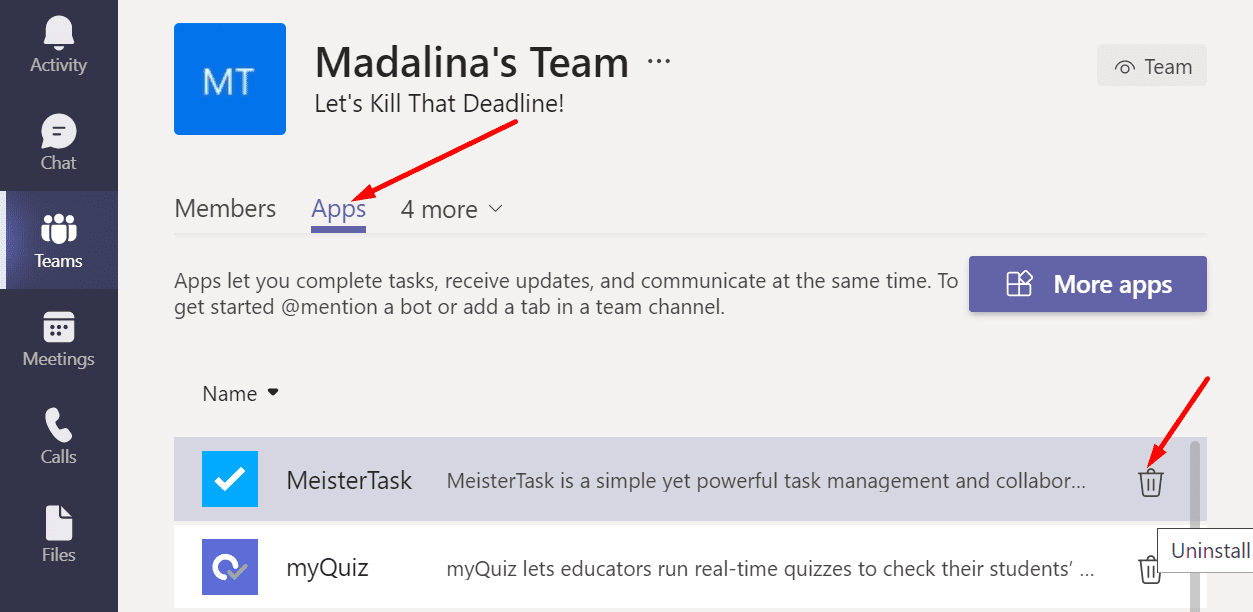
  2. Go to your team and select More options (the three dots).
  3. Then click on the Manage team option.
  4. Select Apps tab.
  5. Simply select the app you want to remove and hit the Uninstall button.

uninstall app from microsoft teams

Uninstall App from Teams Chats

You can uninstall Teams apps directly from the chat window.

  1. Launch Teams and click on the Chat menu.
  2. Under Type a new message, you should see a list of app icons.
  3. Right-click on the app you can to remove and select Uninstall.

uninstall app from teams chat

Remove Apps Using More Added Apps

You can also uninstall Teams apps using the More added apps option.

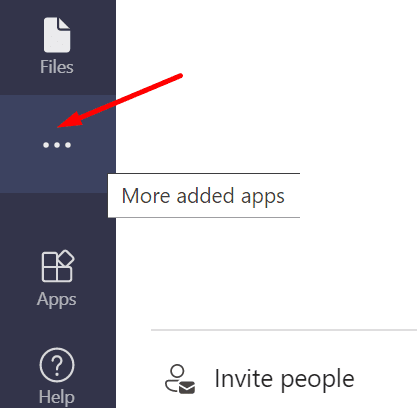
  1. Go to your main screen and click on the three dots in the left-hand pane. If you hover over the three dots, the More added apps option should become visible.microsoft teams more added apps
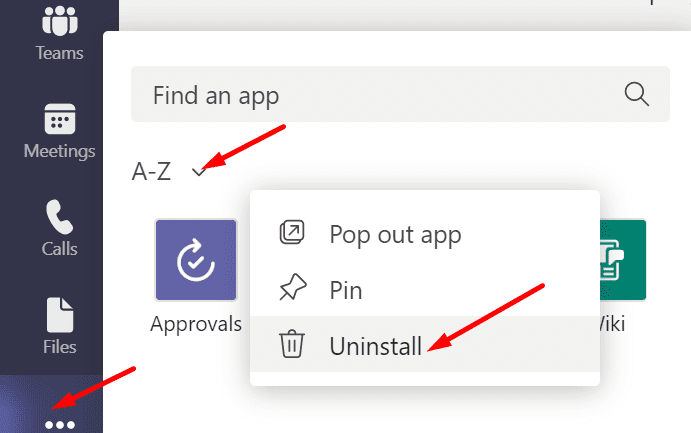
  2. You can filter the results by recent apps or order them alphabetically from A to Z. Keep in mind that not all the apps you installed are visible under More added apps.
  3. Right-click on the app you want to delete and select the Uninstall option.
remove app from microsoft teams

Conclusion

Removing the apps you installed on Microsoft Teams is not an intuitive task. You need to first locate them in your team settings, but you can also remove them directly from the chat window.

Do you think Microsoft should improve the app management feature in Teams? What would you do differently? Let us know in the comments below.


Categories: Software

Author Madalina Dinita

You Might Also Like

  • fix zoom login issues

    Troubleshooting Zoom Login Errors

    Madalina DinitaSoftware
  • How to Generate a Hash in Notepad++

    Mel HawthorneSoftware
  • Outlook Get Add-ins Button Is Grayed Out Top 5 Solutions in 2023

    Outlook Get Add-ins Button Is Grayed Out: Top 5 Solutions in 2023

    Martin ClarkOffice
  • How to Access Recent Notes in OneNote

    Danny MaiorcaSoftware

Comments

  1. Lynette Grassow says:
    May 8, 2021 at 5:13 am

    No! There is no methodology anywhere to explain how to delete custom apps! Custom apps do not have the same method as shown here

Leave a Reply

Your email address will not be published. Required fields are marked *

This site uses Akismet to reduce spam. Learn how your comment data is processed.

300x600
Turning on Triple Touch Zoom on Android

Turning on Triple Touch Zoom on Android

How to Connect Outlook 2023 to Gmail

How to Connect Outlook 2023 to Gmail

Netflix: Change Password

Netflix: Change Password

Everything You Need to Know About WhatsApp Delete for Me

Step-by-Step Guide: How to Use WhatsApp on Your Computer

Android: Enable or Disable Background Data

Android: Enable or Disable Background Data

300x250
profile pic

The Experts Behind Technipages

My name is Mitch Bartlett. I've been working in technology for over 20 years in a wide range of tech jobs from Tech Support to Software Testing. I started this site as a technical guide for myself and it has grown into what I hope is a useful reference for all.

Learn More

300x250 2
technipages logo white
linkedin icon

Technipages is part of Guiding Tech Media, a leading digital media publisher focused on helping people figure out technology. Visit guidingtechmedia.com to learn more about our mission and team.

© 2026 Guiding Tech Media All Rights Reserved

  • About Us
  • Contact
  • Legal & Privacy

© 2026 Guiding Tech Media All Rights Reserved

Information from your device can be used to personalize your ad experience.
Do not sell my personal information.