When it comes to video conferencing, there are quite a few options to choose from. For example, you can choose Zoom that also allows you to record meetings. But, when you would rather go with Google Meet, you’ll be happy to know that you can also record meetings on the app.
Keep in mind that you can only record a Google Meet meeting if you have G-Suite Enterprise members. Also, the recordings can only be made by users within the same organization, teachers using meet and by a Google meet organizer.
How to Record a Google Meet Metting
To record a Google Meet meeting, you’ll need to use your computer since it’s something that can’t be done on your Android device. Also, the recording feature needs to be enabled by the administrator. If you’re sure that you meet the requirements to record but don’t see the option, please contact your administrator. There’s no need for an administrator if you’re using your personal account; you’re good as long as you have your G Suite Essentials.
When you’re ready to get started, you can either join or start a Google Meet meeting. Click on the dots at the bottom right and choose the Record meeting option.
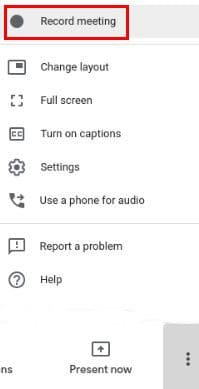
You might see a message box asking for consent. If you see it click on the Accept option to start recording the meeting. When you need to stop recording, repeat the same steps of clicking on the dots at the bottom right, and you’ll see the option to stop recording.
The time Google Meet will take to have your file ready will depend on how long the recording is. You should find your recording in your Google Drive when it is available since you’re the one recording. The participants will get a notice that you started or ended the recording. You’ll also know the meeting is being recorded since there will be a REC icon on your screen.
Best Results
If you need your Google Meet meeting to look as good as possible, make sure that the send resolution for everyone is at its maximum capacity. The best you’ll get is 720p. To save as much bandwidth as possible, you can adjust the receive resolution at a lower rate. To do this, you’ll need to click on the dots at the bottom right, followed by Settings > Video.
Muting everyone before you start your presentation can also prevent any unwanted noise from being picked up. If you need to share the meeting, you’ll find the link to your inbox useful, and the link will also be added to the Calendar event. Don’t worry if someone turns on live captions during the meeting since they won’t be recorded. You won’t see the live captions when you watch the recording.
Conclusion
There is always a reason to record a Google meet meeting. Maybe you know that a few participants can’t make it but need to know what was presented in the meeting. By recording it, they can relax, knowing that they won’t miss a single word. Do you record your Google Meetings often? Let me know in the comments below, and don’t forget to share the article with others on social media.