

With so many online dangers out there, it’s no wonder users want to secure their accounts as much as possible. You have your anti-virus and other apps to enhance even more your device’s security. But, what about your WhatsApp account? Is there something you can do to keep your WhatsApp account safe?
How to Keep Your WhatsApp Account Safe
There are some adjustments you can make to your WhatsApp account to help keep it safe. By making these changes, only authorized people can see your information and won’t read your messages. You can do things such as prevent others from adding you to groups.
Another thing you can do to keep your WhatsApp account safe is enabling two-step verification. But, there one more thing you can do that will keep anyone from reading your WhatsApp messages; allow the Fingerprint lock.
Turning on WhatsApp Fingerprint Lock
To enable the Fingerprint lock on WhatsApp, go to Settings, followed by Privacy. Go all the way down and choose the Fingerprint lock option.
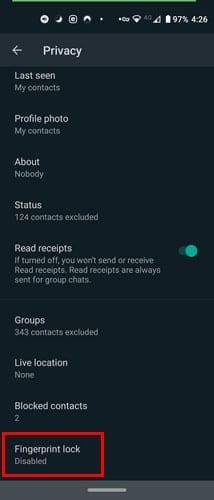
Toggle on the option that says Unlock with Fingerprint.

Once you enable it, you’ll be asked to confirm your fingerprint. Place your finger on the sensor, and your fingerprint will be approved. After that, you can choose when you want to lock your WhatsApp account automatically. You can choose from:
- Immediately
- After 1 minute
- After 30 minutes
You’ll also see an option to show or hide the info in the messages you get at the bottom.
Keep Your Data Private
Unless you make the necessary adjustments, anyone can see your profile picture, status, last seen, etc. Unless you don’t mind anyone seeing this information, you’ll need to go into WhatsApp’s Settings. Once you’re in Settings, go to Privacy.
Under the section, Who can see my personal information, you can adjust security settings for Last Seen, Profile picture, About Status, and Blocked contacts. When you tap on one of these options, WhatsApp gives options such as:

- Everyone
- My contacts
- Nobody
Under Status Privacy, you can choose who you share your status with. You’ll see an option to allow certain people to see it while others will be blocked.

How to Block Someone on WhatsApp
Sometimes, specific contacts go wrong, and you have to block them to get some peace. To block someone on WhatsApp, go to Settings > Privacy > Blocked contacts. At the top right, you’re going to see a person icon with a plus sign. Tap on it and choose the person you want to block.
The person will be added automatically. If you ever change your mind, long-press on the contact and the option to unblock will appear. Tap on it, and the person will be removed from the blocked list.

Conclusion
As you can see, there are quite a few things you can do to keep your WhatsApp account safe. Did I miss any security features you use? Share your thoughts in the comments below.


I’m looking for a way to block unknown numbers on Whatsapp. I have used every one of the above options even used a different name but my staljer/scammer/hacker keeps leaving random messages. Each time I block the number but each time he comes back with a new one. As many as 4 in one evening. And it’s not just in whatsapp. I’m exhausted from trying to just be private & secure. I’ve turned to everyone from apos’ customer support to my local police department and have gotten exactly zero help he actually has infiltrated my Google account and one of my profiles. Google tech helped me but lasted about 3 days. Any help would be greatly appreciated
Sincerely,
At my breaking point