

You want to put a specific picture for your Telegram profile picture. Still, you don’t want a particular person to see it. Or, you want the image to only be seen by your contacts and not by everyone on Telegram. The good news is that that is possible. With a few taps here and there, you can adjust your profile picture settings to your liking.
How to Hide Your Telegram Profile Picture from Specific Contacts
If you have a contact that always comments on something that annoys you every time you change your profile picture, here’s how you can hide it from them. Open Telegram and tap on the three-lined menu on the left. Go to Settings and tap on Privacy and Security.

Select Profile Photos, and on the following page, you’ll see a series of options as to who can see your profile picture. Make sure that the My Contacts option is selected. If there are any exceptions you would like to add, you can do so at the bottom of the page. You can look for users, contacts, or groups. It’s also possible to look for someone based on the usernames.
Once you’ve added the users you want, don’t forget to tap on the checkmark to save your changes. If there is someone outside of your contacts that you don’t want to see your profile picture, you can add their username in the Never Allow option. Once you’ve made the necessary changes, tap on the checkmark at the top right. From now on, only the people you want will see or not your profile picture.
How to Erase Uploaded Telegram Profile Picture
Speaking of profile pictures, there will come a time when you’re going to want to change it. But did you know that the old one isn’t erased when you replace a profile picture? It’s still there for anyone who visits your profile to see.
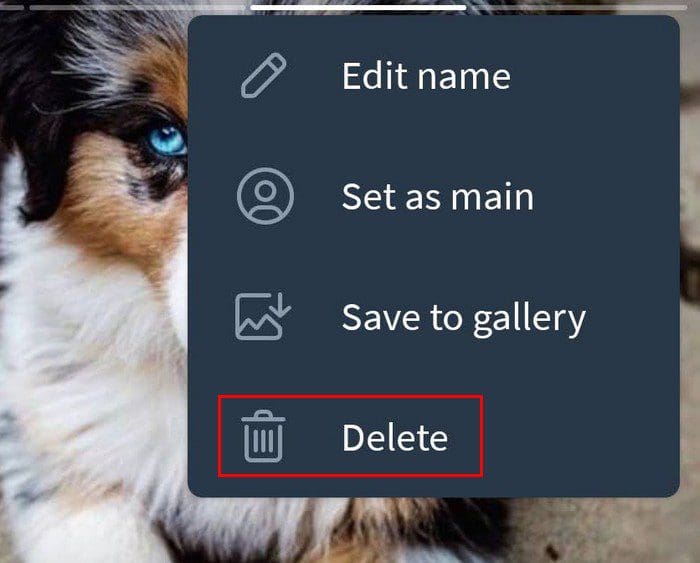
To erase old profile pictures you’ve uploaded to Telegram, tap on the three-lined menu at the top left. Choose your profile picture and swipe left or tap on the image to see all the other profile pictures you’ve added. When you see the one you want to erase, tap on the dots and choose the Delete option.
Conclusion
If you want to hide your profile, some specific users or groups, now you know what to do. If you want to erase old profile pictures you’ve uploaded, now you know how to do that too. Unlike WhatsApp that erases the profile picture you add when you replace it, you have to manually erase it Telegram. Do you like that Telegram saves your profile pictures? Let me know what you think in the comments below, and don’t forget to share the article with others on social media.



I am happy for ur help.