Skip to content
LogoTechnipages
technipages logo
  • Topics
        • Android
        • Browsers
        • Gaming
        • Hardware
        • Internet
        • iPhone
        • Linux
        • macOS
        • Office
        • Reviews
        • Software
        • Windows
        • Definitions
  • Product Reviews
  • Downloads
  • About

How to Pair Bluetooth Headphones to Chromebook

Aaron KimSeptember 28, 2022 Comments (0)

Chromebooks are awesome for their portability, so it’s only right that you should use devices that fit the portable theme. If you’re looking to pair your Bluetooth headphones with your Chromebook, you may feel a little confused if you’re a new user. The process is super simple, and once you’ve done it, you’ll never struggle with pairing Bluetooth devices again. Check out our comprehensive guide on how you can pair Bluetooth headphones to a Chromebook below.

Related Reading:

  • Fix: Bluetooth Headset Showing as Two Devices on PC
  • Fix: Chromebook Won’t Connect to Bluetooth Devices
  • Bluetooth Headset Won’t Work as Headphones and Speakers
  • How to Add Bluetooth to Any Computer

How to Pair Bluetooth Headphones to Chromebook

The process of how to pair Bluetooth headphones to a Chromebook is extremely simple. Provided that both your headphones and Chromebook work just fine and have adequate connectivity, you can follow these simple steps:

  1. Make sure your Bluetooth headphones are on and your Chromebook has Bluetooth on.
  2. Click on the Quick Settings Panel at the bottom right corner of your Chromebook screen.
  3. Click on Bluetooth.
  4. In the dropdown menu, select your Bluetooth headphones.
  5. Follow any supplementary onscreen instructions.

That’s it! You can take your Chromebook and Bluetooth headphones anywhere you please and enjoy the portability of these devices—the wonders of Bluetooth connectivity.

Conclusion

We strongly recommend you purchase some Bluetooth devices to pair with your Chromebook, as it fits the spirit of the device. It’s great not having to worry about tangled or broken wires, plug and unplug your device in, or pack them. With Bluetooth headphones, you can wear them on your head or around your neck and wear them when you need to. Once you pair Bluetooth headphones to Chromebook, your device will recognize them for future purposes. So, you’ll need to turn on both devices and get cracking.

Categories: Hardware

Author Aaron Kim

You Might Also Like

  • NVIDIA Game Header

    What is Ray Tracing?

    Mel HawthorneHardware
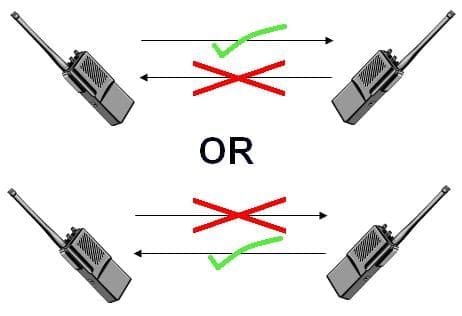
  • Full-Duplex vs Half-Duplex Network Traffic

    Mel HawthorneHardware
  • What Is NUMA?

    Mel HawthorneHardware
  • microsoft teams how secure is it

    What Is Asymmetric Encryption?

    Mel HawthorneHardware

Leave a Reply

Your email address will not be published. Required fields are marked *

This site uses Akismet to reduce spam. Learn how your comment data is processed.

300x600
Turning on Triple Touch Zoom on Android

Turning on Triple Touch Zoom on Android

How to Connect Outlook 2023 to Gmail

How to Connect Outlook 2023 to Gmail

Netflix: Change Password

Netflix: Change Password

Everything You Need to Know About WhatsApp Delete for Me

Step-by-Step Guide: How to Use WhatsApp on Your Computer

Android: Enable or Disable Background Data

Android: Enable or Disable Background Data

300x250
profile pic

The Experts Behind Technipages

My name is Mitch Bartlett. I've been working in technology for over 20 years in a wide range of tech jobs from Tech Support to Software Testing. I started this site as a technical guide for myself and it has grown into what I hope is a useful reference for all.

Learn More

300x250 2
technipages logo white
linkedin icon

Technipages is part of Guiding Tech Media, a leading digital media publisher focused on helping people figure out technology. Visit guidingtechmedia.com to learn more about our mission and team.

© 2026 Guiding Tech Media All Rights Reserved

  • About Us
  • Contact
  • Legal & Privacy

© 2026 Guiding Tech Media All Rights Reserved

Information from your device can be used to personalize your ad experience.
Do not sell my personal information.