Skip to content
LogoTechnipages
technipages logo
  • Topics
        • Android
        • Browsers
        • Gaming
        • Hardware
        • Internet
        • iPhone
        • Linux
        • macOS
        • Office
        • Reviews
        • Software
        • Windows
        • Definitions
  • Product Reviews
  • Downloads
  • About

How to Loop a Song on Spotify | Android, iOS, Web

Madalina DinitaMarch 16, 2022 Comments (0)
Loop-Song-Spotify

When you hear a catchy song, the natural thing to do is put it on repeat. If you’re like me, you can keep listening to the same song for hours on end. But how do you put a song on repeat on Spotify? Follow the steps below to get the job done.

Steps to Loop a Song on Spotify

How to Loop a Spotify Song on Android or iOS

  1. Launch Spotify on your mobile device.
  2. Play the song you want to loop.
  3. Tap on the Now Playing bar to display media controls.
    • Note: You need to display the song in a full window; otherwise, the Repeat button is not visible.
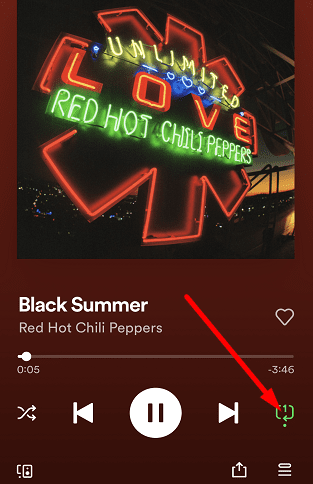
  4. Tap the Repeat button twice (the rotating arrow) to put the song on infinite repeat.Loop-Song-Spotify-App

Spotify will keep playing the same song until you turn off the Repeat feature.

⇒ Important Note: You need to tap the Repeat button twice to loop a song.

Steps to Loop a Song on the Spotify Web Player

Launch the Spotify web player and play the song you want to loop. Then, go to the Media Controls section near your taskbar and hit the Repeat button twice. Click the Repeat button again to stop looping the song.

Loop-Song-Spotify-Web-App

How to Loop Playlists on Spotify

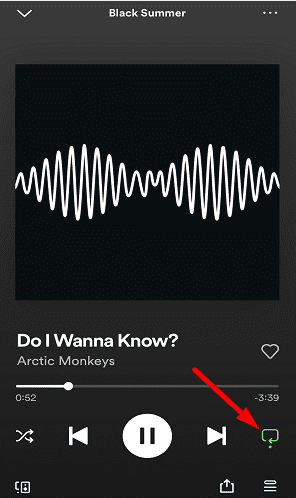
You can also loop entire playlists on Spotify. Simply create a playlist of your favorite songs and put it on repeat. The steps to follow are similar. Launch the playlist where you saved your favorite songs and select the Repeat button once.
Loop-Playlist-Spotify-App

If you press the Repeat button twice, you’ll loop a single song, and the playlist won’t play through.

Where Is Spotify’s Repeat Button?

The Repeat button on Spotify is located in the lower right-hand corner of the app. Look for the rotating arrow icon. When you loop a song, the Repeat button will turn green and a tiny 1 will appear on it.

Why Is There No Loop Button on Spotify?

On Android and iOS, the Repeat button is available only for Spotify Premium. The option is not available for free Spotify accounts. But the good news is that the Repeat option is available for free Spotify accounts on desktop computers.

Conclusion

To put a song on repeat on Spotify, play the track you want to loop and go to Media Controls. Then, tap or click the Repeat button twice. To disable this option, simply tap or click the Repeat button once. Keep in mind that the Repeat button is not available for free Spotify accounts on Android and iOS.

What’s the last song you’ve listened to on repeat? Let us know in the comments below.

Categories: Internet

Author Madalina Dinita

You Might Also Like

  • How to Create a Hyperlink in Google Docs

    Kat ArmstrongInternet
  • What Happened to Yahooligans?

    Kat ArmstrongInternet
  • Google Drive

    Google Drive: What to Do When You Can’t Upload Images

    Judy SanhzInternet
  • Facebook-Add-Friends-to-Acquaintances

    Facebook: How to Add Friends to Acquaintances

    Madalina DinitaInternet

Leave a Reply

Your email address will not be published. Required fields are marked *

This site uses Akismet to reduce spam. Learn how your comment data is processed.

300x600
Turning on Triple Touch Zoom on Android

Turning on Triple Touch Zoom on Android

How to Connect Outlook 2023 to Gmail

How to Connect Outlook 2023 to Gmail

Netflix: Change Password

Netflix: Change Password

Everything You Need to Know About WhatsApp Delete for Me

Step-by-Step Guide: How to Use WhatsApp on Your Computer

Android: Enable or Disable Background Data

Android: Enable or Disable Background Data

300x250
profile pic

The Experts Behind Technipages

My name is Mitch Bartlett. I've been working in technology for over 20 years in a wide range of tech jobs from Tech Support to Software Testing. I started this site as a technical guide for myself and it has grown into what I hope is a useful reference for all.

Learn More

300x250 2
technipages logo white
linkedin icon

Technipages is part of Guiding Tech Media, a leading digital media publisher focused on helping people figure out technology. Visit guidingtechmedia.com to learn more about our mission and team.

© 2026 Guiding Tech Media All Rights Reserved

  • About Us
  • Contact
  • Legal & Privacy

© 2026 Guiding Tech Media All Rights Reserved

Information from your device can be used to personalize your ad experience.
Do not sell my personal information.