

When signing up for a Facebook account, you’re prompted to fill out basic profile information. These details include your name, email address, gender, and so on. The good news is that you can edit many of your account details later on. In this quick guide, we’ll show you can edit gender information on Facebook.
Steps to Change Gender on Facebook
- Log in to your Facebook account.
- Click on your Account menu.
- Select See your Profile.

- Then, click on the About tab.
- Go to Contact and Basic Info.
- Scroll down to Basic Info.
- Select the Gender option.
- Use the drop-down menu and select the appropriate option for you: Female, Male, or Custom.


Custom Gender Options on Facebook
Facebook supports a plethora of custom gender options. Use the drop-down menu to select the one(s) you want to add to your profile.

For more gender identity options, type the first letter of the gender you want to add. Then, select the gender you want to use from the drop-down menu.

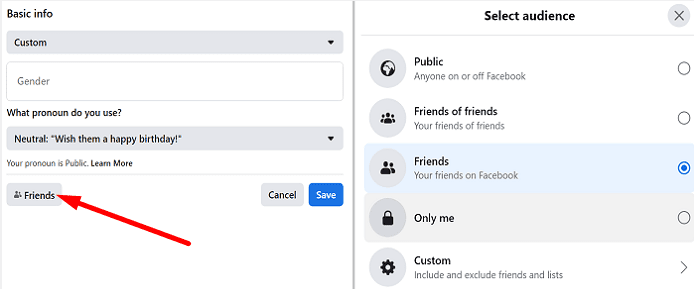
You can also specify which pronouns you want to use. Facebook lets you select between three pronoun options: him, her, or their.

Tweak Your Gender Privacy Settings
You can then edit your privacy settings and select who can see gender information on your profile. For example, you can make that information public, share it with friends only, or use custom settings.
How many gender options does Facebook have?
Facebook currently supports 61 gender options. Here’s the list of the gender options available on Facebook:
AgenderAndrogyneAndrogynousBigenderCisCis FemaleCis MaleCis ManCis WomanCisgenderCisgender FemaleCisgender MaleCisgender ManCisgender WomanFemaleFemale to MaleFTMGender FluidGender IdentityGender NonconformingGender QuestioningGender VariantGenderqueerIntersexMaleMale to FemaleMTFNeitherNeutroisNon-BinaryNon-binaryNot specifiedOtherPangenderTransTrans FemaleTrans MaleTrans ManTrans PersonTrans WomanTrans*Trans* FemaleTrans* MaleTrans* ManTrans* PersonTrans* WomanTransfeminineTransgenderTransgender FemaleTransgender MaleTransgender ManTransgender PersonTransgender WomanTransmasculineTranssexualTranssexual FemaleTranssexual MaleTranssexual ManTranssexual PersonTranssexual WomanTwo-Spirit
When did Facebook add gender options?
Facebook started expanding their list of gender identity options in February 2014. That was the moment that allowed people who identify as neither male nor female to select the gender that best defines who they feel they are.
In 2015, the company added the “Fill in the blank” gender option. If you don’t identify with the list of gender options available, you can simply add your own.
Conclusion
To change your gender on Facebook, go to “Contact and Basic Info”, select the “Gender” option, and then use the drop-down menu to select the appropriate option for you: Female, Male, or Custom. Facebook supports a total of 61 gender identity options.
Is there any gender identity option that Facebook forgot to add to the list? Comment down below.


Facebook don’t allow me to change my gender. It says “There was a problem saving profile changes. Please try again!”
My gender is and always has been FEMALE, but when in the Facebook gaming section, Facebook thinks I’m a man. Why?
thanks! this is helpful