Skip to content
LogoTechnipages
technipages logo
  • Topics
        • Android
        • Browsers
        • Gaming
        • Hardware
        • Internet
        • iPhone
        • Linux
        • macOS
        • Office
        • Reviews
        • Software
        • Windows
        • Definitions
  • Product Reviews
  • Downloads
  • About

Galaxy S8/Note8: Where is the Flashlight App?

Mitch BartlettSeptember 19, 2017 Comments (4)

Looking to use the Samsung Galaxy S8 or Note8 as a flashlight? Here’s where it’s found.

Option 1 – Quick Menu

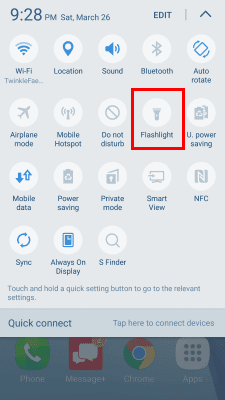
  1. From the Home screen, swipe downward from the top of the screen with two fingers.
  2. The “Flashlight” option is revealed. Tap it to enable the camera flash to act as a flashlight. Tap it again to turn it off.
    Galaxy S7 Flashlight

Option 2 – Use Bixby

Hold down the Bixby button and ask it to turn on the flashlight. You can also turn it off the same way.

FAQ

Can I access the flashlight feature from an icon or widget?

A third-party option from the app store would be required for that. You can add the flashlight option to the main row of the quick menu though. Just swipe down with two fingers again then select “Edit”. From there, tap and hold “Flashlight” and drag it to the top row, then tap “Done”. The option will then be available by swiping with only one finger from the top.

Categories: Android

Author Mitch Bartlett

My name is Mitch Bartlett. I've been working in technology for over 20 years in a wide range of tech jobs from Tech Support to Software Testing. I started this site as a technical guide for myself and it has grown into what I hope is a useful reference for all. Mitch's Favorite Gear ATX Graphics Card CanaKit Raspberry Pi 3

You Might Also Like

  • How To Stream Videos Directly from Android to Xbox

    MonaAndroid
  • How to Check for Software Update on Android

    Judy SanhzAndroid
  • How To Install Custom ROMs and GSIs on Samsung Galaxy Devices

    MonaAndroid
  • 5 Must-Have and Free Flight Tracking Android Apps

    Judy SanhzAndroid

Comments

  1. Shawn says:
    April 2, 2019 at 5:09 pm

    My Note 8 does not have that option on the pull-down nor does it have the Wi-Fi or the Bluetooth like yours does is there a way to fix this?

  2. Bruce Porter says:
    May 5, 2018 at 6:12 pm

    Yes, thank you very much.

  3. Mitch Bartlett says:
    September 22, 2017 at 12:39 pm

    I answered that question in the FAQ section of the post. You’ll need to download a third-party flashlight app for that.

  4. Holly says:
    September 21, 2017 at 2:15 am

    Is there a way to put the flashlight from the top screen on phone where settings are, to the home screen pages. I use to have an app that lets me just tap the app once it’s downloaded and automatically the flashlight turns on. All others I tried the app opens and u have to turn the light on that way. Thanks for taking time to read this.

Leave a Reply

Your email address will not be published. Required fields are marked *

This site uses Akismet to reduce spam. Learn how your comment data is processed.

300x600
Turning on Triple Touch Zoom on Android

Turning on Triple Touch Zoom on Android

How to Connect Outlook 2023 to Gmail

How to Connect Outlook 2023 to Gmail

Netflix: Change Password

Netflix: Change Password

Everything You Need to Know About WhatsApp Delete for Me

Step-by-Step Guide: How to Use WhatsApp on Your Computer

Android: Enable or Disable Background Data

Android: Enable or Disable Background Data

300x250
profile pic

The Experts Behind Technipages

My name is Mitch Bartlett. I've been working in technology for over 20 years in a wide range of tech jobs from Tech Support to Software Testing. I started this site as a technical guide for myself and it has grown into what I hope is a useful reference for all.

Learn More

300x250 2
technipages logo white
linkedin icon

Technipages is part of Guiding Tech Media, a leading digital media publisher focused on helping people figure out technology. Visit guidingtechmedia.com to learn more about our mission and team.

© 2026 Guiding Tech Media All Rights Reserved

  • About Us
  • Contact
  • Legal & Privacy

© 2026 Guiding Tech Media All Rights Reserved

Information from your device can be used to personalize your ad experience.
Do not sell my personal information.